14 Best Mac Apps in 2025 for Creators and Power Users

The 14 best Mac apps for 2025: boost productivity, creativity, and focus—ideal for creators and power users.
Intro
In 2025, the Mac remains the platform of choice for creators and power users. However, macOS's native experience is just the starting point; the third-party ecosystem is what truly extends its capabilities.
This article aims to curate a list of Mac tools that have stood the test of time. When evaluating and selecting these apps, I followed three core criteria:
- Solves Real Pain Points: It must solve concrete, high-frequency problems, not invented needs.
- Restrained Design: Powerful but not bloated, with interaction logic that feels intuitive to macOS.
- Beyond Native: It must offer an experience significantly better than Apple's built-in apps in its specific domain.
Quick Summary
.summary-table { width: 100%; border-collapse: collapse; font-size: 14px; text-align: left; } .summary-table th, .summary-table td { padding: 12px; border: 1px solid #e2e2e2; } .summary-table th { background-color: #f4f4f4; font-weight: 600; } /_ 斑马纹背景 / .summary-table tr:nth-child(even) { background-color: #fafafa; } / 链接样式 _/ .summary-table a { color: #000; text-decoration: underline; }
| Category | App Name | Core Value |
|---|---|---|
| Writing & Notes | Buildin | An All-in-One AI workspace rivaling Notion, supporting direct content monetization and private deployment. |
| iA Writer | Minimalist Markdown writing that offers an unrivaled focus experience. | |
| Tasks & Calendar | TickTick | A GTD tool fusing calendar views and a Pomodoro timer; a time-blocking assistant. |
| System & Productivity | Raycast | A keyboard-first system command hub replacing Spotlight. |
| Command X | Adds the missing "Cut" function to Finder. | |
| Apple Passwords | A system-native, zero-maintenance password manager. | |
| Visuals & Capture | CleanShot X | An all-in-one solution for screenshots, annotations, and OCR. |
| ScreenStudio | Automatically generates cinematic, zoomed-in screen recordings. | |
| Affinity | A free professional image editor and the best alternative to Photoshop. | |
| Voice & Meetings | Wispr Flow | A blazing-fast voice dictation tool relying on AI for auto-editing and polishing. |
| Granola | An AI assistant that understands meeting context and automatically extracts Action Items. | |
| Browsing & Info | Comet | An AI Agent browser capable of executing tasks and taking over web operations. |
| Reeder | An anti-algorithm RSS reader supporting Bionic Reading. | |
| Infuse | An elegant all-in-one local media library, the best companion for NAS users. |
Writing & Notes
Buildin
Core Positioning:
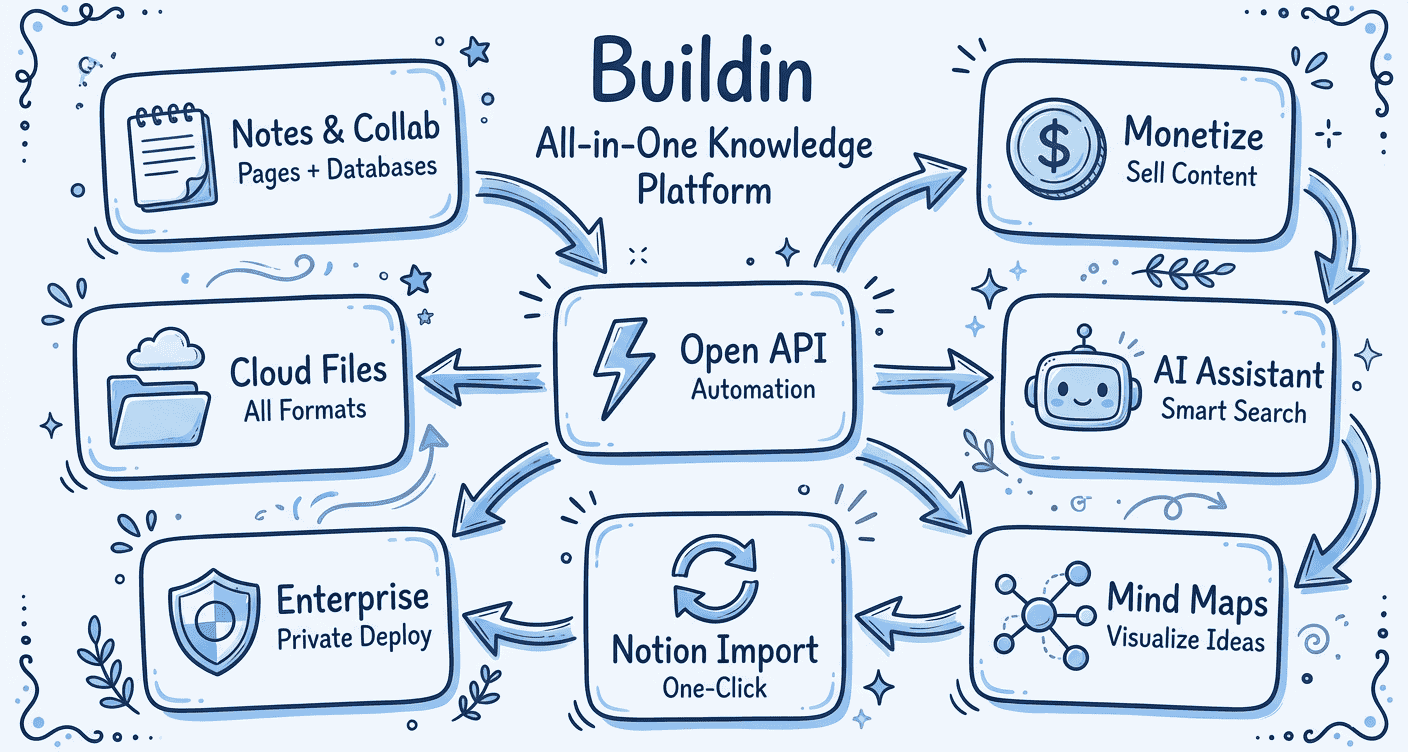
An All-in-One AI Workspace rivaling Notion
Main Use & Value:
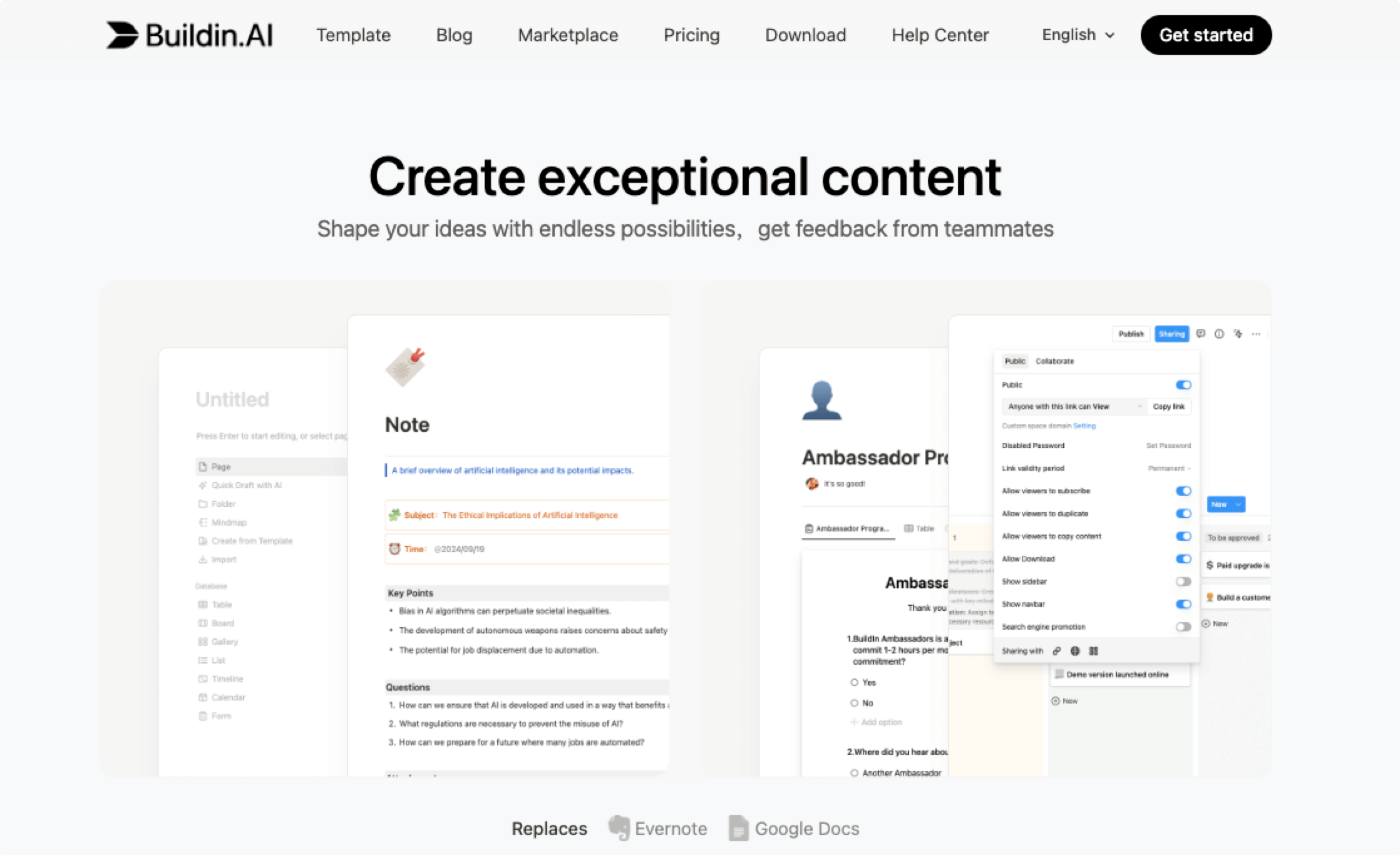
Buildin is not just a document tool; it's a "digital asset production line." It seamlessly connects Notion-style database management with visual Mind Maps, solving the pain point of "hard-to-structure ideas." Crucially, it features built-in monetization modules, allowing you to not only write content but sell it directly. Additionally, it supports private deployment, making it suitable for teams with strict data privacy requirements.
Key Features:
- Two-Way Flow: Breaks the boundary between docs and mind maps. You can brainstorm in "Mind Map" mode to quickly outline structure, then convert nodes into a structured document with one click. Conversely, existing long docs can be automatically dismantled into mind maps for logical reorganization.
- Content Monetization: This is its biggest differentiator. Without jumping to third-party platforms, you can set up "Paywalls" or "Member Areas" directly within your docs. Generate a link to sell instantly, with a built-in backend for order and user management.
- Database Applications: Supports Kanban, Table, Calendar views, and complex formulas similar to Excel. It can be used to build lightweight CRMs or project management systems.
Best For:
Enterprise teams needing internal SOPs; creators wanting to monetize their knowledge base directly; project managers needing highly customized workflows.
iA Writer
Core Positioning:
Minimalist Markdown Writing Software
Main Use & Value:
The core philosophy of iA Writer is "de-noising." It believes tools shouldn't get in the way of writing, so it removes all UI elements that might distract you (like complex toolbars or sidebars). It is, without a doubt, the tool that pushes the "plain text writing experience" to its absolute limit on the Mac.
Key Features:
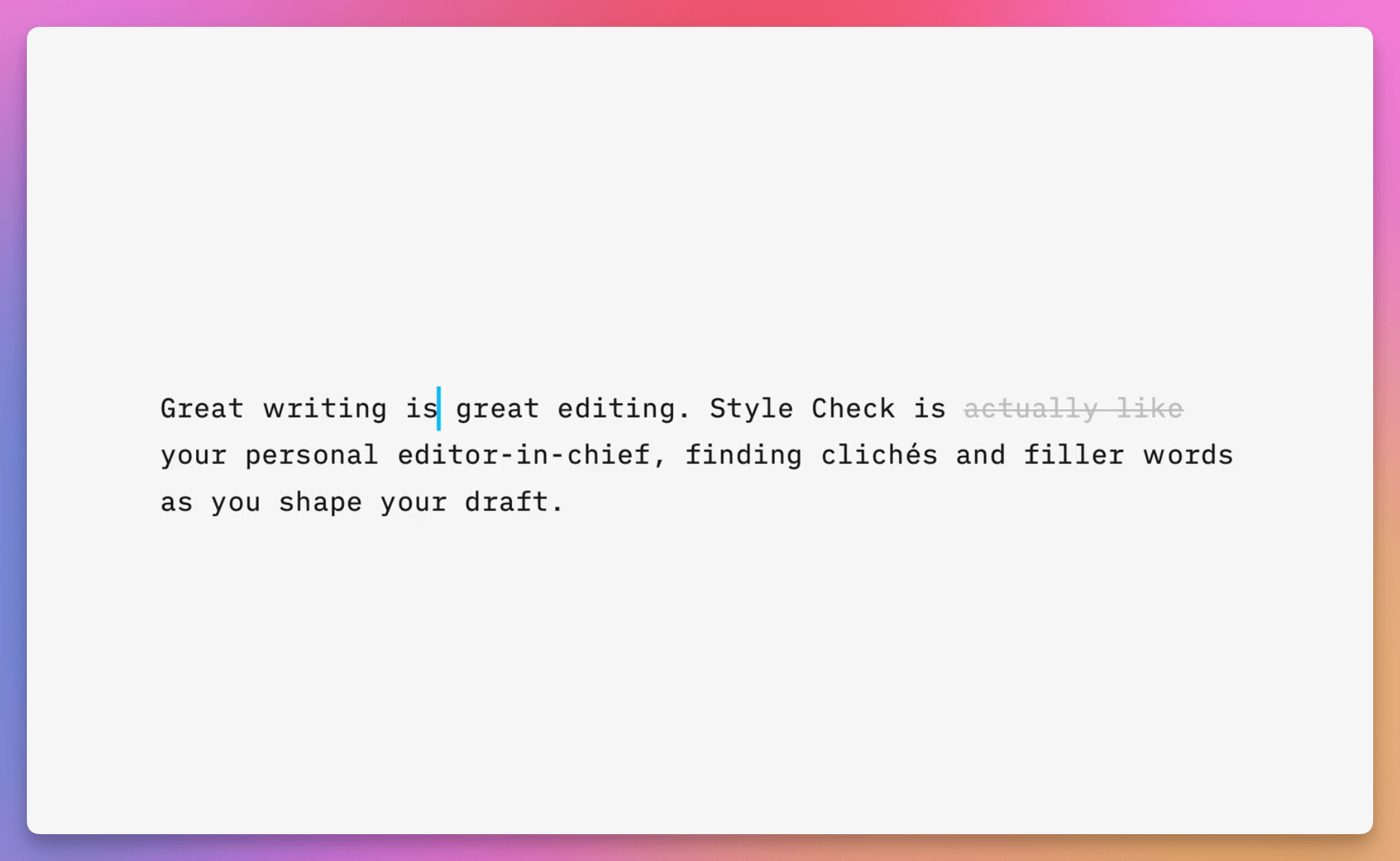
- Focus Mode: This is its soul. When enabled, the screen highlights only the sentence or paragraph where your cursor is, fading out the rest. This forces the writer to stop editing previous text repeatedly and maintain linear thinking, drastically boosting draft output speed.
- Syntax & Style Check: It doesn't fuss over layout but focuses on "expression." It highlights adjectives, adverbs, or repetitive words, helping you trim sentences and remove redundancies.
- Content Blocks: Supports referencing other documents or images via
/includesyntax, allowing you to assemble long articles like code, which are automatically stitched together upon export.
Best For:
Writing deep long-form articles or book drafts; creative writing requiring a flow state; hardcore Markdown users.
Tasks & Calendar
TickTick
Core Positioning:
GTD Tool Fusing Calendar Views & Pomodoro
Main Use & Value:
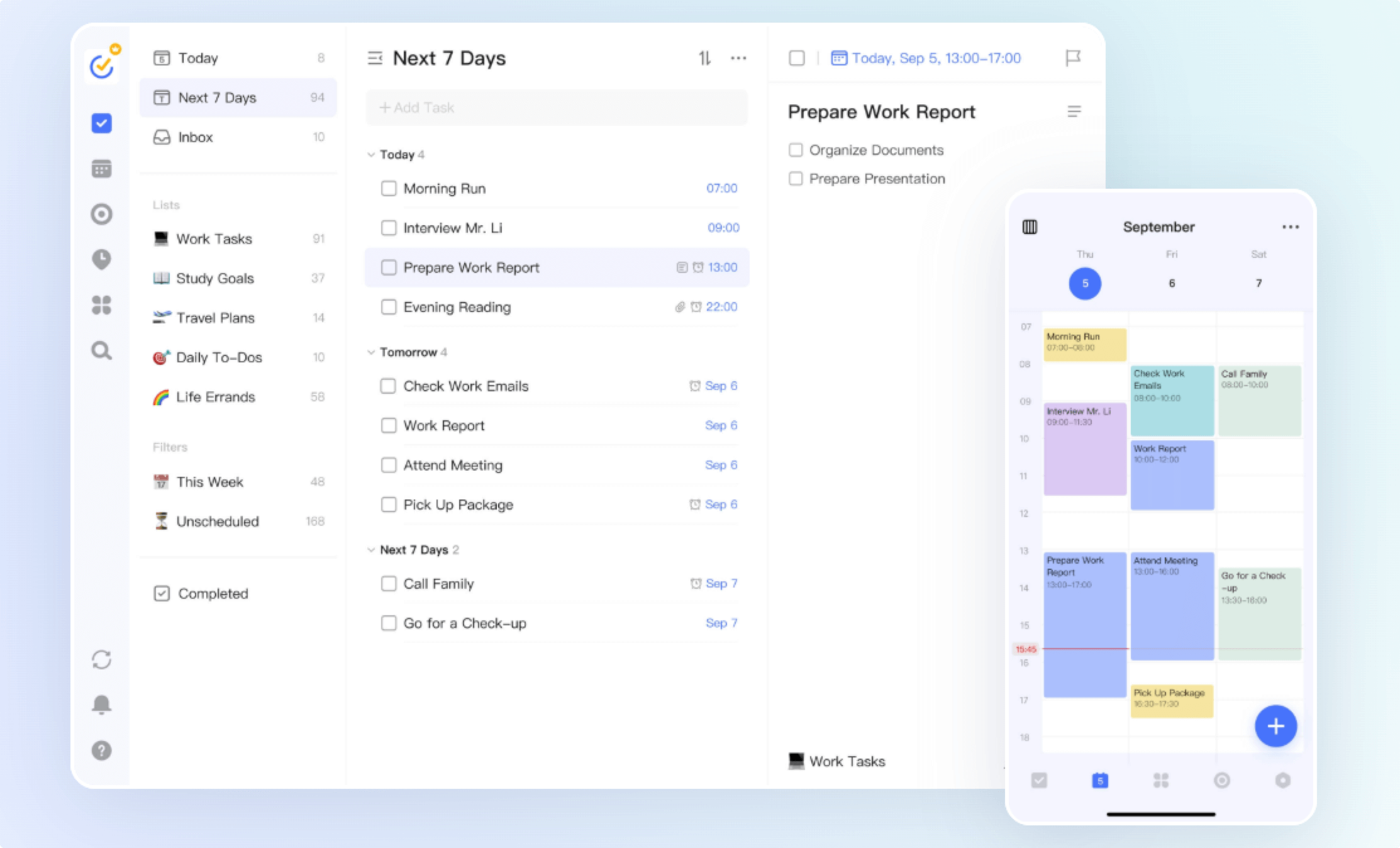
Most task apps only solve "what to do," but TickTick solves "when to do it." It's not just a list; it's a time management center. By forcibly binding task lists with calendar views, it lets you intuitively see if your "workload" exceeds your "time balance."
Key Features:
- Time Blocking: In the calendar view, you can drag "To-Dos" from the right sidebar directly onto the timeline on the left, instantly converting tasks into specific schedule blocks. This is the most efficient way to manage fragmented time.
- Global Quick Add: A very practical feature on Mac. Whether browsing the web or writing code, just hit the global shortcut (e.g.,
Cmd+Shift+A) to pop up an input box. Type "Meeting next Friday at 3 PM," and it automatically recognizes the time and adds it to your schedule without you leaving your current work interface. - Pomodoro Stats: The built-in Pomodoro timer not only tracks time but also displays a countdown in the menu bar. The detailed heatmaps and statistical reports generated afterward let you clearly know where your time went over the past week.
Best For:
Freelancers needing granular schedule planning; students wanting to boost efficiency via the Pomodoro technique; managers juggling multiple, complex projects.
System & Productivity
Raycast
Core Positioning:
AI-Driven System Command Hub
Main Use & Value:
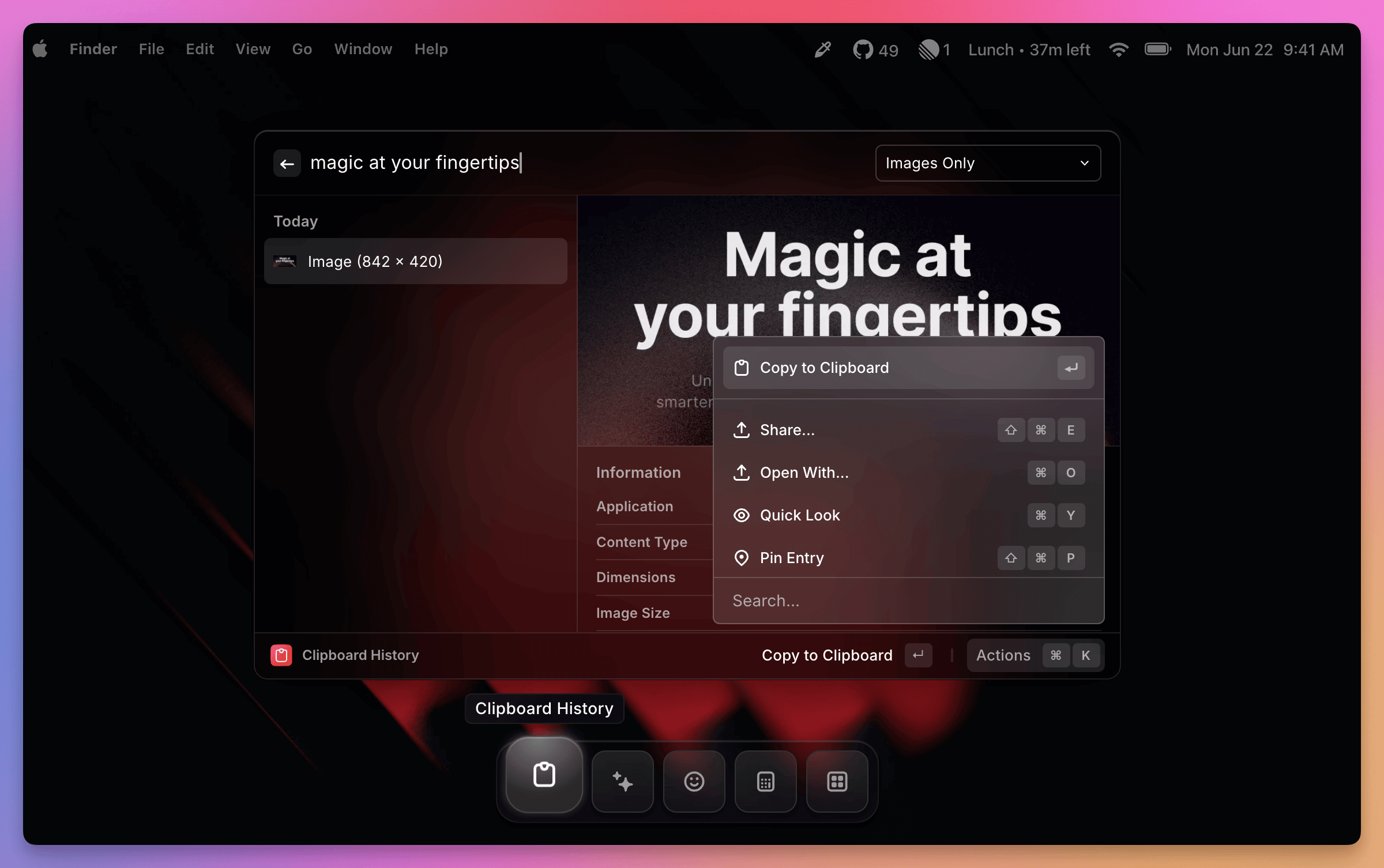
Raycast aims to replace Spotlight and become the Mac's "all-in-one keyboard gateway." Its core values are Speed and Connectivity. You don't need to open a browser, calculator, or translation app; all these trivial operations can be done within a single search box.
Key Features:
- Community Ecosystem: Boasts an extremely rich developer community. You can install extensions to control Spotify, search Notion docs, manage Docker containers, or even check the F1 schedule directly.
- Window Management: Built-in powerful window management (similar to Magnet). You can split, center, or maximize windows via shortcuts without installing extra software.
- Quicklinks: You can configure frequently used complex URLs (like search links with parameters) as shortcuts, taking you straight to a specific state of a target page with a short code.
- Clipboard History: Like Paste, it keeps everything you've copied. Retrieve and paste when needed, with support for filtering by text, color, or image.
Best For:
Keyboard-first power users; developers; operations staff frequently switching between multiple SaaS tools.
Command X
Core Positioning:
Finder Cut Functionality Patch
Main Use & Value:
macOS Finder natively lacks the Windows-style Ctrl+X (Cut) logic, which frustrates many platform switchers. Command X does one thing only: it adds this function back, and makes it feel as natural as a native feature.
Key Features:
- Seamless Integration: It’s not a standalone window app but injects directly into Finder's operation logic. Once installed, select a file and press
Cmd+X—the icon turns semi-transparent (visual feedback)—then pressCmd+Vto move the file. - Safety: Its operation essentially calls the system's move command; it won't corrupt files, and source files aren't deleted until pasted.
Best For:
Organizing download folders; sorting photo assets; new users switching from Windows to Mac.
Apple Passwords
Core Positioning:
System-Native Standalone Password Manager
Main Use & Value:
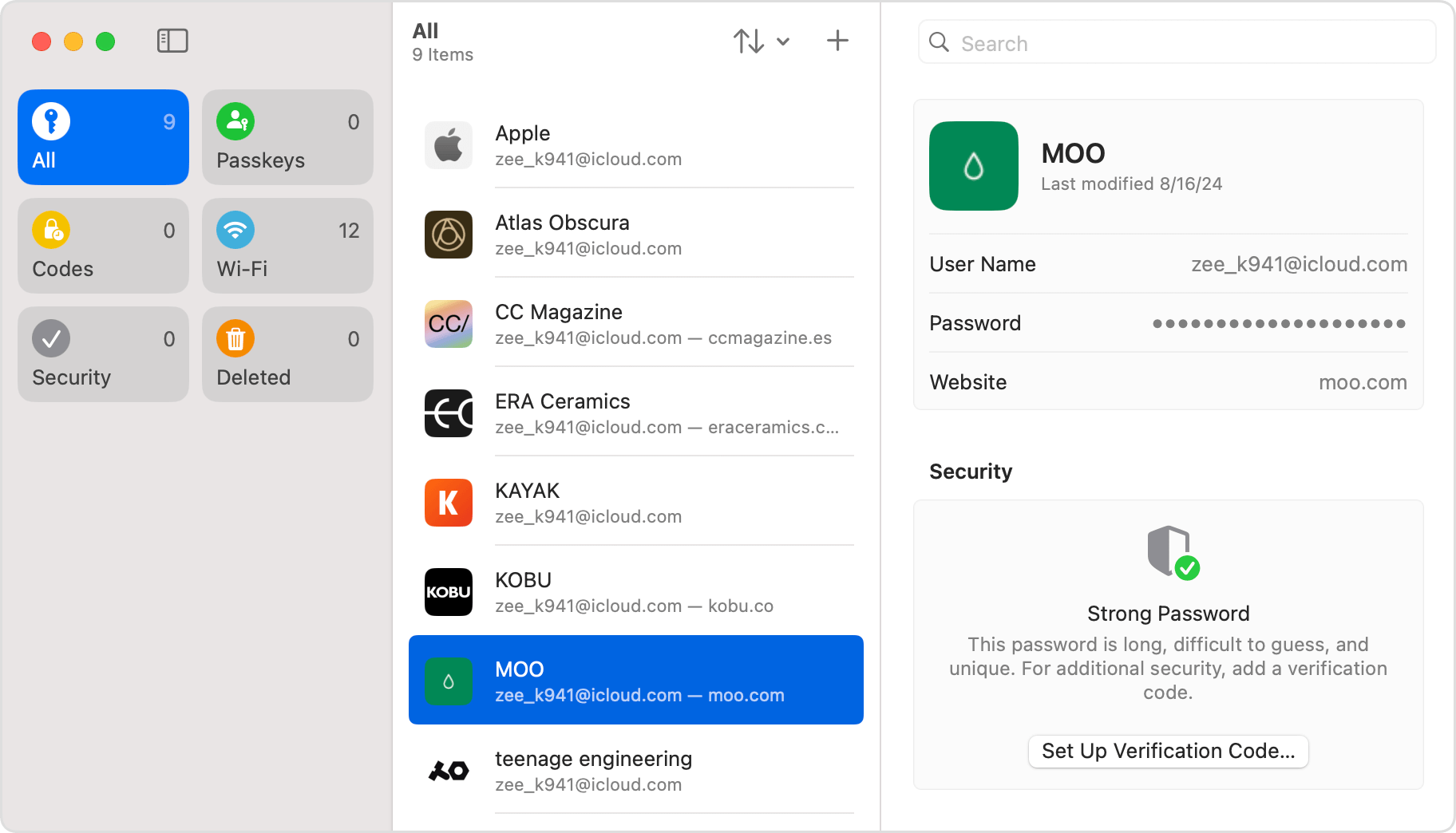
With the macOS Sequoia update, Apple finally spun "iCloud Keychain" off into a full-fledged App. Its advantage is zero maintenance cost. You don't need to worry about expired subscriptions or lost master passwords (it's bound to your Apple ID), and the autofill experience within the Apple ecosystem is unbeatable.
Key Features:
- 2FA Autofill: This is a killer feature. When logging into sites requiring 2FA, it autofills not just the username/password but also the dynamic verification code, saving you the step of checking an Authenticator app on your phone.
- Passkeys Support: Full support for "Passkeys," allowing you to log in to supported sites via Touch ID or Face ID—more secure than traditional passwords.
- Family Sharing Groups: You can create a "Family" group to put Wi-Fi passwords or streaming accounts in; family members in the group automatically sync these credentials.
Best For:
Password management for the vast majority of average users; users deep in the Apple ecosystem.
Visuals & Capture
CleanShot X
Core Positioning:
The Ultimate Screenshot Workflow Solution
Main Use & Value:
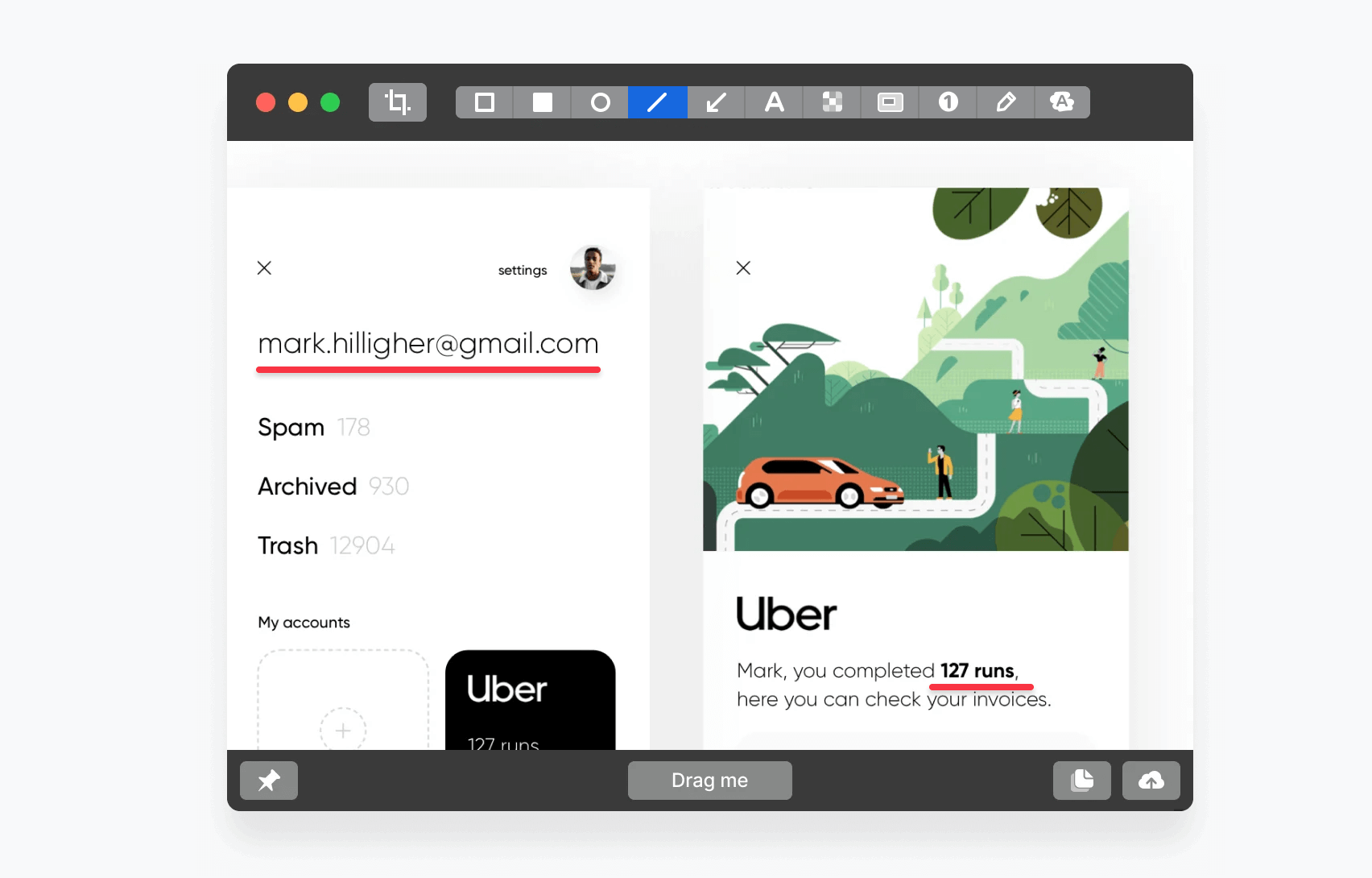
System screenshots only solve the "capture" part. CleanShot X solves everything "after the capture": annotation, beautification, sharing, and OCR. It turns fragmented screenshot operations into a fluid production line.
Key Features:
- Pin to Screen: After taking a screenshot, you can "pin" it to the top layer of your screen as a reference. This is incredibly useful when coding or writing while referencing materials.
- All-in-One Annotation: The popup immediately after capture lets you add steps (counters), highlight areas, or blur sensitive info.
- OCR Capture: Encounter text in images or protected web pages that you can't copy? Use the OCR capture feature to extract text directly to your clipboard.
Best For:
Creating text/image tutorials; product managers writing requirements; developers implementing UI from designs.
ScreenStudio
Core Positioning:
Automated "Cinematic" Screen Recording
Main Use & Value:
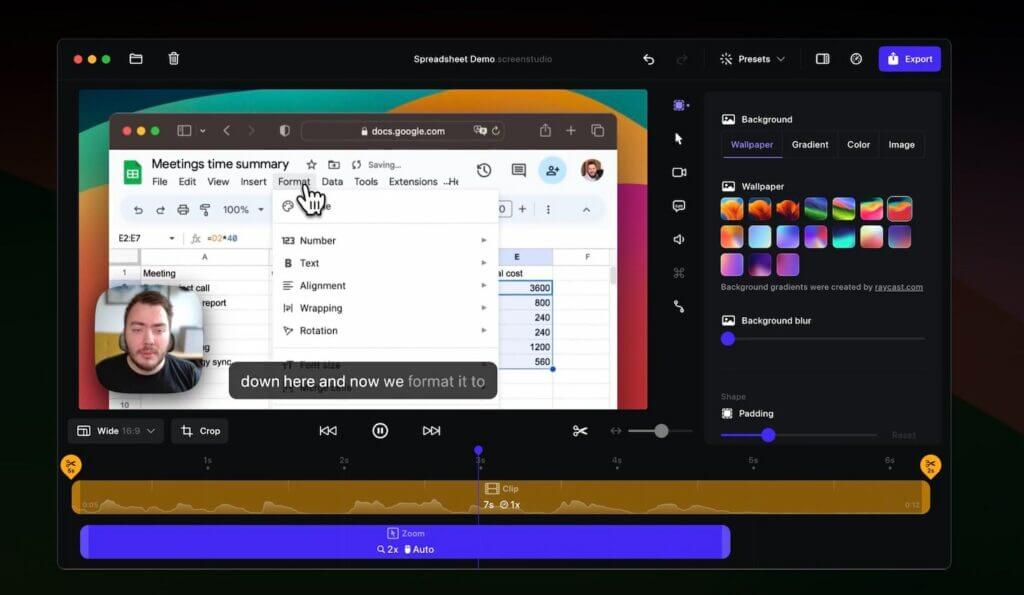
Videos recorded by traditional software (like OBS or QuickTime) are often flat, with jittery mouse movements and boring visuals. ScreenStudio uses algorithms to automatically beautify recordings, making your demos look like they were professionally post-produced.
Key Features:
- Cursor Smoothing & Follow: Automatically smooths out your jittery mouse trails and adds click ripple animations.
- Auto-Zoom: When you click a button or input field, the software automatically generates a smooth zoom-in shot to guide the viewer's eye—no manual keyframing needed.
- Background Synthesis: Automatically adds a polished desktop background, instantly elevating the video's professional look.
Best For:
SaaS product demo videos; App Store preview videos; educational course recording.
Affinity
Core Positioning:
Free Professional Image Processing Software
Main Use & Value:
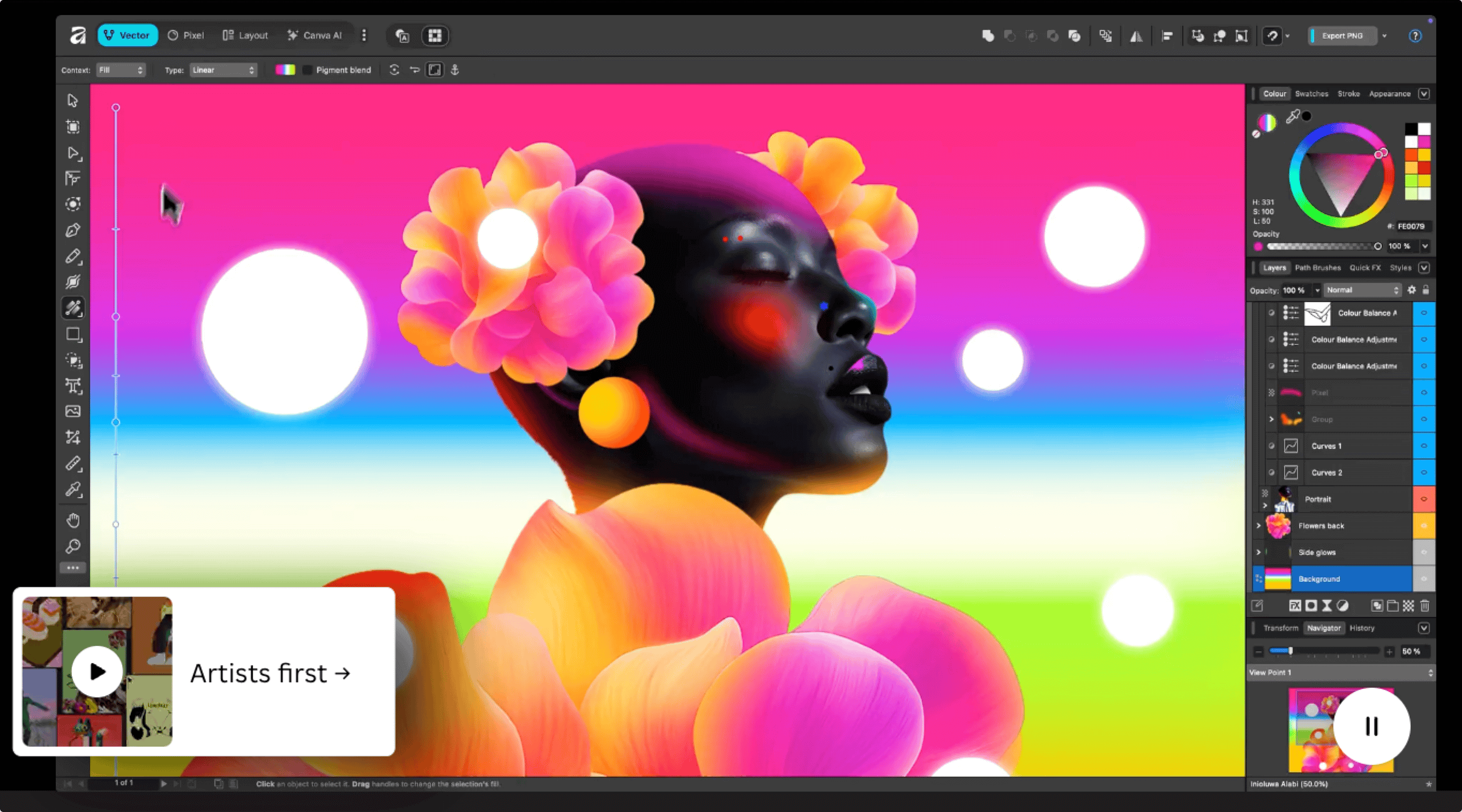
Since being acquired by Canva and re-released, the entire Affinity suite has been declared free for individual users. This means you get a professional tool that rivals Photoshop in features, but completely free and subscription-free. It is a powerful challenge to the Adobe subscription model.
Key Features:
- Pro Core Features: Retains all professional features including unlimited layers, RAW processing, frequency separation, liquify tools, etc., with zero feature stripping.
- Studio Integration: The new Affinity is a unified platform where you can seamlessly switch between Photo (editing), Designer (vector), and Publisher (layout) modes without reopening different apps.
- Clear Payment Point: The software itself is free. You only pay for a subscription if you use the integrated Canva AI features (like cloud generative fill); local professional editing functions are completely free.
Best For:
Any user needing photo editing but unwilling to pay Adobe subscription fees; graphic designers; photographers.
Voice & Meetings
Wispr Flow
Core Positioning:
AI-Driven Fast Voice Dictation
Main Use & Value:
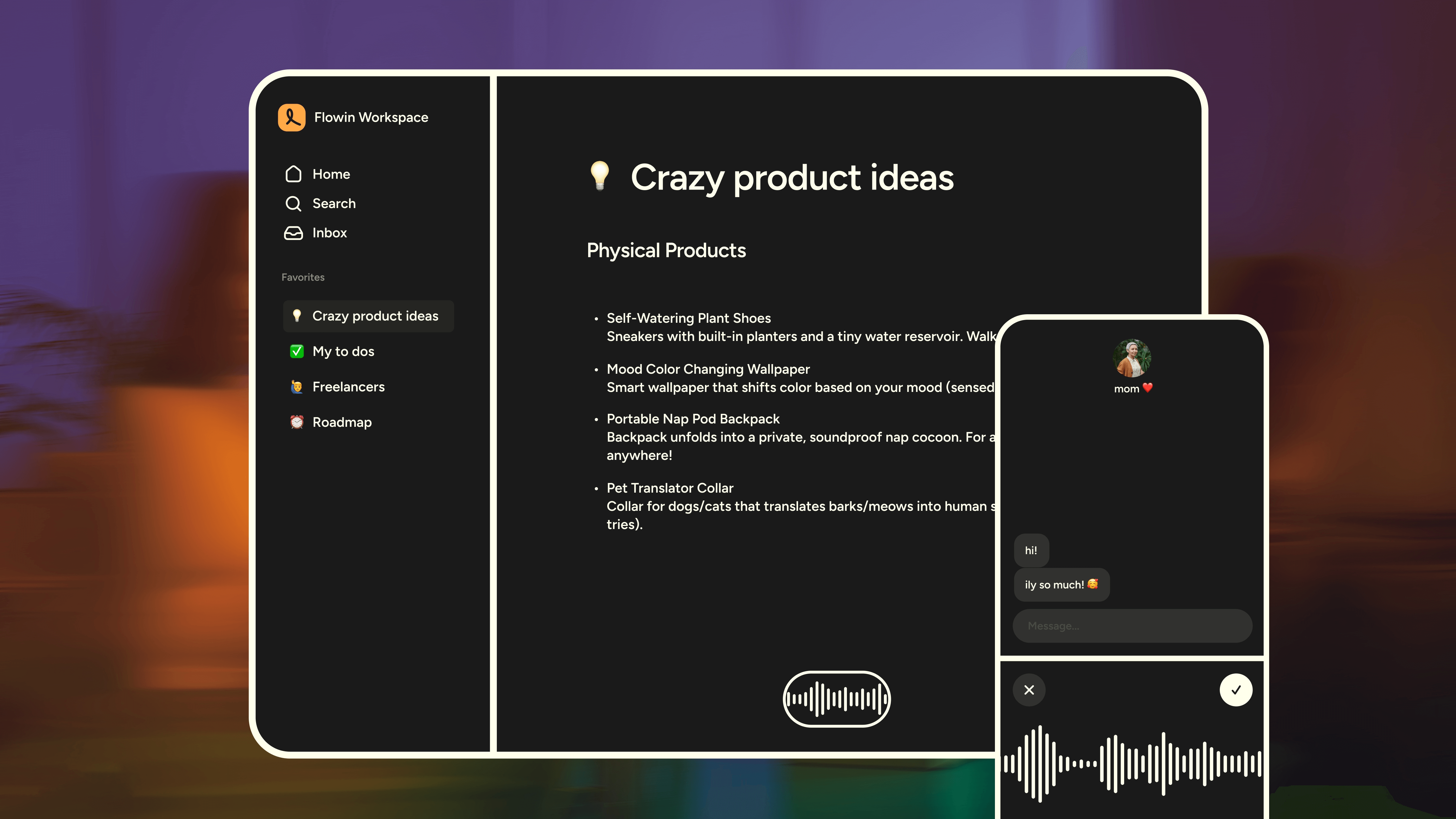
Wispr Flow isn't a simple dictation tool; it's a smart writing assistant that lets you "type with your mouth." Leveraging the power of Large Language Models (like OpenAI), it converts your speech into "ready-to-send text" in real-time, at 4x typing speed.
Key Features:
- Auto Edits: This is why it relies on LLMs. It understands context, automatically removing spoken filler (like "um," "uh"), fixing logic and typos, and outputting written language rather than a verbatim transcript.
- Personal Dictionary: It learns your exclusive vocabulary (like project codenames, names), getting more accurate with use. It supports a Snippet Library—say a specific phrase to trigger a long block of text.
- Privacy Control: Offers "Privacy Mode." When enabled, your audio and text are used only for current processing and are not retained to train AI models. It is SOC 2 Type II and HIPAA-ready compliant.
Best For:
Students dictating essay drafts; quick long replies in Slack/Email; lawyers or doctors dictating professional notes; any moment you "don't want to type."
Granola
Core Positioning:
Context-Aware Meeting Assistant
Main Use & Value:
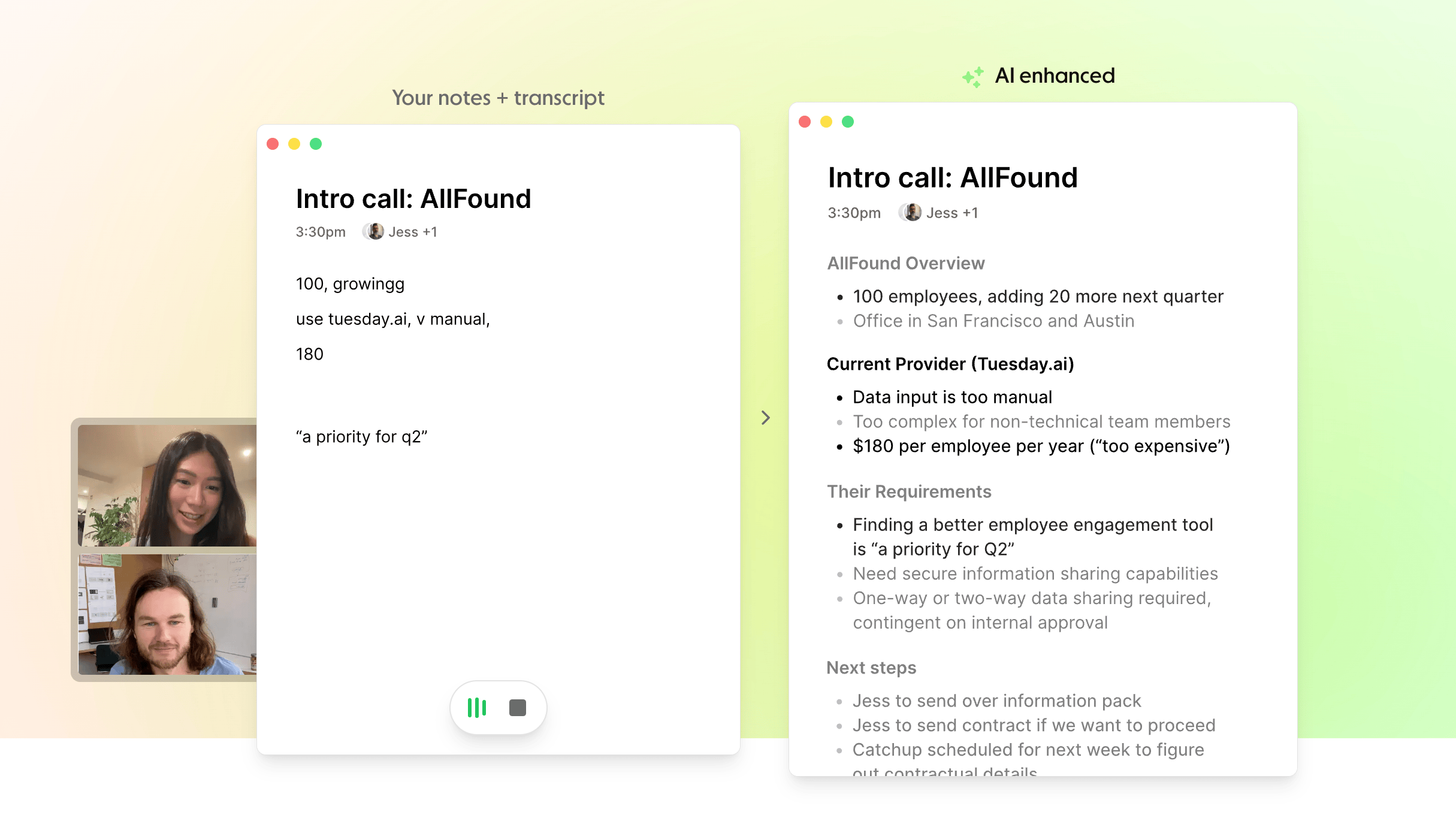
Granola is more than a note-taker; it's your "Meeting Co-pilot." It doesn't settle for verbatim transcripts but tries to understand the purpose of the meeting. It extracts information specifically based on templates you preset (e.g., "Recruiting Interview," "Product Review").
Key Features:
- Templated Output: If you choose the "Sales Meeting" template, it focuses on extracting customer pain points, budget, and next steps; for "Stand-ups," it extracts everyone's daily work and blockers.
- Action Items Extraction: Extremely accurate at identifying promissory statements in conversation (e.g., "I'll send that to you by next Tuesday") and auto-organizing them into a To-Do list.
- Context Awareness: It reads your calendar invite info to know attendees and meeting topics in advance, improving recognition accuracy.
Best For:
Project managers with frequent meetings; sales personnel needing to track numerous customer requirements; recruitment interviewers.
Browsing & Information
Comet
Core Positioning:
AI Agent Browser with Execution Capabilities
Main Use & Value:
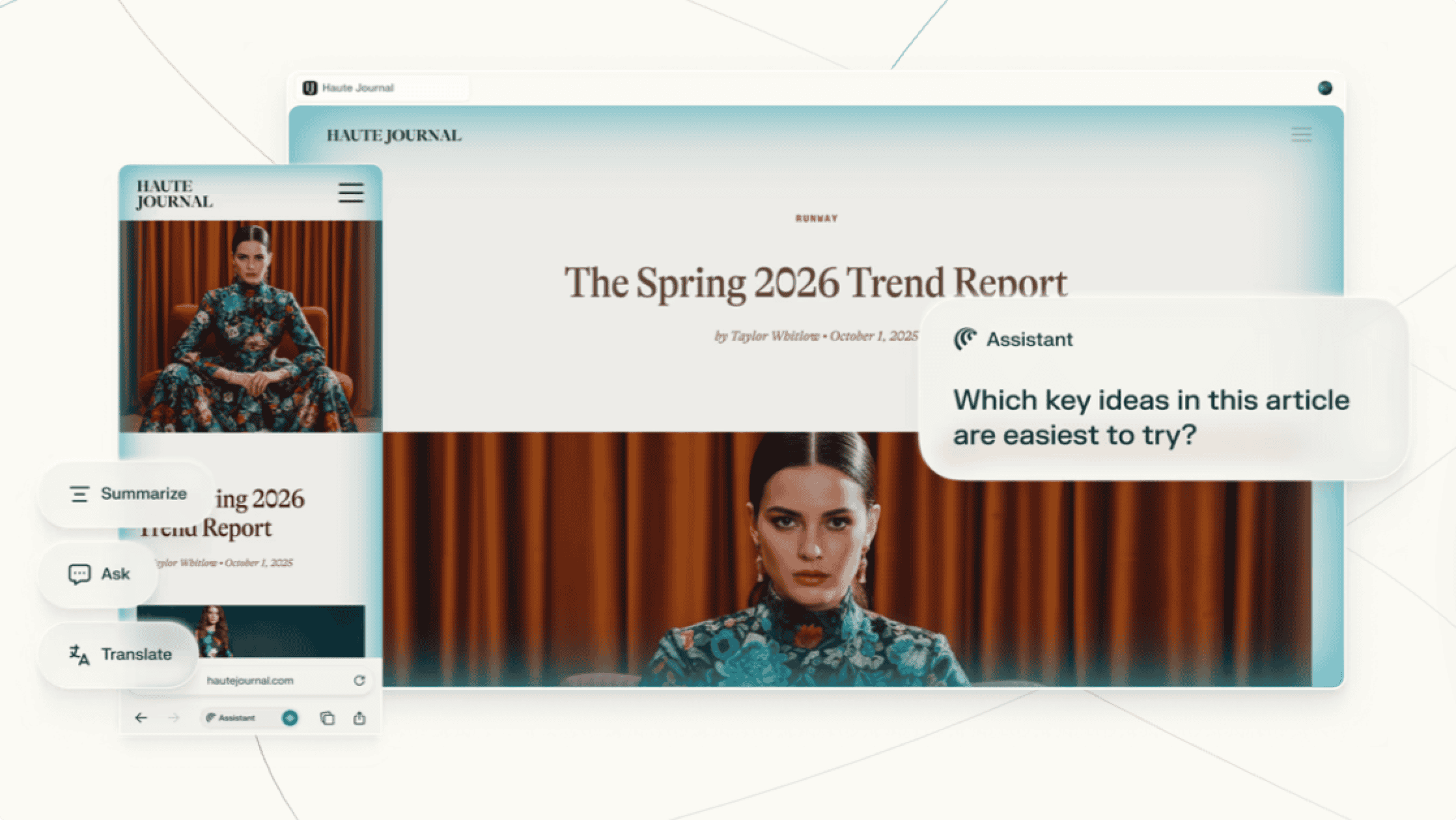
Comet is no longer just a window for "viewing" web pages; it's an Agent that helps you "operate" them. Its core is Browser Use technology, allowing AI to take over the browser and simulate human clicks and inputs to complete complex tasks.
Key Features:
- Task Execution: You can give it instructions like "Sort the reviews of this Amazon product by rating and summarize pros and cons," or "Monitor the price changes of this flight," and it will automatically control the page to click, scroll, and scrape.
- Browsing History Chat: It builds a local vector database indexing all web pages you've visited. You can ask: "What was that library mentioned in the React state management article I read last week?" and it will retrieve it precisely from your history.
Best For:
Deep information retrieval; automating repetitive web operations (like price comparison, form filling); retrieving knowledge fragments.
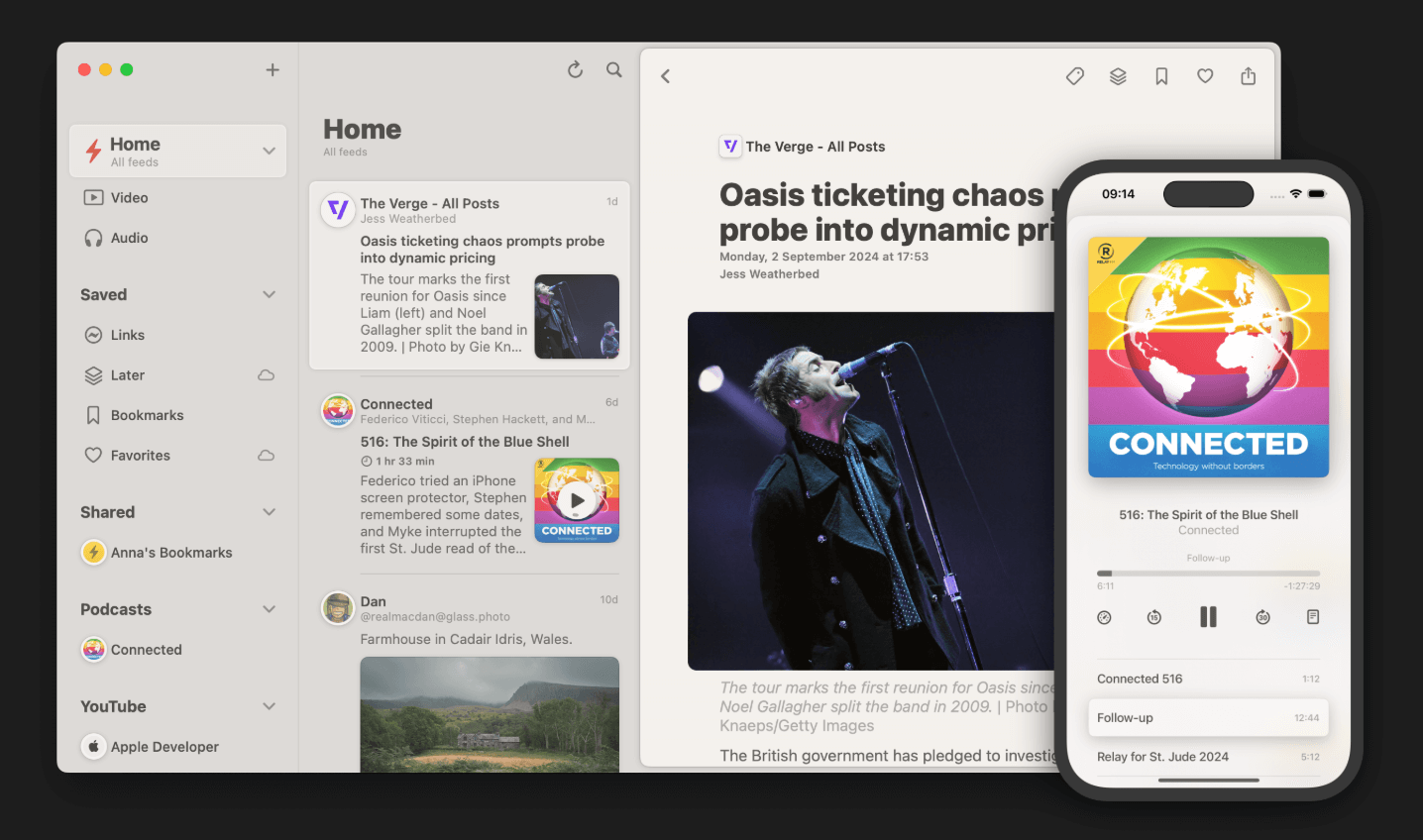
Reeder
Core Positioning:
Anti-Algorithm Aggregation Reader
Main Use & Value:
In an era of information overload, Reeder offers a sanctuary. It cuts off algorithmic recommendations, letting you see only content you've actively subscribed to. With iCloud sync, it ensures consistent reading progress across Mac, iPhone, and iPad.
Key Features:
- Bionic Reading: A signature feature of Reeder. By bolding the first few letters of words, it guides the eye to jump quickly, significantly increasing English reading speed.
- Video Source Support: Besides articles, it perfectly supports YouTube channel RSS subscriptions. You can watch videos in Reeder's clean interface, completely avoiding the inductive recommendations and ads on the YouTube homepage.
- Read Later: Built-in read-later service with cross-device sync. You can save articles to Reeder from your browser with one click, saving them for focused deep reading on weekends.
Best For:
Establishing a high-quality information input stream; tracking specific tech blogs or Newsletters; breaking "feed addiction."
Infuse
Core Positioning:
Elegant All-in-One Local/LAN Media Player
Main Use & Value:
Infuse turns a "player" into a "private Netflix." It boasts the strongest decoding capabilities and the most beautiful poster wall interface on the Mac platform. For users with large local video libraries (MKV, ISO, MP4), it is the only choice.
Key Features:
- Smart Metadata Fetching: Just drag in a folder containing videos (whether external hard drive or NAS), and within seconds it matches movie posters, summaries, cast lists, and ratings, turning messy filenames into a stunning media library.
- Protocol Support: Deeply adapted for local/LAN storage, supporting SMB, NFS, FTP, WebDAV, and almost all network transfer protocols. You can stream videos directly from Google Drive or other cloud drives (via WebDAV) without downloading to local storage.
- Trakt Sync: Automatically syncs your watch history to the Trakt platform, making it easy to track show progress and compile viewing stats.
Best For:
NAS users; HD movie collectors; users needing seamless playback switching between multiple devices.
Conclusion: Tools are Means, Not Ends
In compiling this list, I deliberately avoided many popular but feature-bloated tools.
The highest state of a good tool is "invisibility." Buildin becomes invisible when you think, TickTick when you focus, and Raycast when you operate. Their existence isn't for you to spend time configuring and tinkering, but to help you enter a flow state faster and get real work done.
Suggested Action Plan: Don't try to install all software at once. Start with one area where your current pain point is strongest (e.g., if screenshot efficiency is low, try CleanShot X; if notes are messy, try Buildin), and give yourself a week to adapt. If it doesn't yield a qualitative leap in your efficiency, don't hesitate to uninstall it.
After all, the best tool is the one you actually use.

Buildin Team
Shares the latest Buildin updates, product releases, and usage guides, along with practical insights into knowledge management, content creation, team collaboration, and the evolution of AI. Content is based on real product development and user feedback, helping teams work more efficiently with Buildin.