Task Tracker
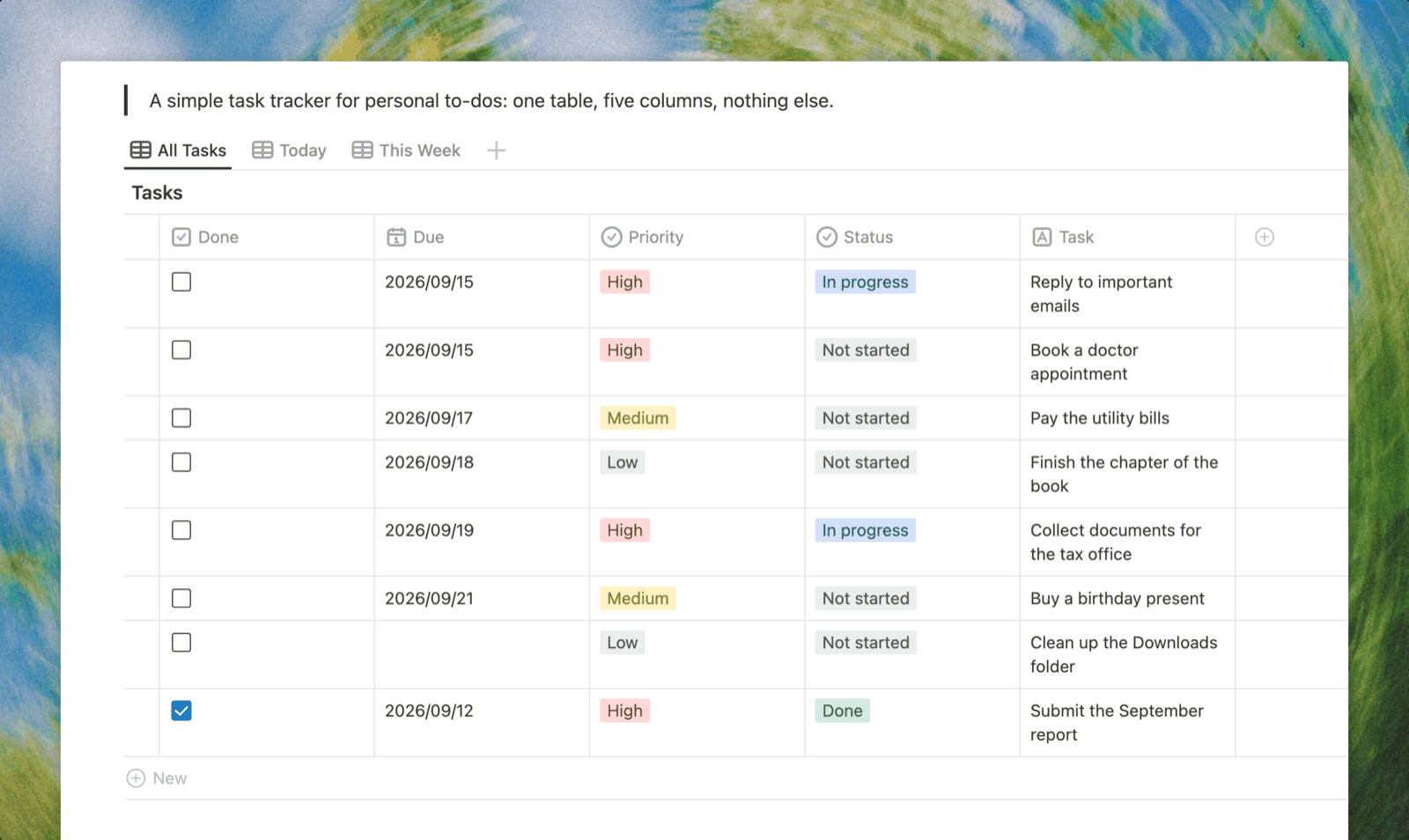
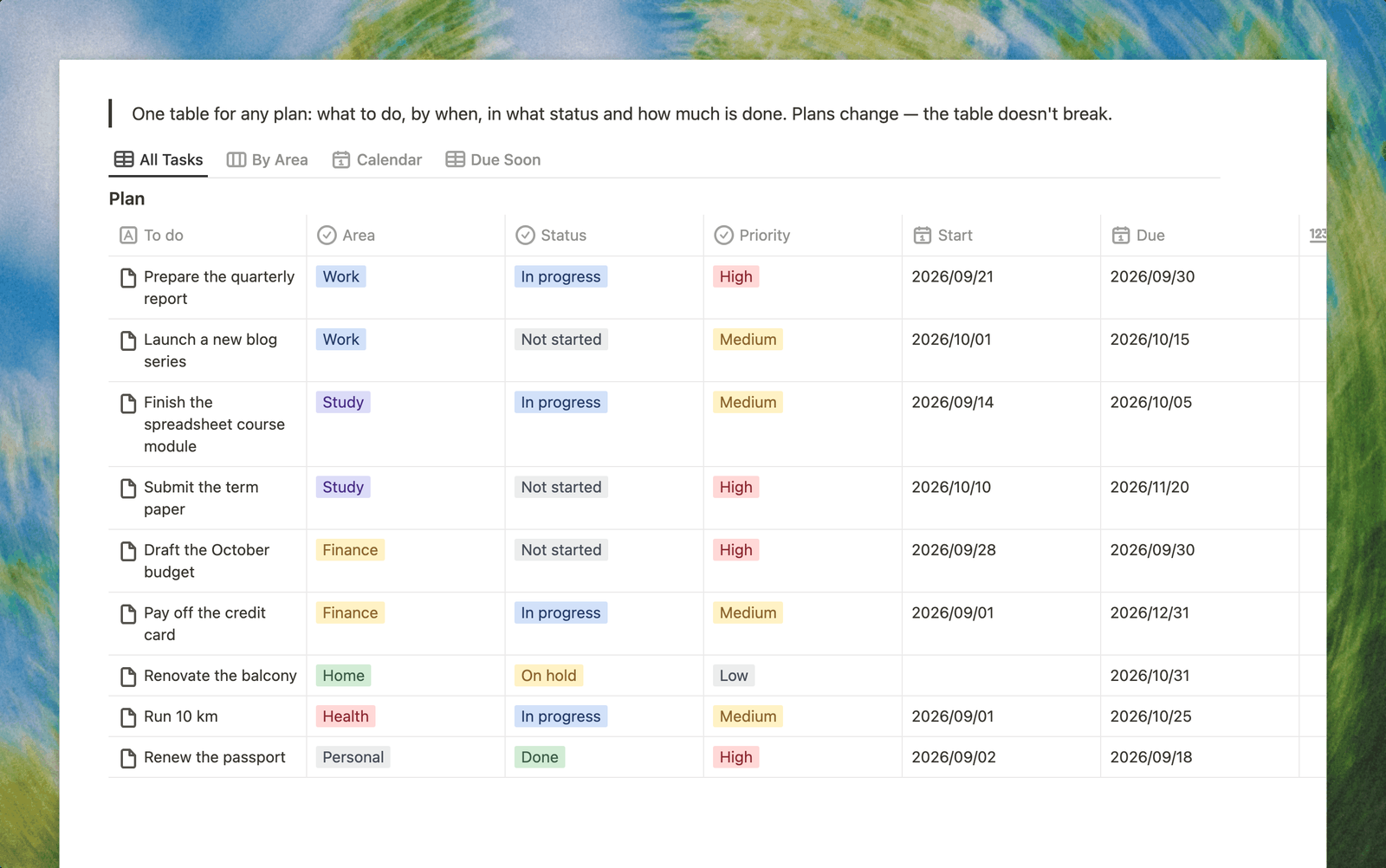
A simple task tracker in Buildin: one table, five columns and nothing else. Task, priority, due date, status and a done checkbox — everything you need to keep personal to-dos in one place without losing them. Separate Today and This week views show only what actually needs attention.
Task Tracker
A task tracker is one table that shows what needs doing, how much it matters and by when.
What is a task tracker?
A task tracker is the simplest way to stop keeping things in your head. Unlike a project management system there are no assignees, stages or dependencies here — only your own tasks, their priority and their due date.
Many people keep such a list in Excel or Google Sheets, and to begin with that is enough. The trouble starts when a task moves to another day: in a spreadsheet you copy it by hand, and to see "what is due today" you re-sort the sheet every time. In a database the same thing is a changed date and a switched view.
Key features
- Five columns, nothing else. Task, priority, due date, status and a Done checkbox — exactly as much as a personal list needs.
- A Today view. Shows only tasks due today that are not finished yet. In the morning you open it and ignore everything else.
- A This week view. What is still ahead in one list, so nothing creeps up on you.
- Priority instead of endless sorting. High, medium, low: enough to decide where the day starts, without building a perfect order.
- Finished work does not pile up. Tick Done and the task stops appearing in your working views.
How to use the task tracker
- Add a task and set a due date — that is enough to start. Fill in the rest only when you need it.
- Set priority on the tasks that genuinely matter. If everything is high priority, priority means nothing.
- Open the Today view each morning and work from it alone.
- Mid-week, check This week to see what is left and what should be moved.
- Tick Done as you go, so the list stays short instead of becoming intimidating.
Who is the task tracker for?
Anyone running several tracks at once — work, study, home — who wants every task visible in one place. The template is built for personal use.
As soon as tasks acquire assignees, stage deadlines and dependencies between them, it is a project, and a project management template will serve you better. Simplicity here is not a limitation but the point: a task tracker works exactly as long as it stays quick to fill in.
Start using the task tracker
Copy the template, add your own to-dos and set due dates. The Today and This week views are already set up and start working straight away.