Planning Spreadsheet
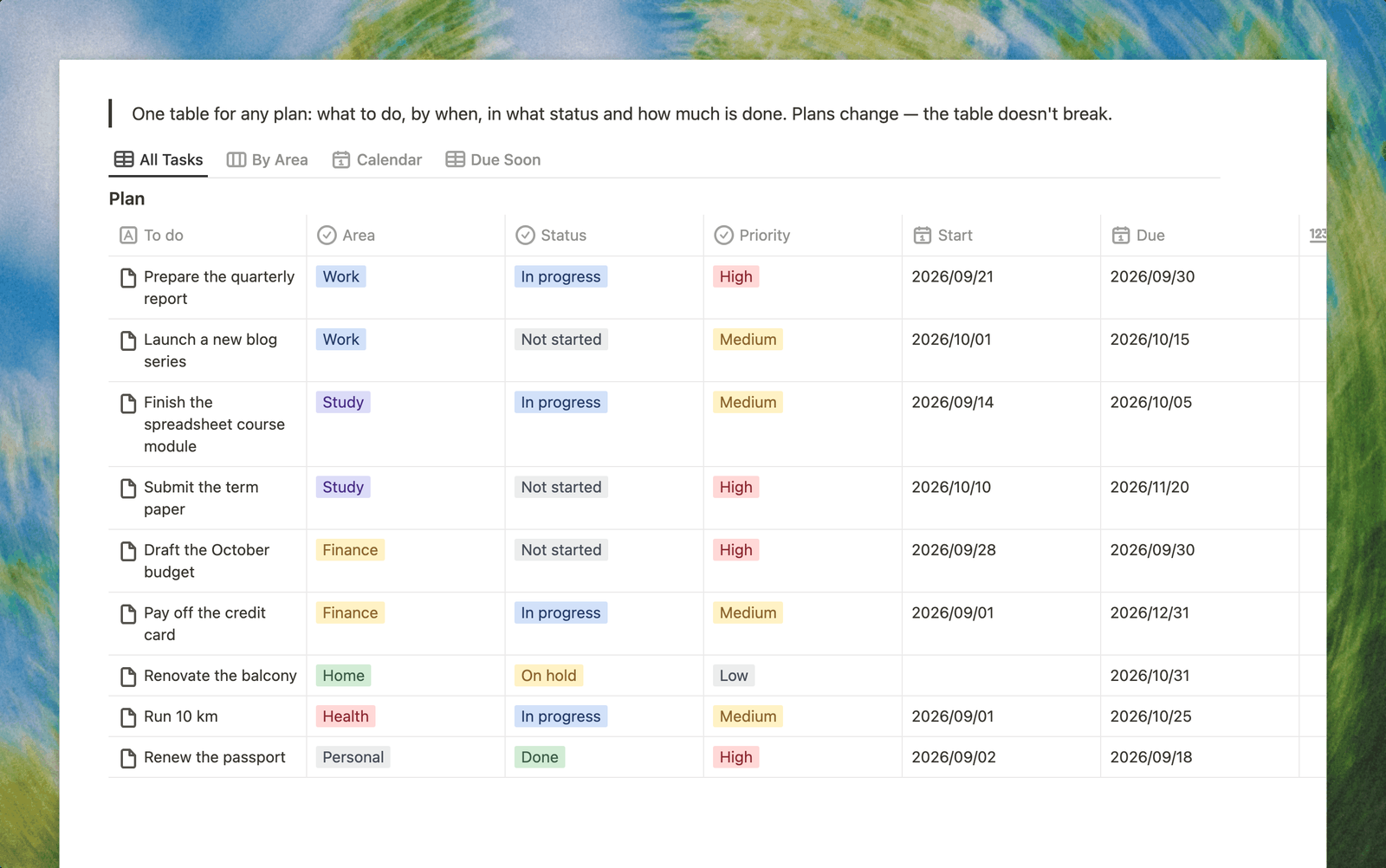
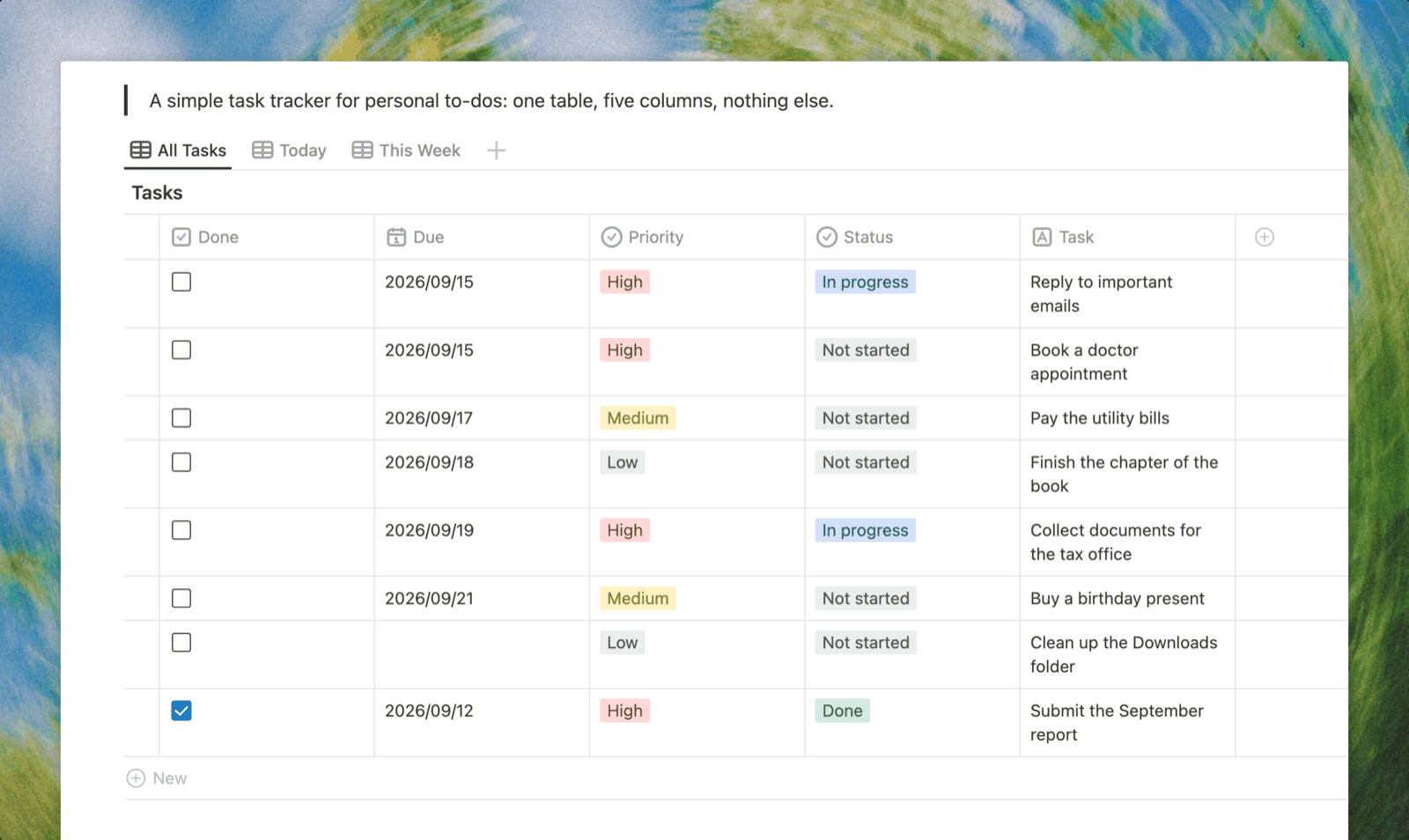
A planning spreadsheet in Buildin: one table for any plan — what to do, by when, in what status and how much is done. Work, study, home and finance tasks live in one place, and when the plan shifts you change a date instead of moving rows around by hand.
Planning Spreadsheet
A planning spreadsheet keeps every plan in one place: what needs doing, by when, how important it is and how much is already done.
What is a planning spreadsheet?
It is the most flexible plan format. Unlike a weekly or monthly planner, a spreadsheet is not tied to a time period: one row can be tomorrow's task and the next a six-month goal. What matters is that every row has a due date, a status and a clear next step.
Many people start this kind of plan in Excel or Google Sheets, and that is a fine start. Problems appear later: statuses get spelled differently, dates are stored as text, and when the plan shifts, rows have to be moved by hand. Here the same thing is done by changing a date or picking a value from a list.
Key features
- Eight columns for every case. To do, area, status, priority, start, due, progress and notes — enough for personal errands and for a small project.
- Areas instead of separate sheets. Work, study, home, finance, health and personal live in one table with a colored tag. Rename them to fit your life.
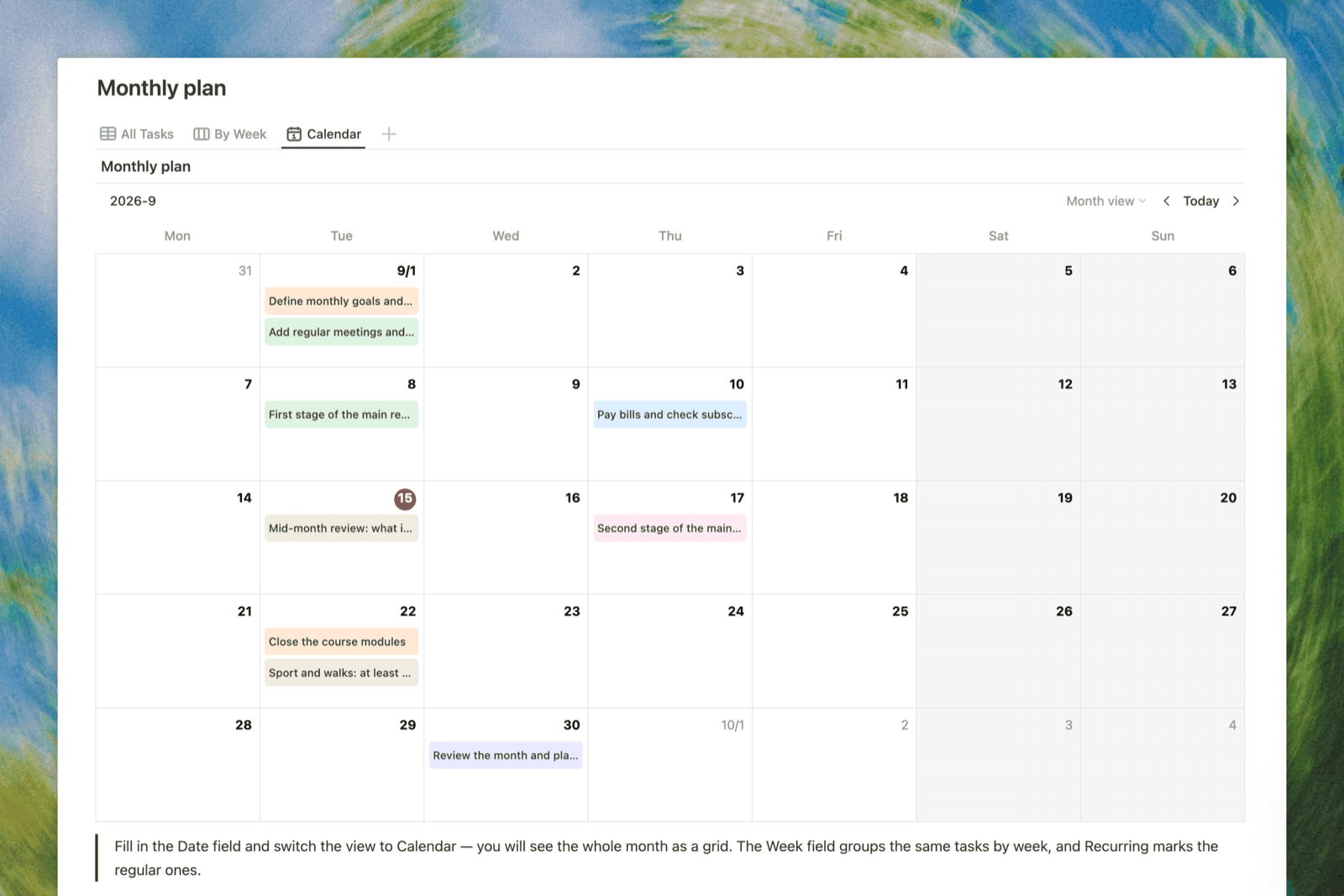
- Real dates. Start and Due sort and filter as dates, and the same plan opens as a calendar — no formulas.
- Progress in percent. For long tasks you instantly see what is almost done and what is stuck.
- Statuses from a list. Not started, In progress, Done, On hold — consistent values that are easy to filter.
- Four ready-made views. All tasks, a By area board, a Calendar by due date and Due soon — only unfinished tasks, most urgent on top.
How to use the planning spreadsheet
- Delete the sample rows and add your own tasks. A name and a due date are enough to start.
- Assign each task to an area to see where the plan is overloaded.
- Mark as high priority only what truly matters this week.
- For tasks longer than a few days, update Progress, % — once a week is enough.
- Once a week, open the Due soon view and reschedule what won't fit right away.
Who is the planning spreadsheet for?
People who keep a plan in Excel or Google Sheets and are tired of maintaining it by hand. People juggling several areas at once — work, study, home — who want to see them in one place. And anyone who finds day-by-day planners too rigid.
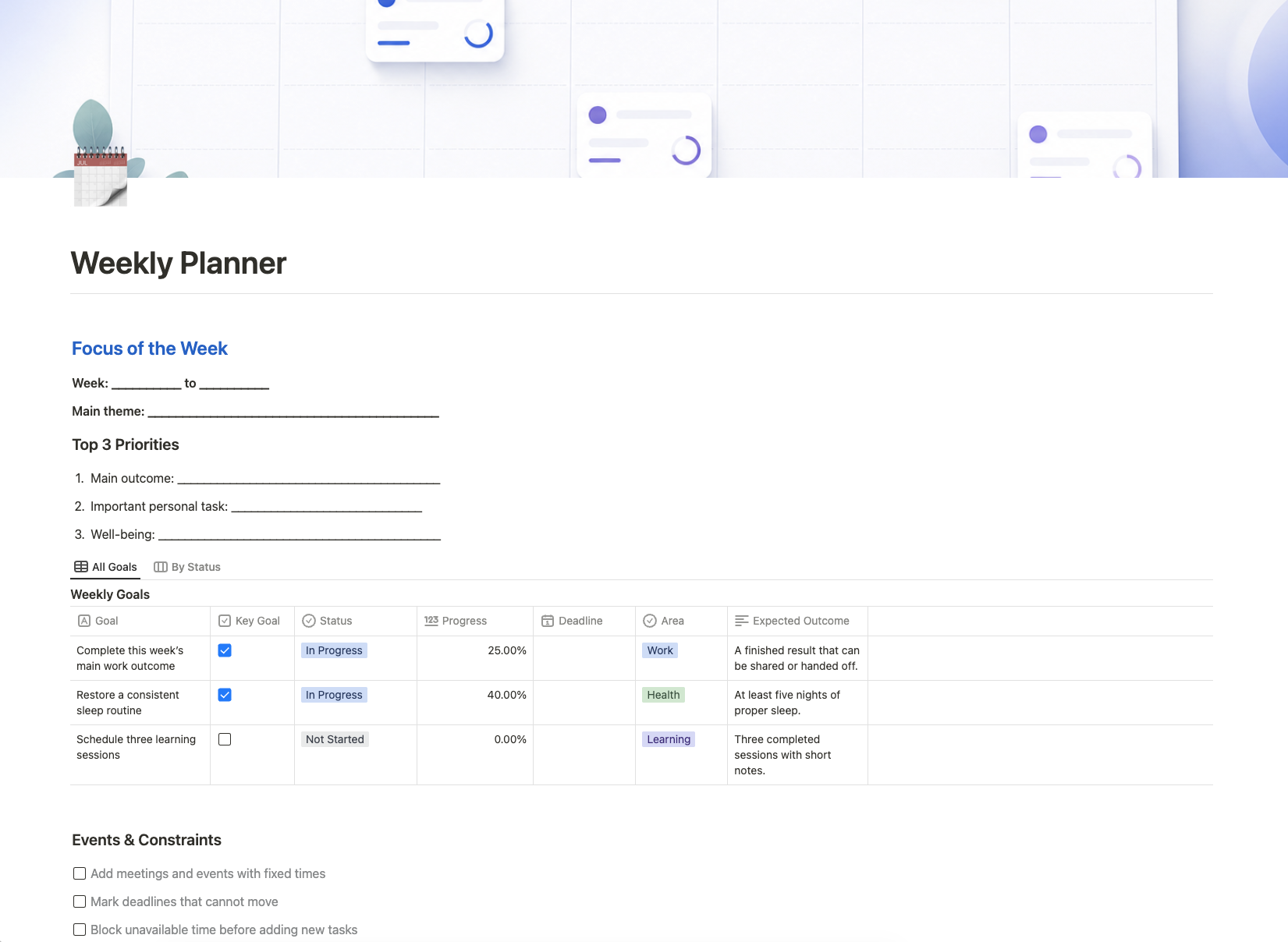
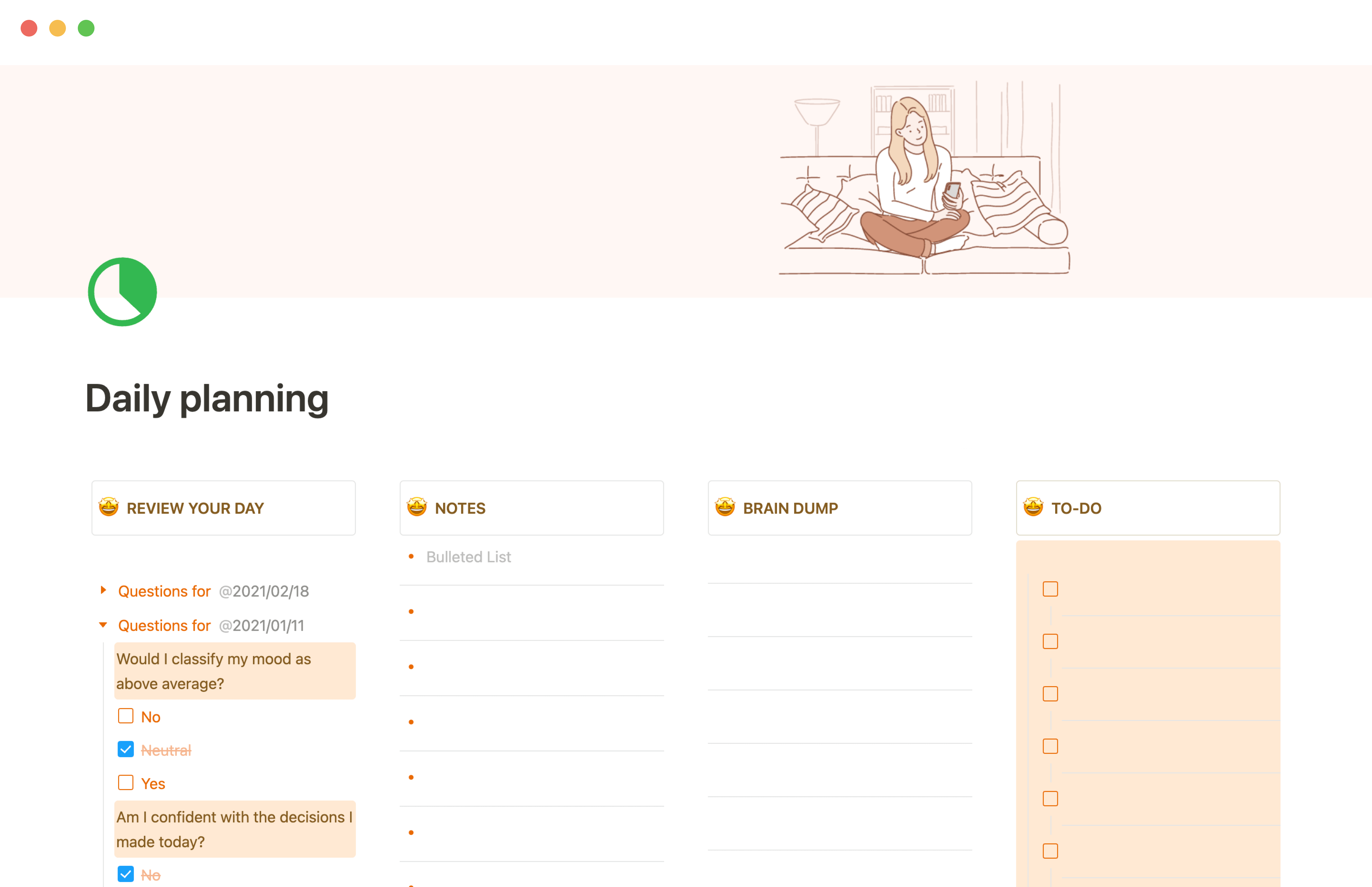
If you need a plan broken down by time, a weekly or monthly planner is a better fit. If tasks start getting assignees and stages, it is a project, and there is a project management template for that.
Start using the planning spreadsheet
Duplicate the template, replace the samples with your tasks and set due dates. The planning spreadsheet works right away: the board, calendar and due-soon views are already set up.