How teams are using AI to turn scattered work into shared knowledge
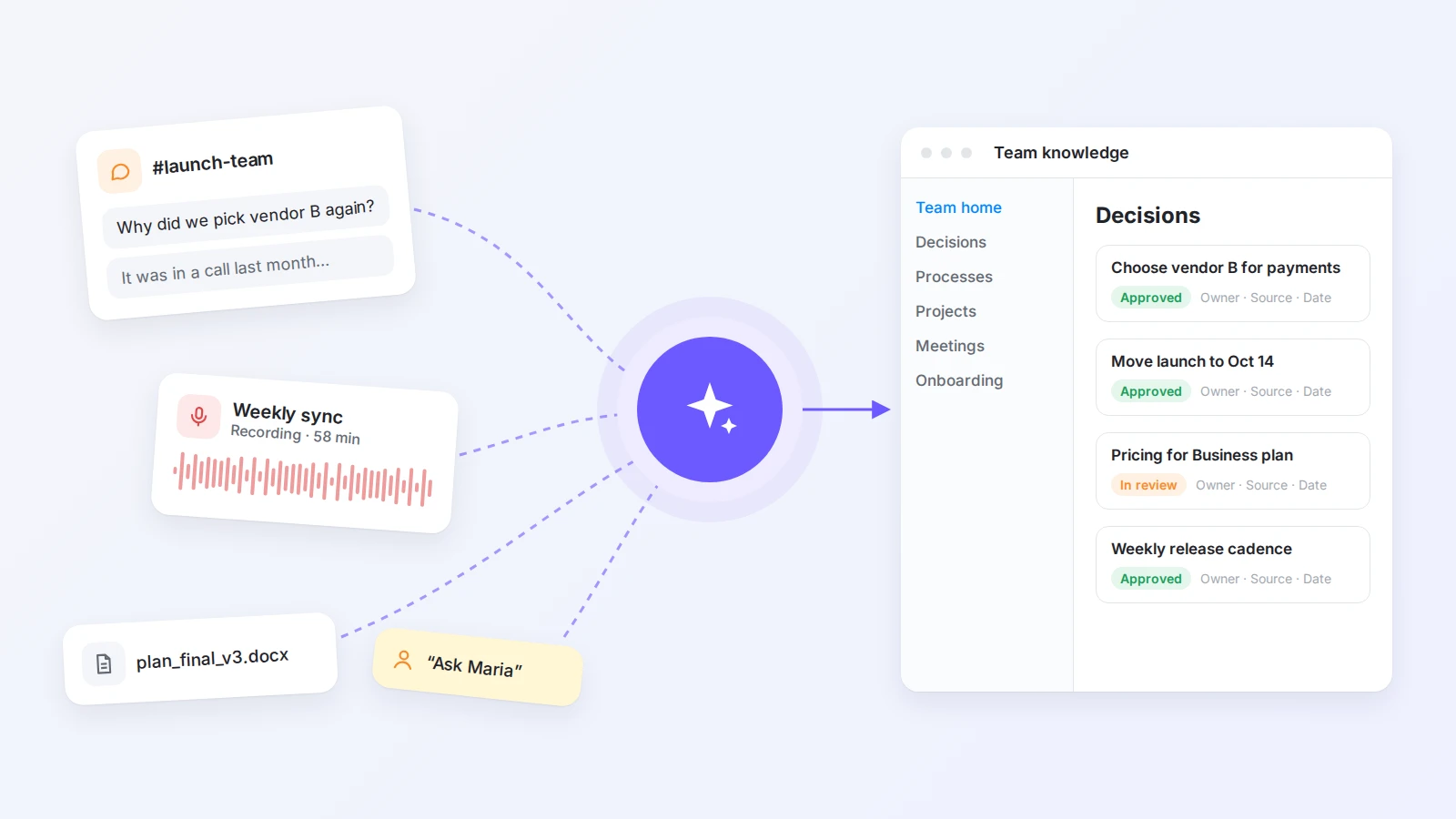
Decisions live in chat threads, context lives in meeting recordings, and processes live in one person’s head. Here is the workflow teams use to turn that scattered work into a knowledge base AI can actually help with.
Most teams do not lack knowledge. They lack a place where it stays. A decision is made in a chat thread, the reasoning is explained in a meeting, the final version sits in someone’s draft, and the person who understands the whole story is on holiday.
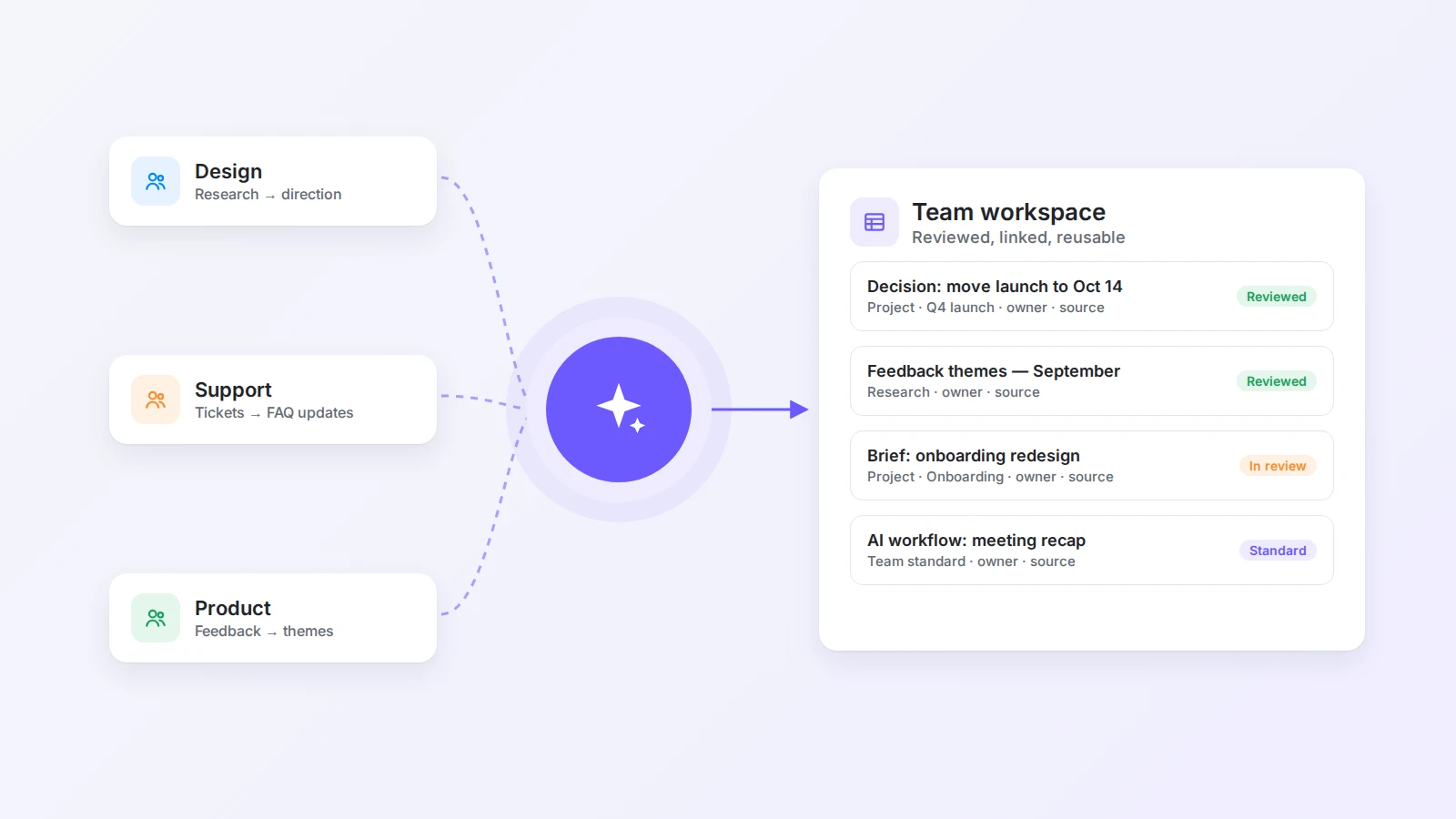
AI will not fix that by itself, but it has made the most tedious part — turning raw work into something other people can read — much cheaper. The teams getting value from it follow a simple workflow: capture work where it happens, let AI distill it into a few reusable formats, store it in one connected workspace, and give every important page an owner.
This guide explains that workflow, the prompts that make it reliable, and the mistakes that turn an AI knowledge base into another pile of unread pages.
The short answer
To turn scattered work into shared knowledge with AI, first decide which questions your team keeps asking. Capture the raw material behind those answers — meeting notes, chat threads, documents, and web research — in one workspace. Ask AI to distill each source into a small set of formats, such as decision records, how-to pages, and project summaries, and check every draft against its source before publishing it. Then connect pages to the projects and processes they describe, assign an owner, and let people ask AI questions across the approved content.
AI does the drafting, summarizing, and searching. Your team still decides what is true, what is current, and what is worth keeping.
Why team knowledge scatters in the first place
Knowledge scatters because work is spread across tools that were never meant to be a record. Chat is designed for speed, not for finding a decision three months later. Meeting recordings hold context that nobody has time to rewatch. Documents are written for one project and then forgotten in a folder.
The cost is easy to underestimate. McKinsey has estimated that knowledge workers spend about 1.8 hours a day searching for and gathering information. For a team, that shows up as repeated questions, slow onboarding, decisions that are made twice, and work that stops when one person is unavailable.
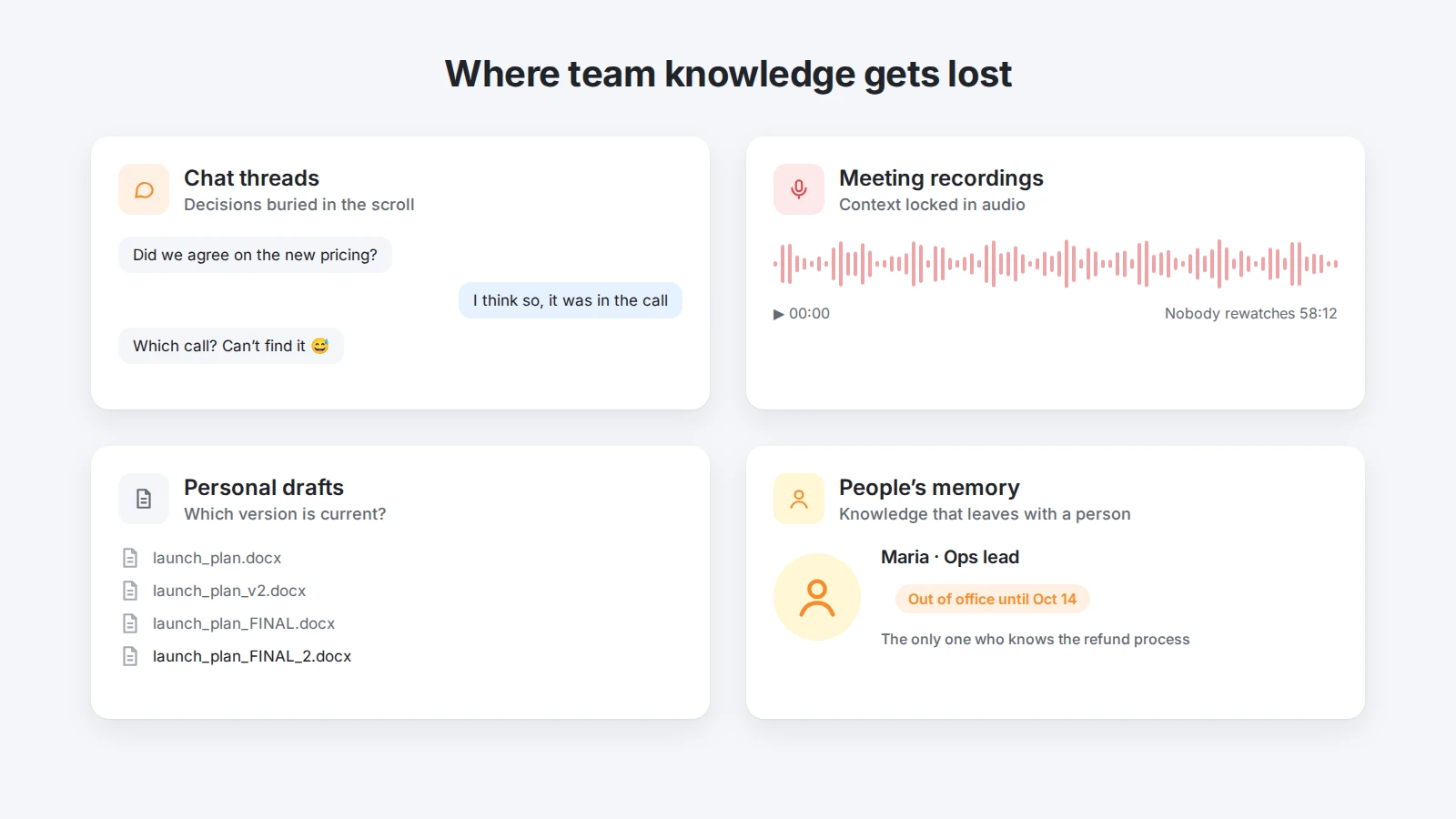
A traditional wiki tried to solve this by asking people to write documentation after the work was done. Most teams never kept up. What has changed is that AI can now produce the first draft from the work itself, so documenting no longer has to be a separate project.
| Scattered work | Shared knowledge |
|---|---|
| A decision buried in a chat thread | A decision record with the reason, owner, and date |
| A 60-minute meeting recording | Two-minute notes with decisions and action items |
| Five versions of the same document | One current page linked to its project |
| “Ask Maria, she knows how it works” | A how-to page anyone can follow |
| Searching three tools for one answer | One question answered with links to the sources |
Step 1: Start with the questions people keep asking
Do not begin by migrating every file you own. Begin with the questions that interrupt your team most often. Ask each lead to list five questions they answer every week, then look at your chat history for repeated threads such as “Where is the latest version of…”, “Why did we decide…”, or “How do I…”.
Group those questions into a few categories. For most teams, they fall into:
- Decisions — what was decided, when, by whom, and why.
- Processes — how a recurring task is done, step by step.
- Project context — goals, scope, status, and key links for active work.
- Onboarding — what a new person needs in the first two weeks.
- Reference — customer information, product facts, and policies.
These categories become the backbone of your knowledge base. Everything you capture later should end up in one of them.
Step 2: Capture work where it already happens
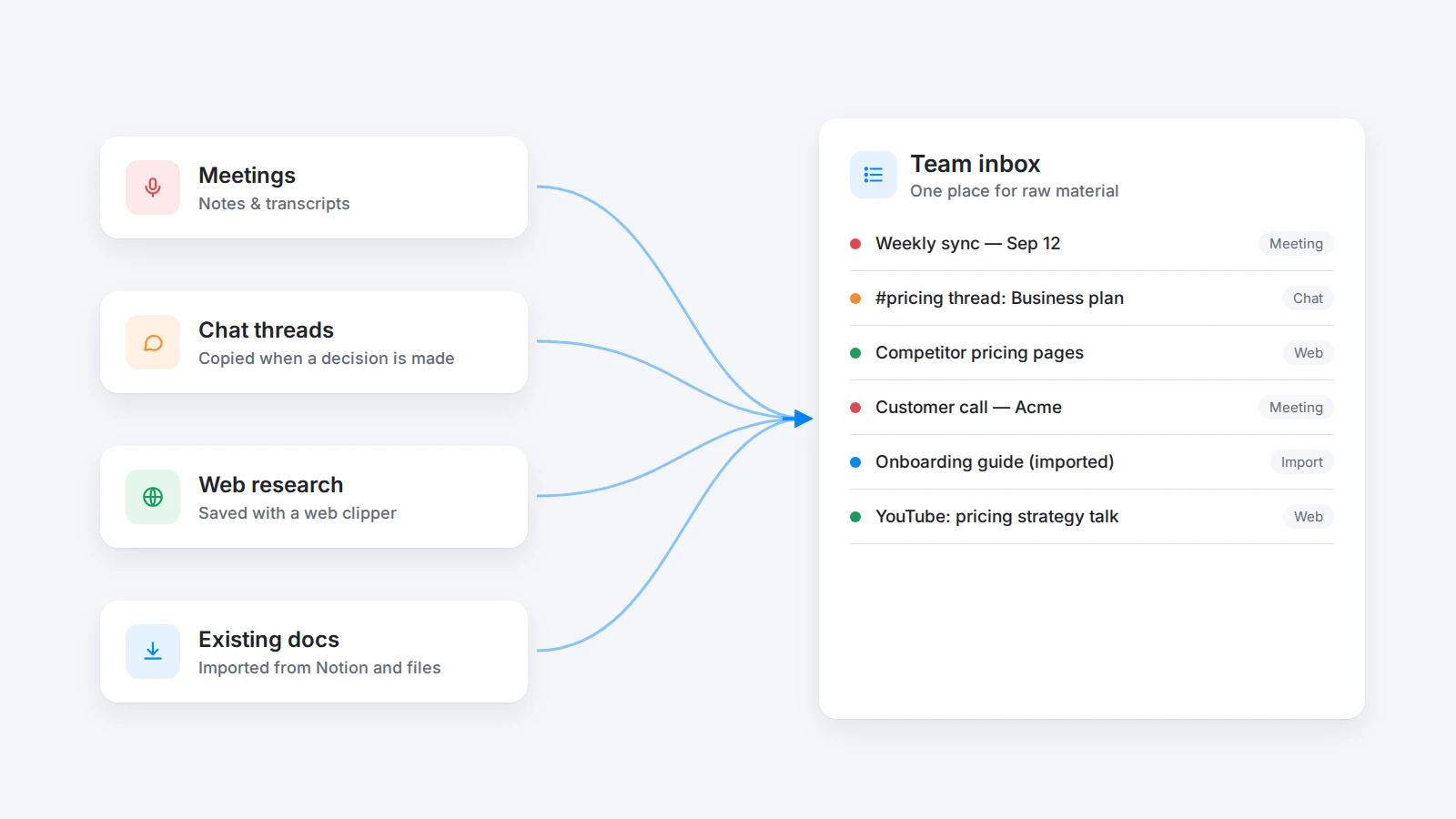
Capturing is the step most teams skip, and it is where AI helps the most. The goal is not to write new documents. It is to bring the raw material into one place with as little effort as possible.
For meetings, take notes in a shared page during the call, or use an AI meeting notes tool to turn a transcript into structured notes with decisions and action items. If a discussion was recorded, a voice-to-text tool can create a searchable transcript first.
For research, save web pages, articles, and YouTube transcripts with the Buildin Web Clipper instead of pasting links into chat where they disappear. For decisions made in chat, copy the thread into a page as soon as the conversation ends, while the context is still clear.
If your team already has documents in another tool, import them rather than starting over. Buildin can import a Notion workspace through the Notion API, including nested pages and database relations, so existing structure is not lost.
Step 3: Use AI to distill raw work into reusable formats
Raw material is not knowledge yet. A 60-minute transcript or a 200-message thread is too long for anyone to reuse. This is where AI turns work into something a teammate can read in two minutes.
Choose a small number of output formats and use them every time. Consistency matters more than perfection, because it teaches the team where to look.
A decision record answers what was decided, the options considered, why this option was chosen, who decided, and when it should be revisited. A how-to page turns an explanation into numbered steps, with prerequisites and common errors. A project summary captures goal, scope, owner, status, and links to the latest work. An FAQ entry answers one repeated question in a few sentences and links to the full source.
A vague prompt such as “summarize this” produces a summary nobody can act on. Tell AI what format you need and what it must not invent. You can start with this prompt:
Turn the meeting notes below into a decision record.
Include: the decision in one sentence, the options that were discussed, the reasons for the final choice, the owner, open questions, and follow-up tasks with names. Use only information in the notes. If something is unclear or missing, mark it as [CHECK] instead of guessing. Keep the whole record under 250 words.
Meeting notes:
[Paste the notes or transcript here]
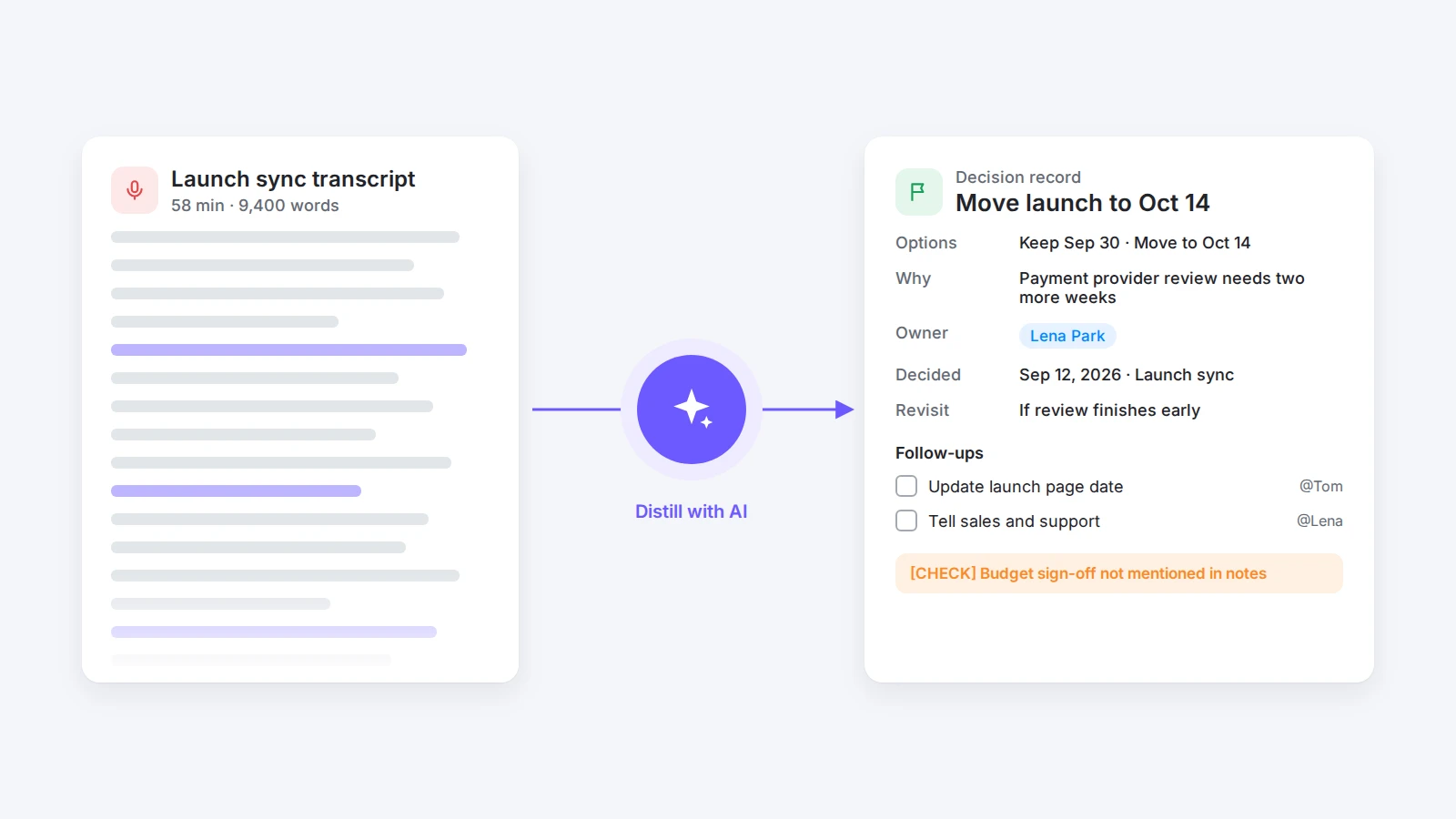
In Buildin, you can run this without copying anything into a separate chat. Select the notes on the page and ask the in-page AI to rewrite them, or give Buildin Agent the whole task — for example, “Read this week’s meeting pages, create a decision record for each decision, and add them to the Decisions database.” Agent reads the pages, creates the records, and saves them back to the workspace.
Step 4: Review before anything becomes “official”
AI drafts are fluent, and fluent text is easy to trust. That is exactly why every draft needs a human check before it is shared as team knowledge.
The person closest to the work should read the draft against its source. Check names, dates, numbers, and commitments. Look for details AI may have filled in from general knowledge rather than from your notes. Resolve every [CHECK] marker or remove the statement. If the decision is still being discussed, label the page as a draft rather than publishing an answer that might change tomorrow.
A useful rule: a page becomes official only when it has an owner, a source link, and a date. Everything else is a working note.
Step 5: Connect knowledge instead of filing it
Folders make you decide where a page belongs before anyone needs it. Connected pages let the same knowledge appear wherever it is useful. This is the difference between a document archive and shared knowledge.
A practical structure for a team workspace might include:
- A team home page with goals, links to active projects, and the onboarding guide.
- A Decisions database with properties for project, owner, date, and status.
- A Processes area with how-to pages and standard operating procedures, such as a project management SOP template.
- Project pages that link to their meetings, decisions, and deliverables.
- A Meetings database based on a meeting notes template, where every record links to the project it belongs to.
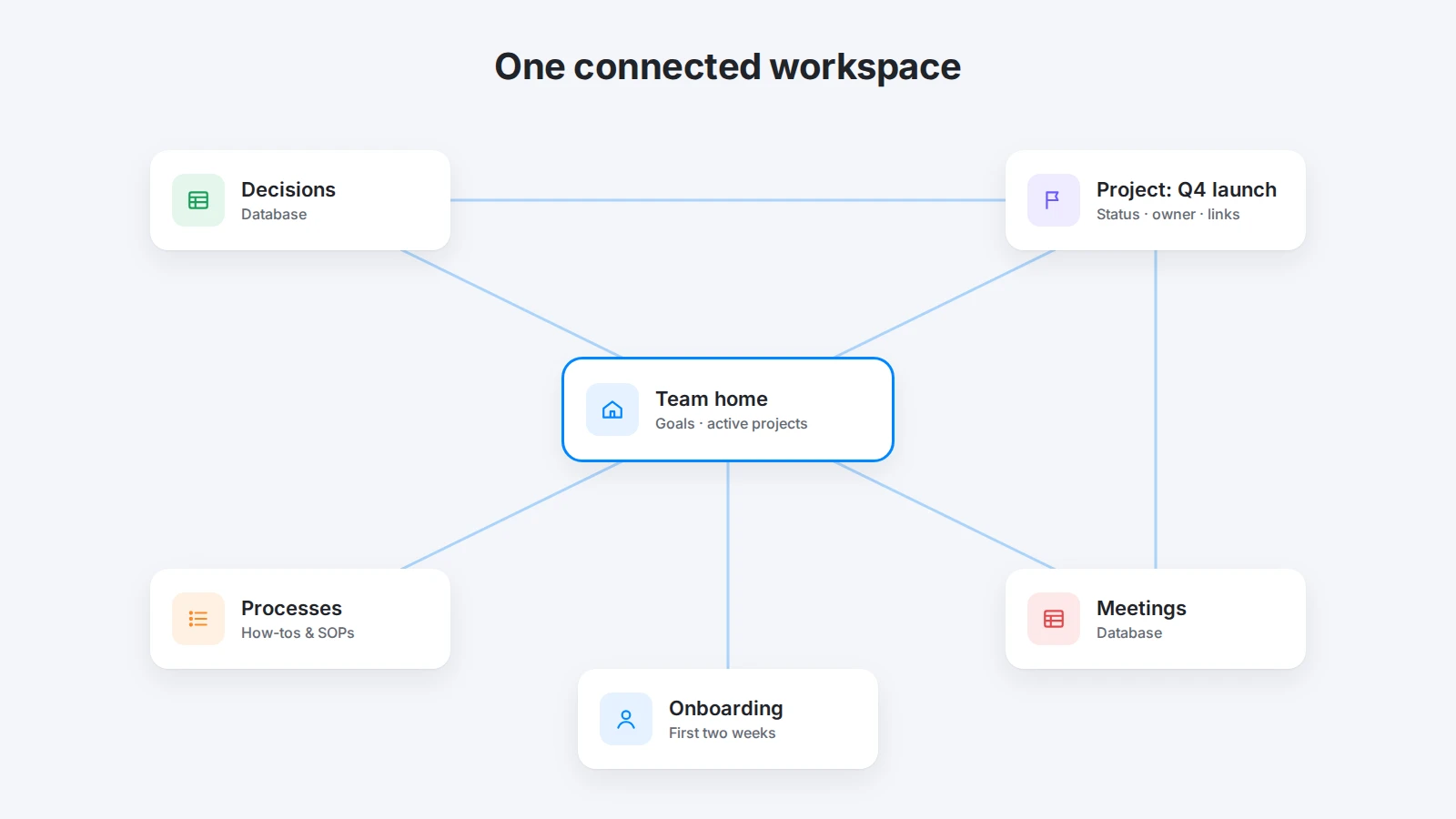
Buildin is built for this kind of structure. Pages, databases, and mind maps live in the same workspace, so a decision record can be a row in a database, linked from a project page, and visible in a mind map of the project — without keeping three copies up to date. If you are still choosing a tool, our comparison of AI knowledge base tools covers the main options and what they cost.
Step 6: Let people ask the knowledge base, not the expert
Once knowledge is captured, reviewed, and connected, AI becomes useful in a second way: answering questions. Instead of messaging the one person who knows, a teammate can ask the workspace directly.
Good questions are specific: “Why did we move the launch to October?”, “What are the steps to issue a refund?”, or “What did we decide about pricing for the Business plan?” Buildin AI searches across pages and databases and answers with citations to the source pages, so the reader can check the original context instead of trusting a summary blindly.
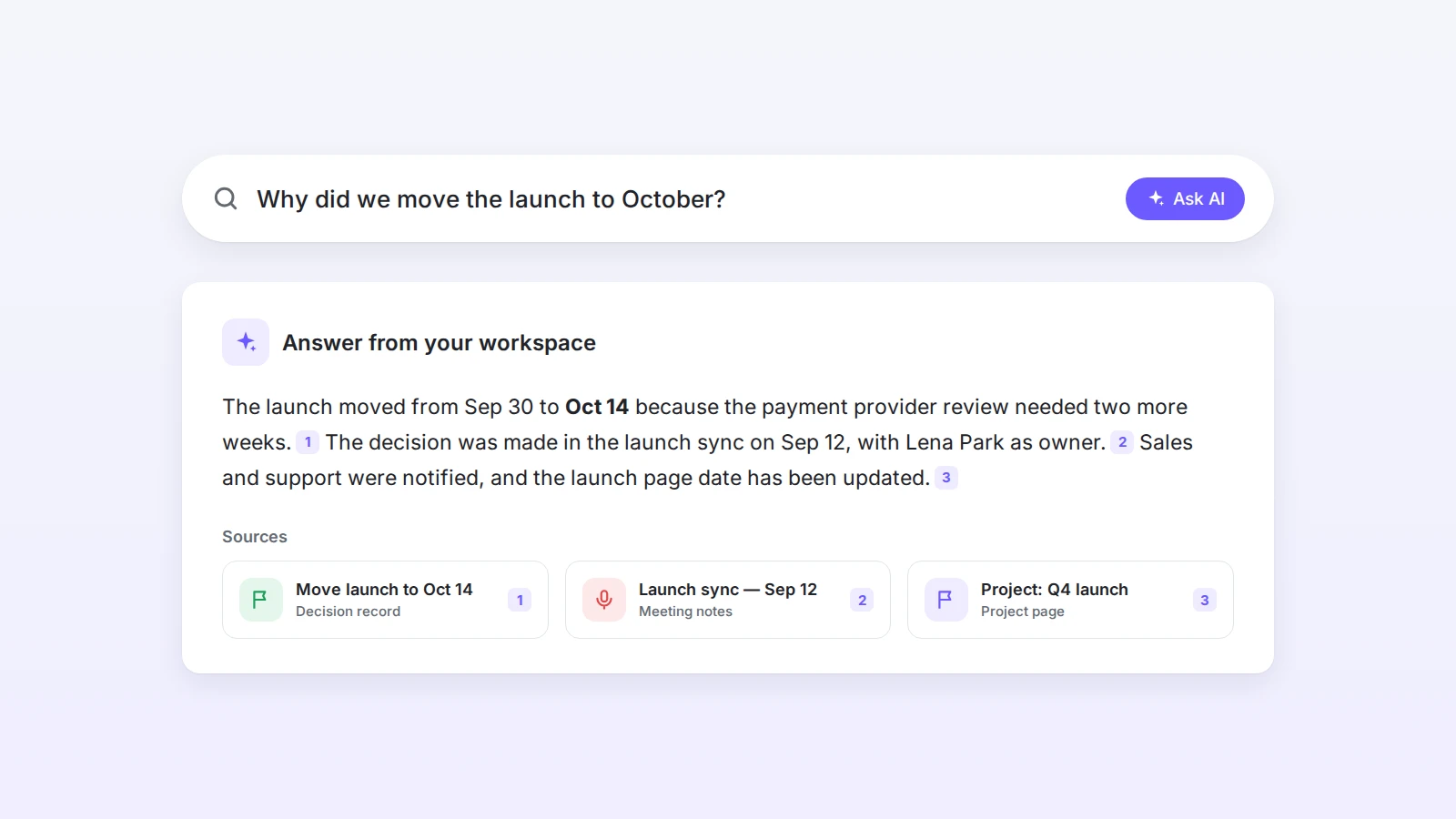
The quality of these answers depends directly on the earlier steps. AI search over a messy, outdated workspace returns messy, outdated answers. AI search over reviewed pages with owners and dates returns answers people can act on.
For teams that handle sensitive information, where the data lives matters as much as how good the search is. Buildin offers private deployment, so documents and AI queries can stay on your own infrastructure.
Step 7: Keep knowledge current
Knowledge decays. A process changes, a tool is replaced, a decision is reversed, and the old page keeps answering questions with confidence.
Build maintenance into the workflow instead of scheduling a big cleanup once a year. Add a “Last reviewed” date and an owner to important pages. When a decision changes, update the decision record and link to the new one rather than creating a parallel page. Once a month, have each owner review their most viewed and oldest pages. AI can help here too: ask it to compare two versions of a process and list what changed, or to find pages that mention a tool you no longer use.
Common mistakes to avoid
Importing everything at once
Moving every file into a new tool creates a bigger mess in a new place. Start with the questions people ask most and add the rest when it is needed.
Publishing AI drafts without review
An unchecked summary can turn a proposal into a decision or invent a deadline. Keep drafts labeled until the owner approves them.
Creating a new format for every document
If every team member invents their own template, nobody knows where to look. Choose a few formats and reuse them.
Leaving pages without owners
A page without an owner will become outdated. Assign a person, not a team, to every important page.
Treating AI answers as the source
AI answers are a way to find knowledge, not a replacement for it. Always keep the link to the source page and check it before acting on something important.
Ignoring permissions and privacy
Not every conversation belongs in a shared knowledge base. Remove personal information, respect confidentiality, and use workspace permissions to control who can see sensitive pages.
A repeatable weekly workflow
During the week, take meeting notes in shared pages and save research to the workspace instead of chat. At the end of each meeting, spend two minutes asking AI to extract decisions and action items, and have the meeting owner check them.
Once a week, collect the week’s important threads and notes, ask AI to draft decision records, how-to pages, and project updates, and have each owner review their drafts. Link the approved pages to their projects and add them to the right database.
Once a month, review the most used and oldest pages, update or archive what has changed, and look at which questions people still ask in chat. Those questions tell you what to document next.
Final takeaway
Shared knowledge is not a document you write once. It is the result of a habit: capture work where it happens, let AI turn it into a few consistent formats, review it, connect it, and keep it current.
Use AI for speed, your team for judgment, and one connected workspace for memory. Start with one team and the five questions it answers most often. For more ideas on organizing what your team knows, see our guide to knowledge management apps. Try Buildin for free and turn this week’s meetings and threads into the first pages of your team’s knowledge base.

Sency Shen
Skilled in content structuring, topic breakdown, and background research, with a strong interest in knowledge management and content workflows. Responsible for research, information organization, and foundational content preparation at Buildin.