How to create a digital workspace for work, study, and personal projects
Most people do not have an information problem. They have a placement problem. Here is how to build a digital workspace with five simple areas that connects projects, tasks, notes, and references to the work they support.
Most people do not have an information problem. They have a placement problem.
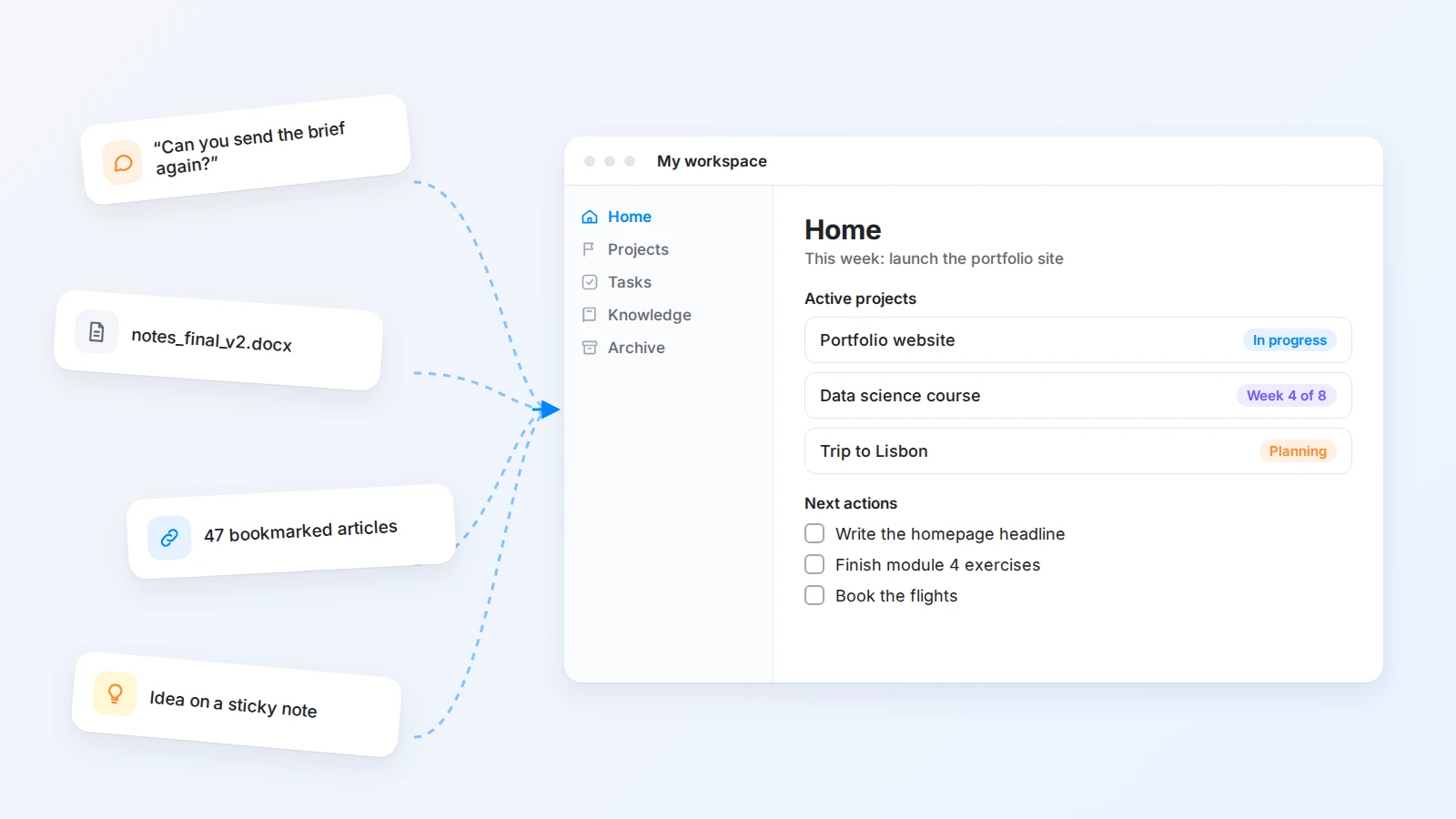
A task is buried in a chat thread. A meeting decision is saved in a document with an unhelpful title. A useful article is sitting in a browser folder, while the notes from a course are spread across screenshots, paper, and several unrelated apps. The information exists, but it is hard to find when you need it.
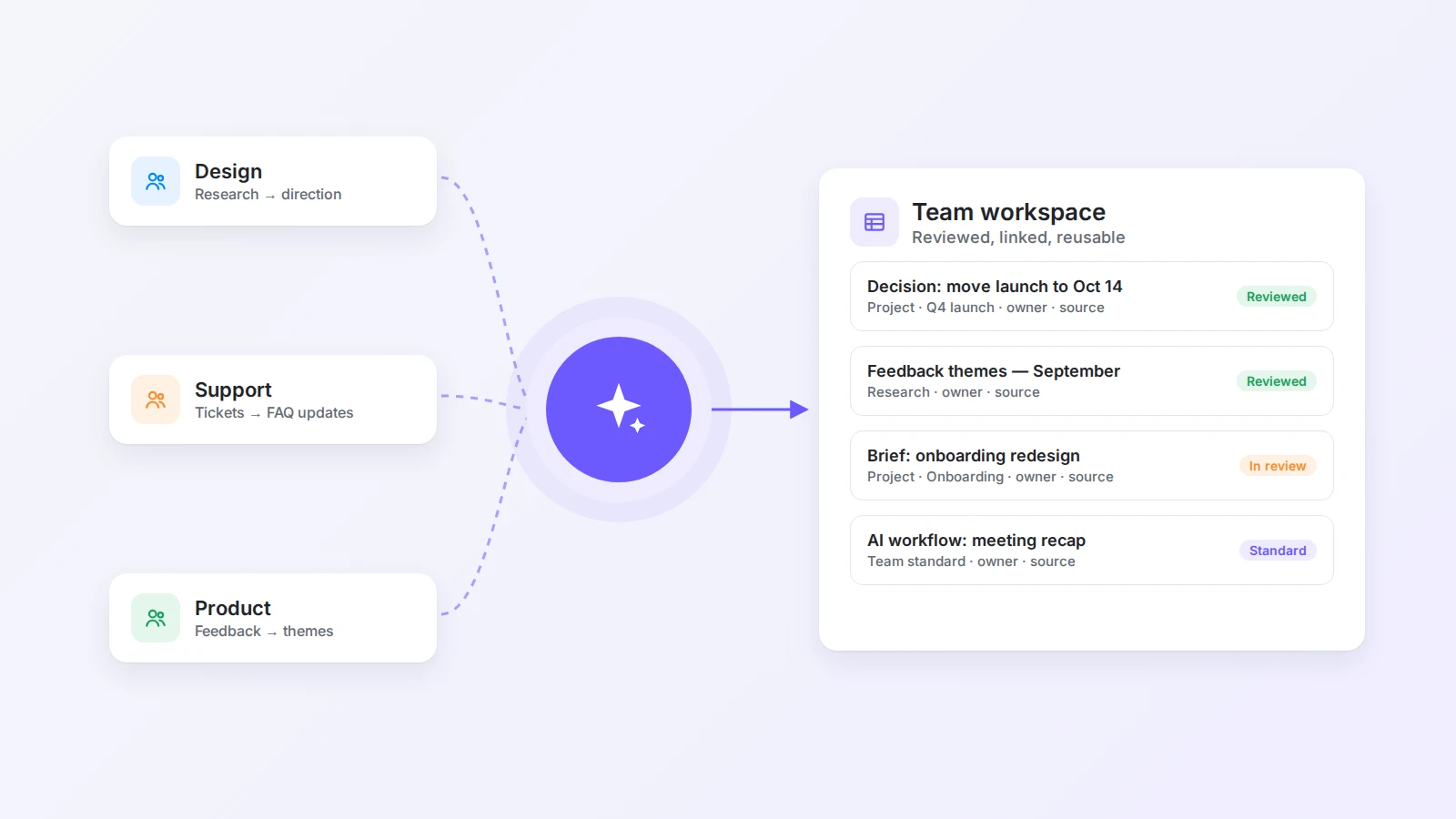
A digital workspace gives those fragments a shared home. It brings projects, tasks, notes, reference material, and plans into one system that is easier to understand and easier to act on. Unlike a simple folder structure, it connects information to the work it supports. Unlike a rigid project-management tool, it can adapt to work, study, and personal projects at the same time.
The goal is not to build the most elaborate productivity system. A useful workspace makes ordinary days feel lighter. When you open it, you should see what matters now, find the context behind your commitments, and decide what to do next without reconstructing your life from memory.
This guide explains how to create that kind of digital workspace, how to adapt it to different parts of your life, and how to keep it useful after the initial setup.
The short answer
To create a digital workspace, start by noticing where your information currently lives and what you need to find quickly. Then set up five areas: Home for what matters now, Projects for outcomes, Tasks for next actions, Knowledge for notes and references, and Archive for inactive material. Add templates only for work you repeat, use views instead of copying the same task into several places, and keep one capture point for new ideas. Review the workspace once a week and remove anything you do not use.
What is a digital workspace?
A digital workspace is a central online environment where you collect, organize, and use information for a set of activities. It can be personal, shared with a team, or divided into areas for work, learning, and personal projects.
It may contain project pages, tasks, meeting notes, research, course material, goals, templates, decisions, and unfinished ideas. The exact ingredients depend on the person using it. What makes it a workspace is that these materials are organized around real activity rather than stored as disconnected files.
- A freelance designer keeps client briefs, feedback, deadlines, brand references, invoices, and next actions next to each client project.
- A student connects class notes with reading lists, questions, assignment deadlines, and revision plans.
- Someone building a side project keeps the product idea, research, launch checklist, content plan, and lessons learned in one place.
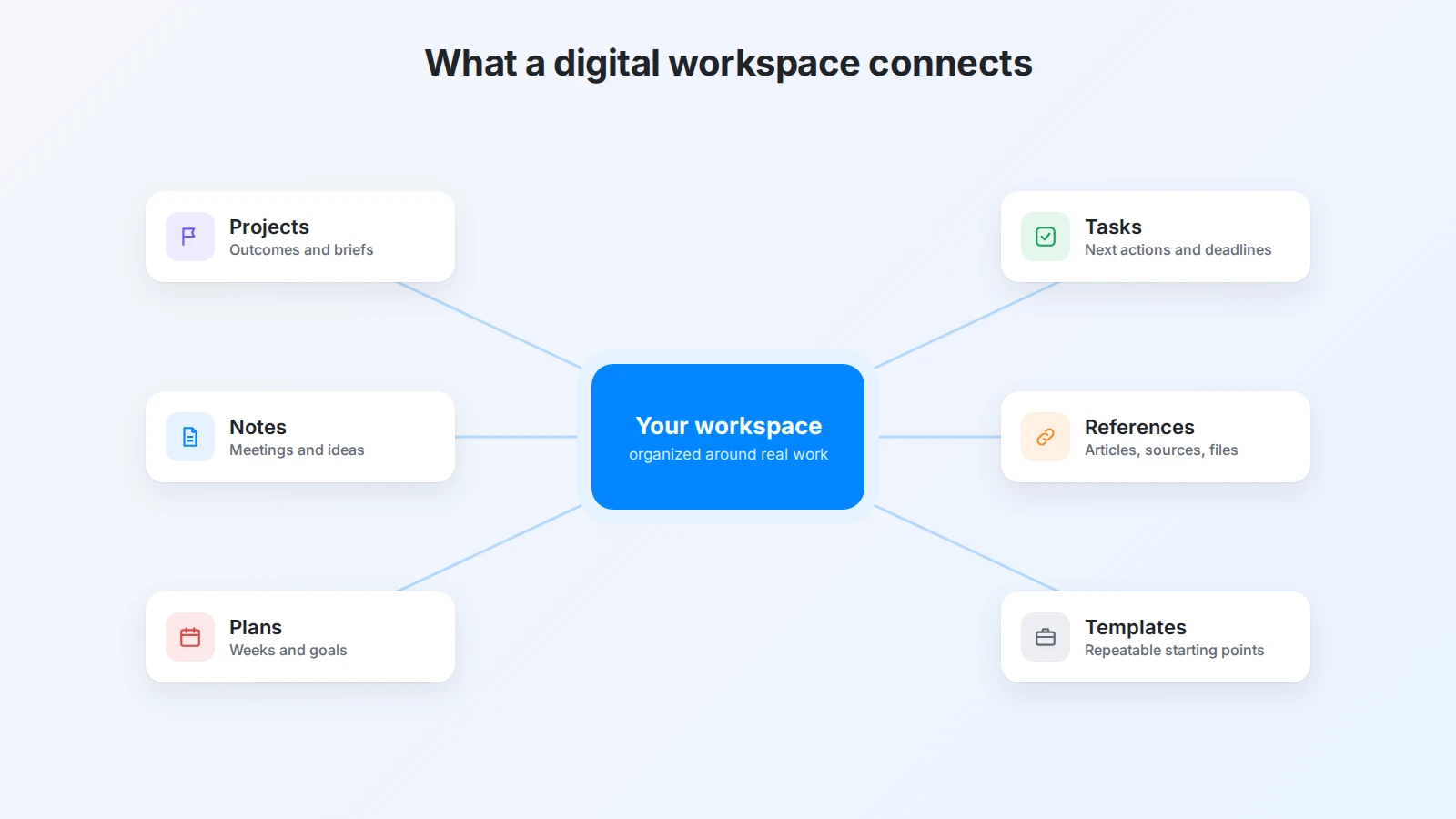
A digital workspace is therefore more than a notes app. It is an operating layer for information: it helps you move from capture to organization, from organization to action, and from action to review.
Why a digital workspace is worth building
The main benefit of a digital workspace is not that it stores more information. It is that it reduces the distance between information and action.
When project context is scattered across email, chat, cloud folders, and personal notes, every return to the project has a hidden cost. You have to remember what happened, search for the latest version, work out which decisions are still valid, and decide where the next update belongs. A central workspace does not remove all of that work, but it makes the context visible and repeatable.
It also gives each project a clear home. A good project page shows the intended outcome, current status, next action, related tasks, supporting notes, and important decisions. You no longer rebuild the project from a string of messages every time you pick it up.
A flexible workspace can separate areas of life without isolating them. Work projects stay distinct from personal plans, while shared tools such as weekly reviews, task views, templates, and search work across the whole system.
Finally, a workspace turns repeated work into a calmer process. If you write meeting notes, plan content, review a week, or start a project in roughly the same way each time, a small template gives you a reliable starting point. You spend your attention on the substance instead of rebuilding the structure.
Start with the work, not the structure
Many people begin a digital workspace by choosing icons, colors, categories, or an elaborate framework. That is usually backwards. The structure should follow the work it supports.
Begin by observing where information currently appears. Notice where you write down tasks, where project decisions happen, where useful references are saved, and where new ideas tend to disappear. You are not migrating everything yet. You are looking for repeated patterns that deserve a stable home.
Then ask what you need to find quickly: this week’s priorities, a list of active projects, the notes from a recent meeting, a deadline, or the last decision on a personal project. These retrieval needs should shape your home page and navigation.
A workspace succeeds when it reflects real behavior. A beautiful home page that does not answer your daily questions is decoration. A simple page that shows your active projects and next actions is a working tool.
A simple digital workspace structure
A strong starting structure has five areas. The names are intentionally broad: they give information a clear destination without forcing you to predict every category you might need.
| Area | Purpose | Question it answers |
|---|---|---|
| Home | A starting point for current attention | What matters now? |
| Projects | Outcomes that require multiple steps | What am I trying to complete? |
| Tasks | Concrete actions and follow-ups | What can I do next? |
| Knowledge | Notes, references, and reusable information | What might help me later? |
| Archive | Completed or inactive material | What should stay available but out of the way? |
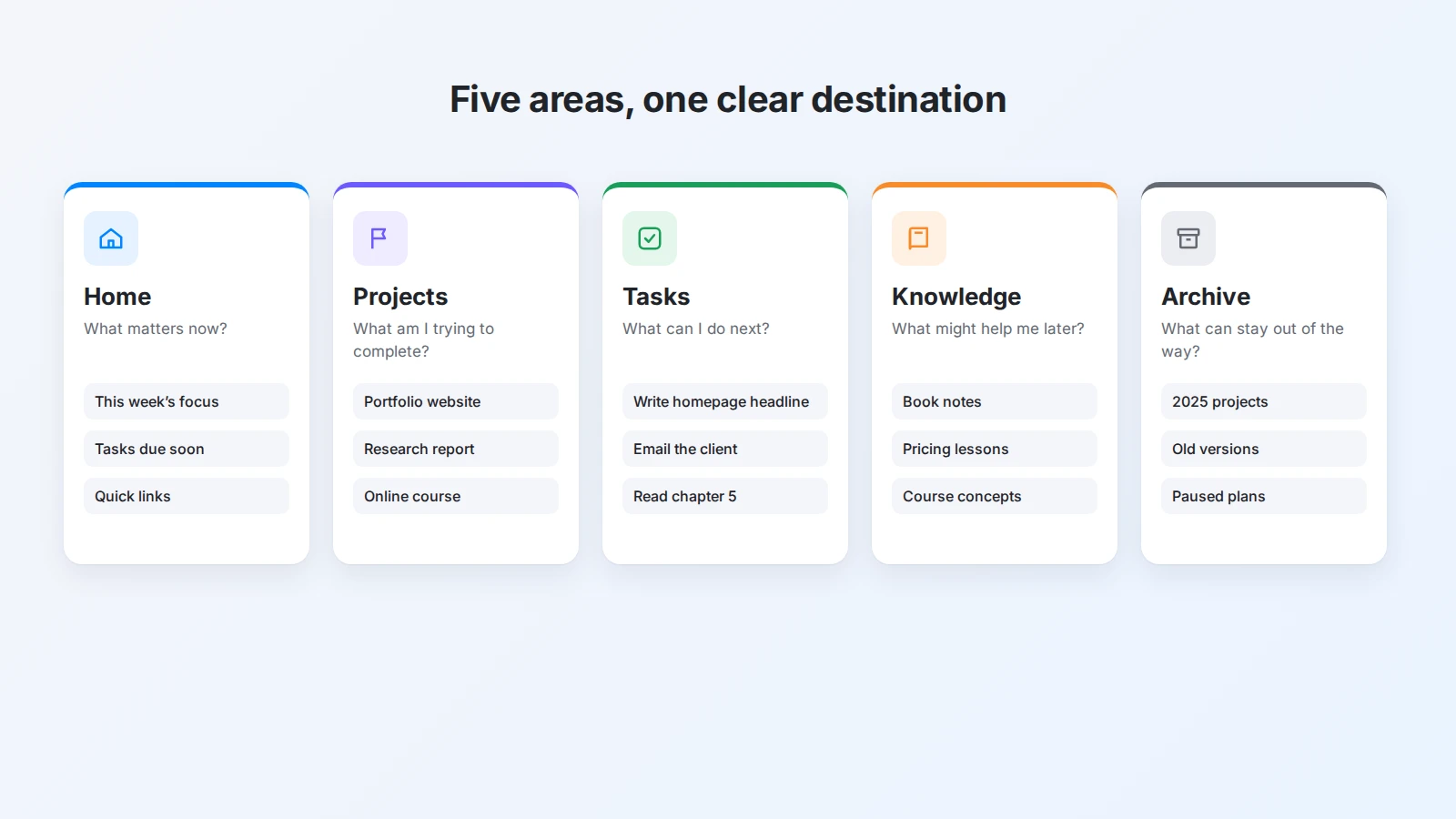
Home is a place to begin, not a copy of the whole workspace. It might show current priorities, active projects, tasks due soon, quick links, and a capture area. Keep it focused enough that you can understand it in a few seconds.
Projects represent outcomes rather than vague responsibilities. “Website redesign,” “Prepare the research report,” and “Complete the online course” are projects because each describes a result that takes several actions. Give each project a page with its purpose, desired outcome, status, target date, next action, related tasks, notes, and decisions.
Tasks are the individual actions that move projects forward. “Website” is not a task; “Write the homepage headline” is. Task names that describe behavior rather than a topic make a list easier to act on. Add only the properties that support a real decision, such as status, due date, priority, or related project.
Knowledge holds information that may be useful later: a book note, a course concept, a research source, a process explanation, or a lesson from a finished project. It should not become a warehouse for everything you have ever seen. The test is whether you can find and apply the material when a real question comes up.
Archive keeps inactive information available without letting it crowd out current work. Completed projects, old versions, replaced references, and paused plans can move there. Archiving is not deletion and it is not failure. It keeps your attention on the present.
In Buildin, Projects and Tasks work well as two databases linked by a relation property: each task belongs to a project, and each project page automatically lists its tasks. Home and Knowledge can be ordinary pages that link to or embed the parts you use most.
Adapt the workspace to different areas of life
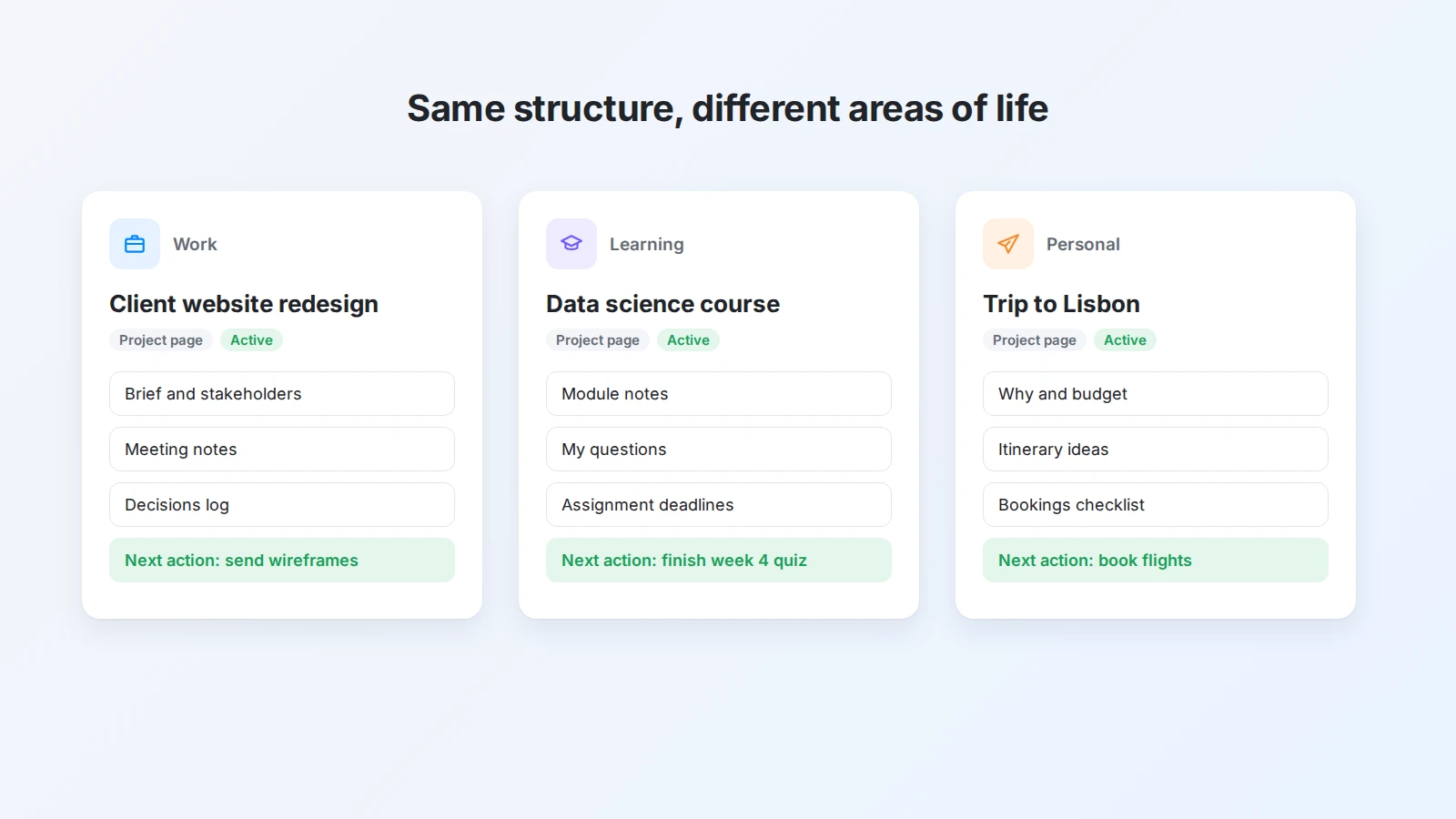
The same structure can support very different activities, because the pages and views change with the context.
For work
A work-focused workspace should make commitments and decisions visible. A project page brings together the brief, stakeholders, deadlines, open questions, meeting notes, and next actions. When a colleague asks for an update, you can explain the current state from one reliable page instead of searching through several conversations.
Templates are especially useful for recurring work. A meeting notes template can include the purpose of the meeting, decisions, action items, open questions, and links to related projects. Over time, these notes become a record of how work actually moves, not a pile of disconnected minutes.
For learning
A learning workspace benefits from separating source material from your own understanding. A page for a book or course can hold the main ideas, your questions, examples, and connections to what you already know. That makes it easier to tell what the source says from what you think it means.
Connect learning notes to assignments, projects, reading lists, and review sessions. Knowledge becomes more valuable when you use it: a note that supports an essay, a presentation, or an experiment is easier to remember than one that only sits in storage. The study note template is a simple starting point.
For personal projects
Personal projects often stay unfinished because the outcome is too vague. “Get healthier,” “learn design,” or “plan a trip” are meaningful areas, but they do not say what done looks like. A project page should turn the intention into a visible result and a small next action.
Keep it light. Personal planning should support your life, not turn your hobbies into administration. A short page with the reason, outcome, milestones, next action, and a few useful references is usually enough.
Use templates to remove repeated friction
A template is valuable when it makes a behavior easier to repeat. It should not be a form that forces every situation into the same shape.
Start with the page types you create most often. A weekly planning template can ask which outcome matters most, which priorities deserve attention, which projects are active, which decisions are waiting, and what to review at the end of the week. A project brief can hold the desired outcome, audience, constraints, milestones, open questions, and next action.
A good template gives you a path into the work. It should be short enough to use on a busy day and flexible enough to skip sections that do not apply. If filling it in feels like another project, remove fields until the structure feels inviting.
Because pages and databases live together in Buildin, you can create reusable starting points for projects, meetings, weekly reviews, content plans, or study notes, then refine them as your process becomes clearer. The weekly planner template and the project task management template are ready-made examples you can adapt.
Use views instead of duplicating information
The same task may need to appear on a project page, in your personal priority list, and in a view of work due this week. Copying it three times creates three places that can drift apart. A better approach is to keep one source and use different views to answer different questions.
- A board view shows workflow status: to do, in progress, waiting, done.
- A calendar view shows deadlines.
- A filtered list shows what needs attention today.
- A project view shows everything connected to one outcome.
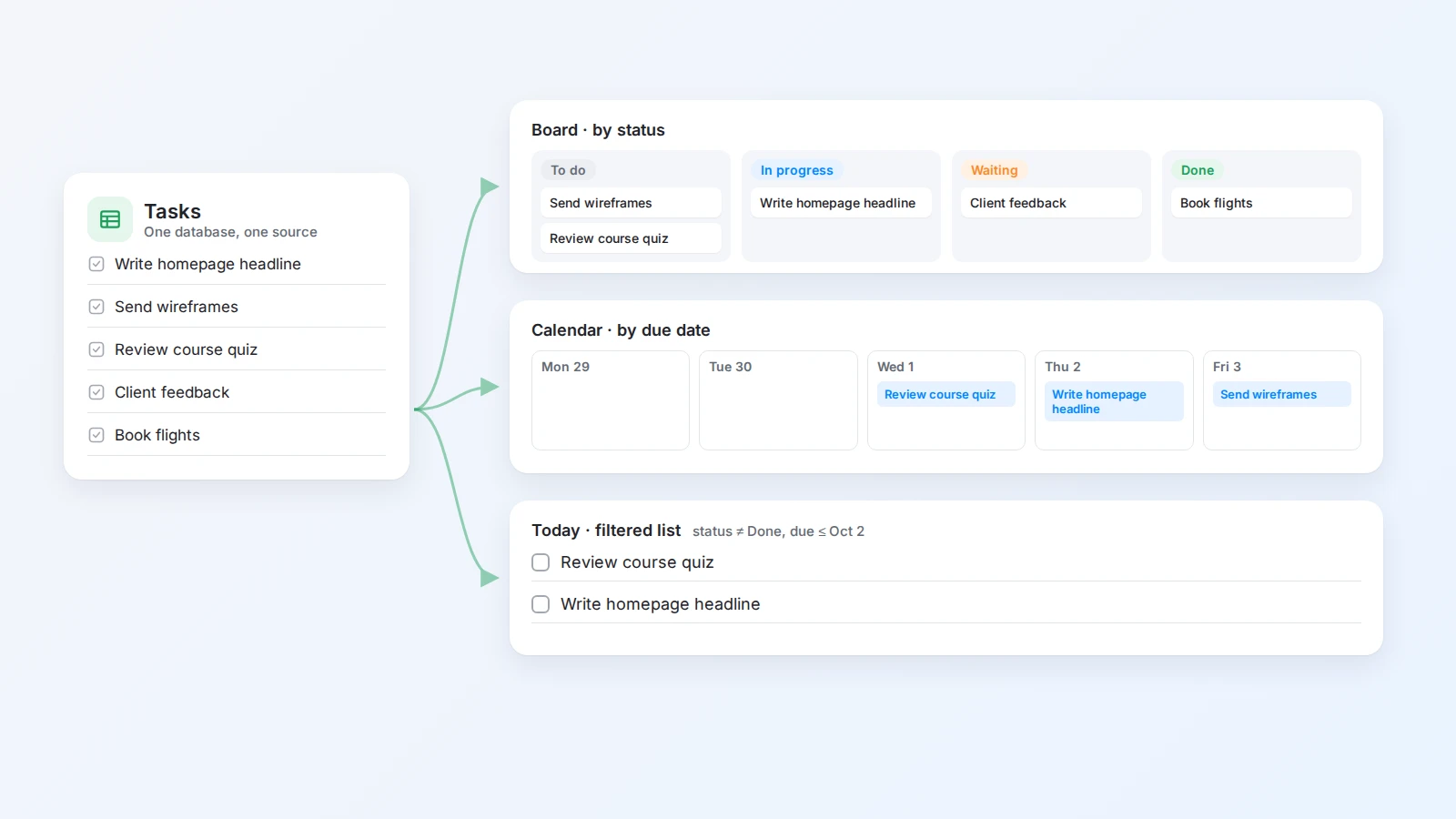
These are not separate copies of your work. They are different windows into the same information, so updating a task in one view updates it everywhere.
The best view is not the one that looks most impressive. It is the one that helps you make a decision. Before creating a view, finish the sentence “I want to know…”. If the answer is “what is blocked,” “what is due soon,” or “which projects have no next action,” the view has a clear purpose.
Create one reliable capture point
A workspace cannot organize information that never reaches it. Ideas disappear because capturing them requires too many decisions: which folder, which tag, which database, which title? When an idea appears, speed matters more than classification.
Create one easy place, such as an Inbox page, for new tasks, questions, links, decisions, and ideas. Capture each item in plain language and process it later. For web pages and articles, the Buildin Web Clipper saves them straight into your workspace instead of an overflowing browser folder.
During a short review, decide what each item becomes: a task, a project note, a reference page, a calendar commitment, or something to delete. AI can take over the sorting when the inbox gets long. For example, ask Buildin Agent to “read the Inbox page, add each action item to the Tasks database with a due date, and list the links that belong in Knowledge,” then check the result.
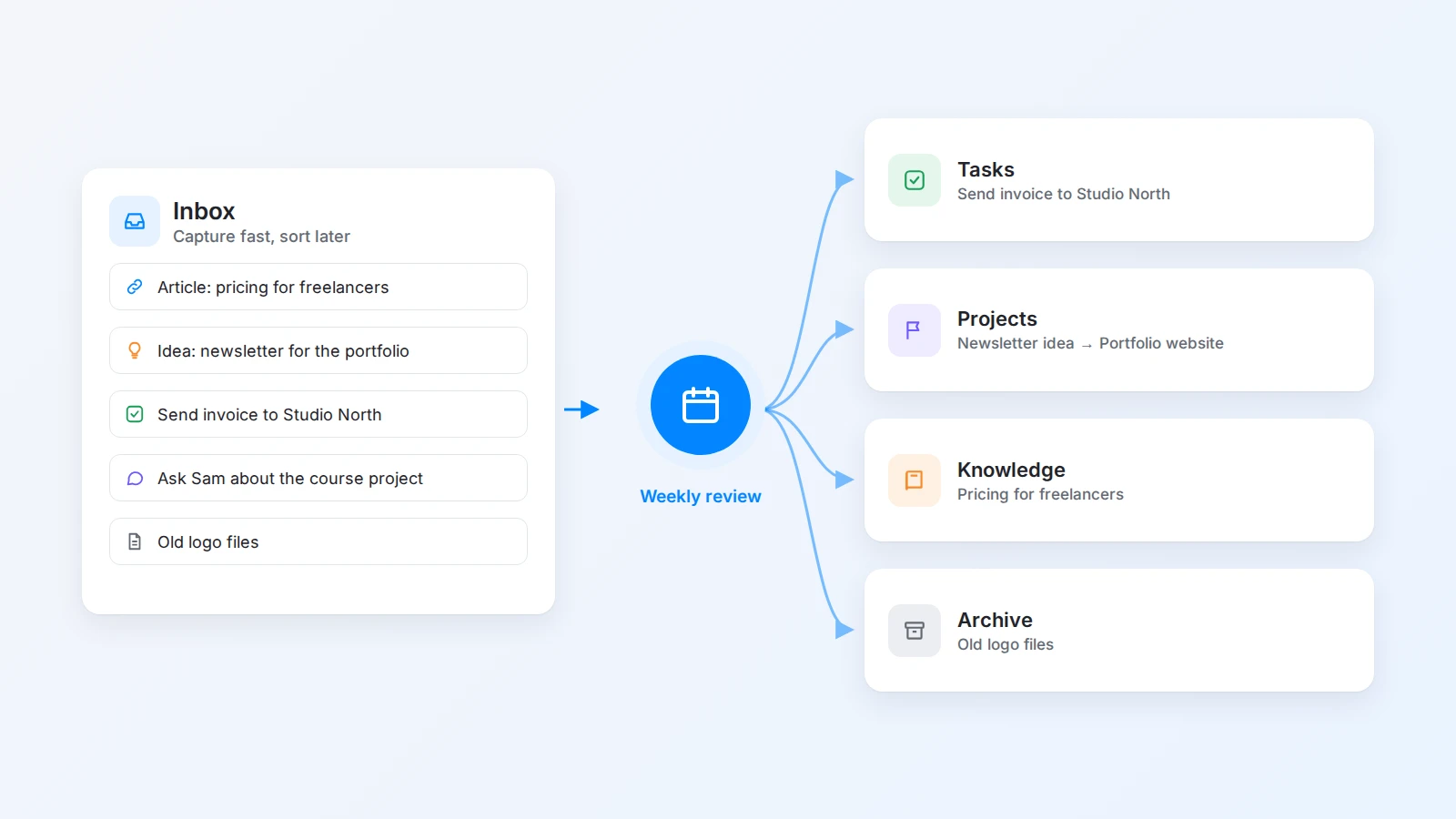
Separating capture from organization is one of the most practical improvements you can make. It protects your attention when you are busy and gives you a predictable time to tidy the system.
Keep the workspace easy to maintain
A workspace is not finished when the home page looks complete. It is finished when you can keep it accurate without resenting the upkeep.
Use broad categories that are easy to explain. If two categories are hard to tell apart, you probably need only one.
Name pages for retrieval, not cleverness. “Pricing lessons from three freelance proposals” is far more useful than “Pricing,” especially six months later.
Make status visible. Active, paused, waiting, and complete should be properties you can filter, not words hidden inside paragraphs.
Review on a schedule. Look at active projects, open tasks, overdue items, and the capture area regularly. For most people, a short weekly review is enough; a team on fast-moving projects may also need a brief daily check-in. The weekly goals and review template gives the review a fixed shape.
Do not automate a process you cannot yet explain. Automation reduces repetitive work, but it can also hide a confusing workflow. Make the manual version clear first, then automate only the parts that repeat and follow a stable rule.
A practical digital workspace setup in Buildin
You can build the first version of a Buildin workspace without importing your entire digital history.
- Create a Home page with this week’s focus, current projects, tasks that need attention, quick links, and a capture space.
- Create a Projects database with properties for status, target date, and next action, and give each project a consistent brief.
- Create a Tasks database linked to Projects, with three views: today, upcoming deadlines, and waiting for someone else.
- Create a Knowledge page for research, notes, and reusable documentation.
- Create an Archive page for completed material.
- Add two templates: a weekly plan and a meeting note.
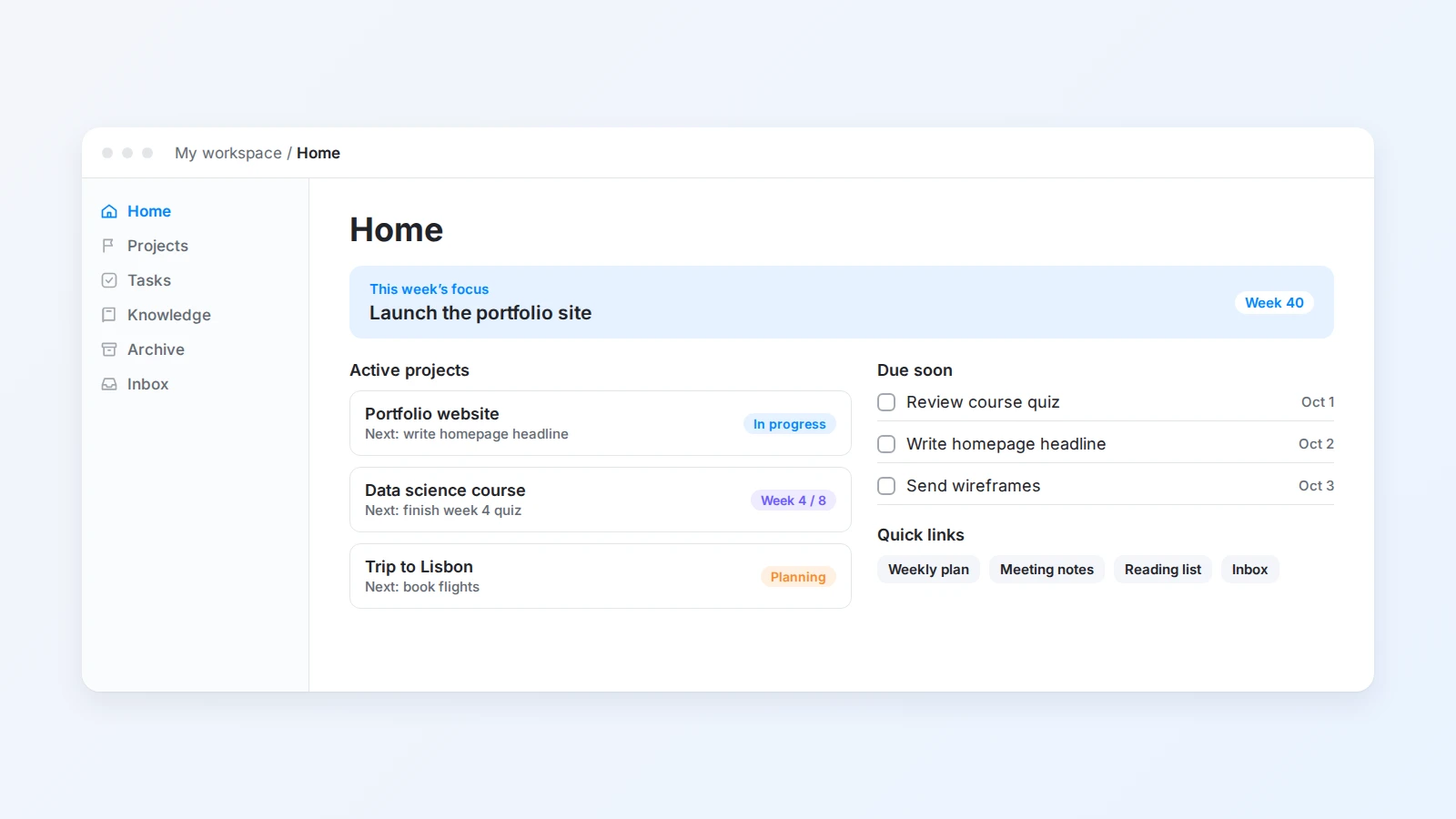
Start with current information rather than attempting a perfect migration. Move only the projects and references you actively need; if your existing workspace is in Notion, Buildin can import it with nested pages and database relations intact. As you use the workspace, notice where you repeatedly add information or search for context. Those observations are better design evidence than any framework chosen in advance. For a deeper look at connecting all of this into one flow, see how to build a complete workflow with Buildin.
Two mistakes to avoid
- Building a system for an imaginary life. A workspace can look sophisticated while failing to support the routines you actually have. If you rarely use a section, remove it. If a project needs a different structure, adapt the page instead of forcing it into a theory.
- Tracking more than you can maintain. Every property, tag, status, and dashboard element carries a small maintenance cost. Keep a field when it helps you filter, decide, or review. If it does none of those things, it is adding noise.
A seven-day starting plan
You can create a working digital workspace in a week without moving your entire digital life.
| Day | What to do |
|---|---|
| 1 | Observe where your information currently lives and what you search for. |
| 2 | Create Home, Projects, Tasks, Knowledge, and Archive. |
| 3 | Add only your active projects. |
| 4 | Create one task view that shows what matters now. |
| 5 | Make two templates for work you repeat, such as weekly planning and meetings. |
| 6 | Add a single capture point. |
| 7 | Review the system and remove anything you did not use. |
The purpose of the week is not to finish a perfect architecture. It is to create a small system that can teach you what it should become.
Final thoughts
A digital workspace is not a replacement for judgment. It is a support system for judgment.
When information is scattered, every task carries the hidden cost of finding context. When projects have a clear home, you can return to them with less friction. When tasks, notes, and references are connected, your workspace becomes more than storage: it becomes a way to keep momentum.
Begin with a home page, a few active projects, a simple task area, a knowledge space, and one capture point. Add templates only where repetition creates friction. Create views that answer real questions. Archive what is no longer active. Keep the system small enough to maintain.
The best digital workspace is not the one with the most features. It is the one you can open on a busy day and understand immediately. Start building yours in Buildin for free.

Lisa Wang
Attentive to the details of digital writing and productivity tools, and experienced in shaping scattered information into structured content. Responsible for product experience documentation, user feedback analysis, and initial content drafting at Buildin.