What is an AI agent for work? 10 real examples and how to start
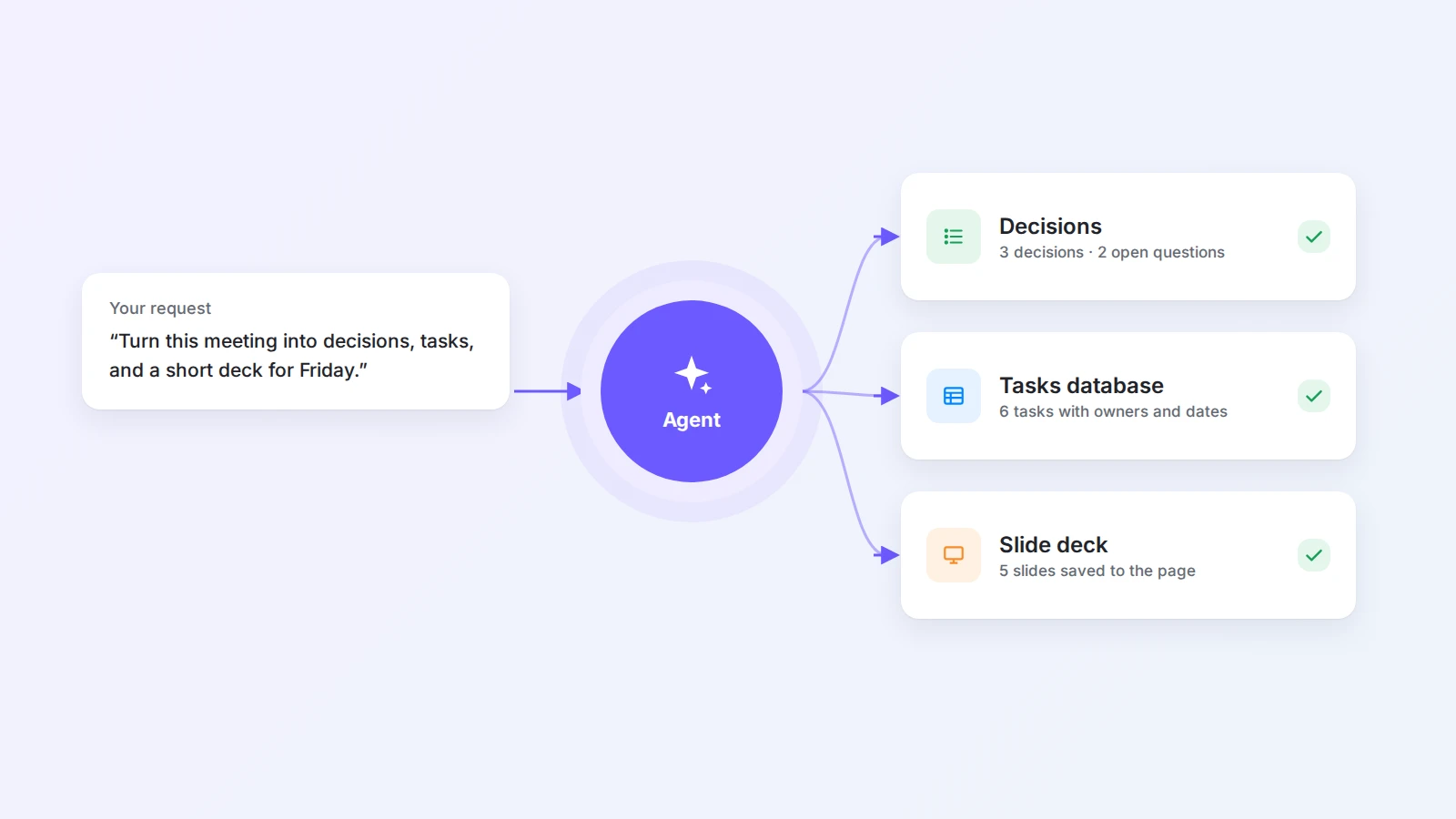
An AI agent for work takes a goal, reads the information it needs, works through the steps, and saves a finished result. Learn how agents differ from chatbots and automations, see 10 real examples, and find out which tasks to hand over first.
“AI agent” has become one of the most used phrases in software. Every tool now seems to have one, and the word is starting to mean everything and nothing.
The idea behind it is simple and genuinely useful. A chatbot answers your question. An AI agent finishes a task. You describe the outcome, and the agent reads what it needs, works through the steps, and hands you a result you can use, saved where it belongs.
This guide explains what an AI agent for work is, how it differs from a chatbot and from workflow automation, and shows 10 real examples you can try this week. It ends with a simple way to choose your first tasks and write requests an agent can act on.
The short answer
An AI agent for work is an AI system that takes a goal, gathers the context it needs from your documents and data, decides which steps to take, uses tools to carry them out, and delivers a finished result. Good first tasks are ones that repeat, rely on information you already have, and are easy to check: meeting summaries, status updates, research briefs, structured databases, and slide decks. Keep a person responsible for reviewing anything that is shared or acted on.
AI agent vs. chatbot vs. automation
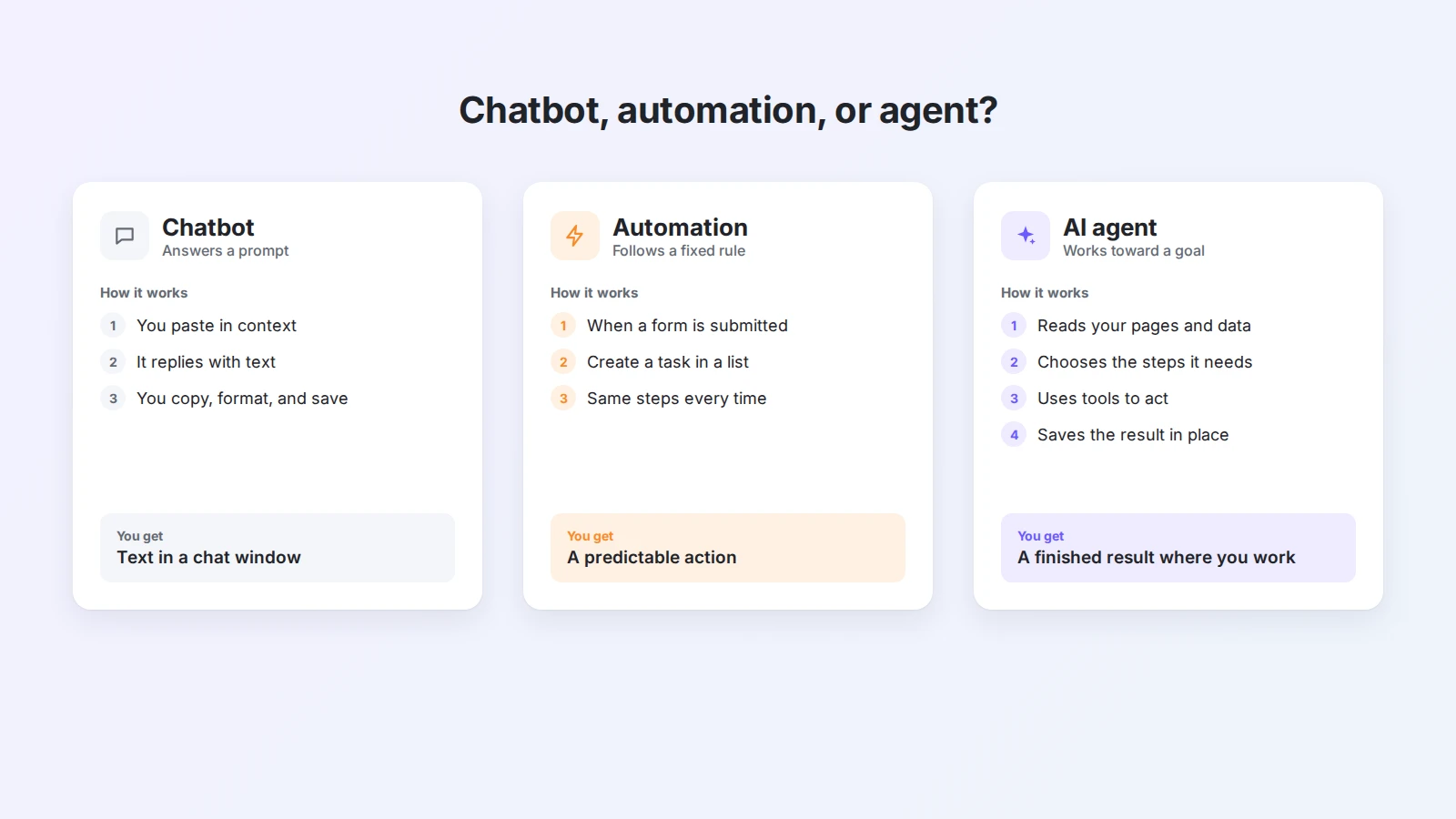
The three are often confused, but they solve different problems.
| Chatbot | Workflow automation | AI agent | |
|---|---|---|---|
| You give it | A question or prompt | A rule: when X, do Y | A goal |
| It works with | What you paste in | Fixed fields from connected apps | Your pages, data, and files |
| Steps | One reply at a time | Fixed, defined in advance | Chosen based on the content |
| Output | Text in a chat window | A predictable action | A finished result saved in place |
| Best for | Questions, quick drafts | Predictable hand-offs | Multi-step work that needs reading |
A chatbot is a conversation. It can draft an email or explain a concept, but you still copy the answer, format it, and paste it somewhere useful.
Workflow automation, such as the Buildin and Zapier integrations, follows rules you define. It is reliable and fast, but it cannot read a messy transcript and decide what matters.
An agent sits between the two. It understands content like a chatbot and takes actions like an automation, but the steps are not fixed in advance. It works out what the task needs.
How an AI agent works
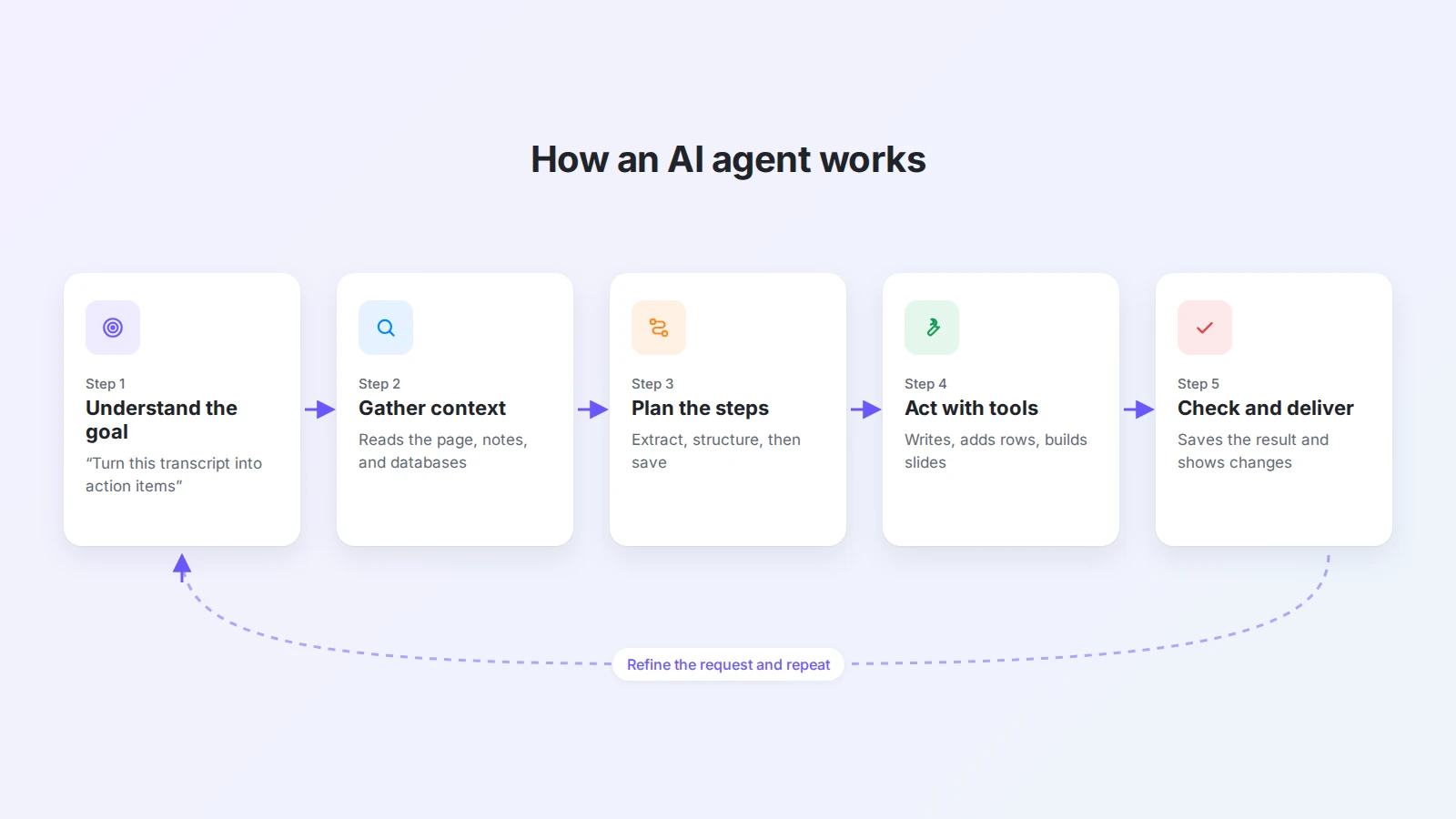
Most agents for work follow the same loop:
- Understand the goal. “Turn this transcript into decisions and action items” or “Build a content calendar for next month.”
- Gather context. Read the current page, related documents, or a database.
- Plan the steps. Decide what to extract, what structure to create, and in what order.
- Act with tools. Create a table, add rows, write a summary, generate an image or slides.
- Check and deliver. Put the result where you asked for it and show you what changed.
The second step is where most of the value comes from. An agent that works from your own notes, meeting records, and databases produces results grounded in your work, not in generic advice. That is why the most useful agents live inside the place where your work already happens, such as a shared knowledge workspace, rather than in a separate chat window.
10 real examples of AI agents at work
Each example below includes a request you can adapt. They are written for Buildin Agent, which reads your pages and databases and saves results back to your workspace, but the patterns apply to any agent that can work with your documents.
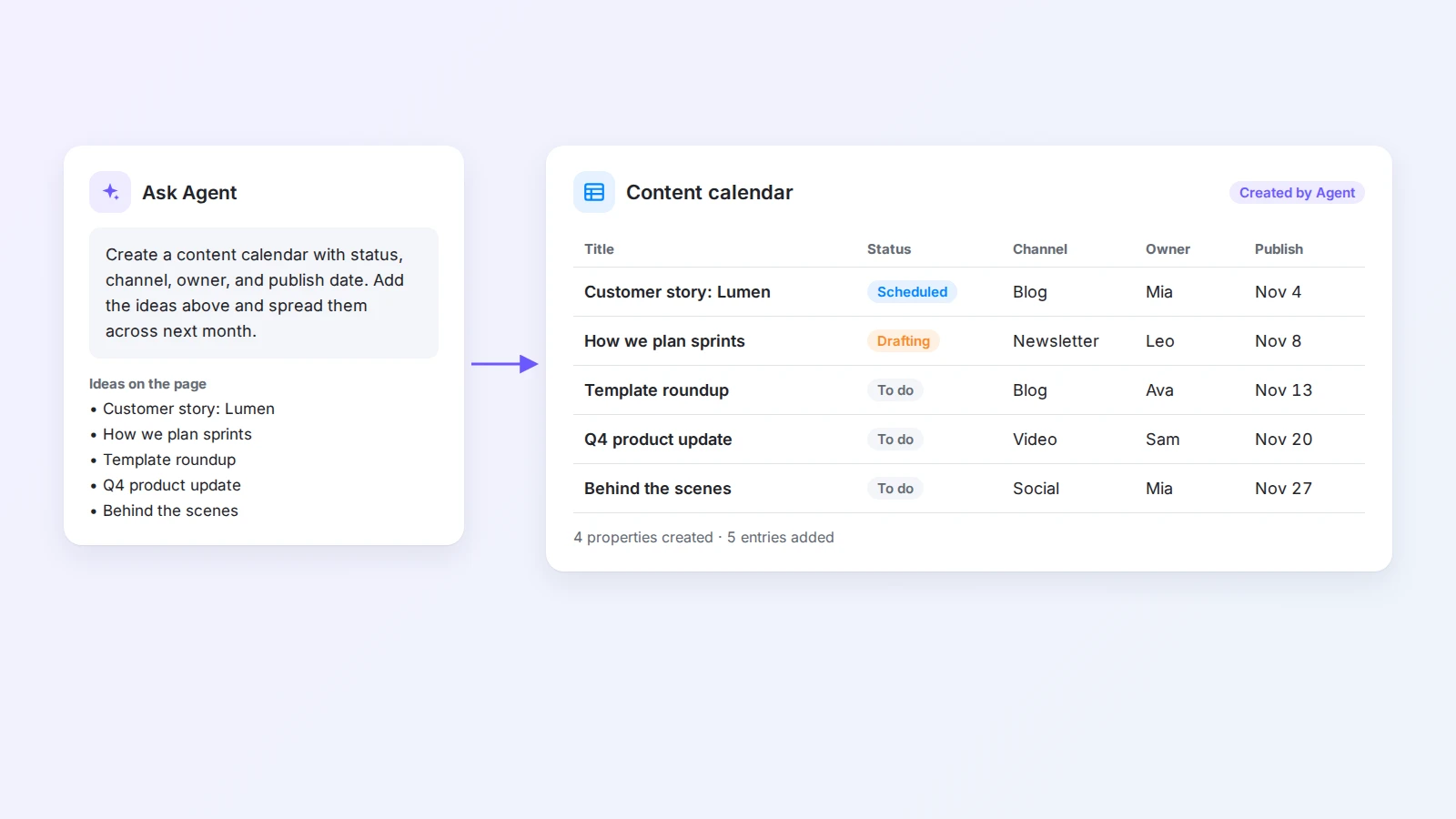
1. Build a database from a description
Planning usually starts with setup: creating a table, choosing columns, adding statuses. An agent can do the setup for you.
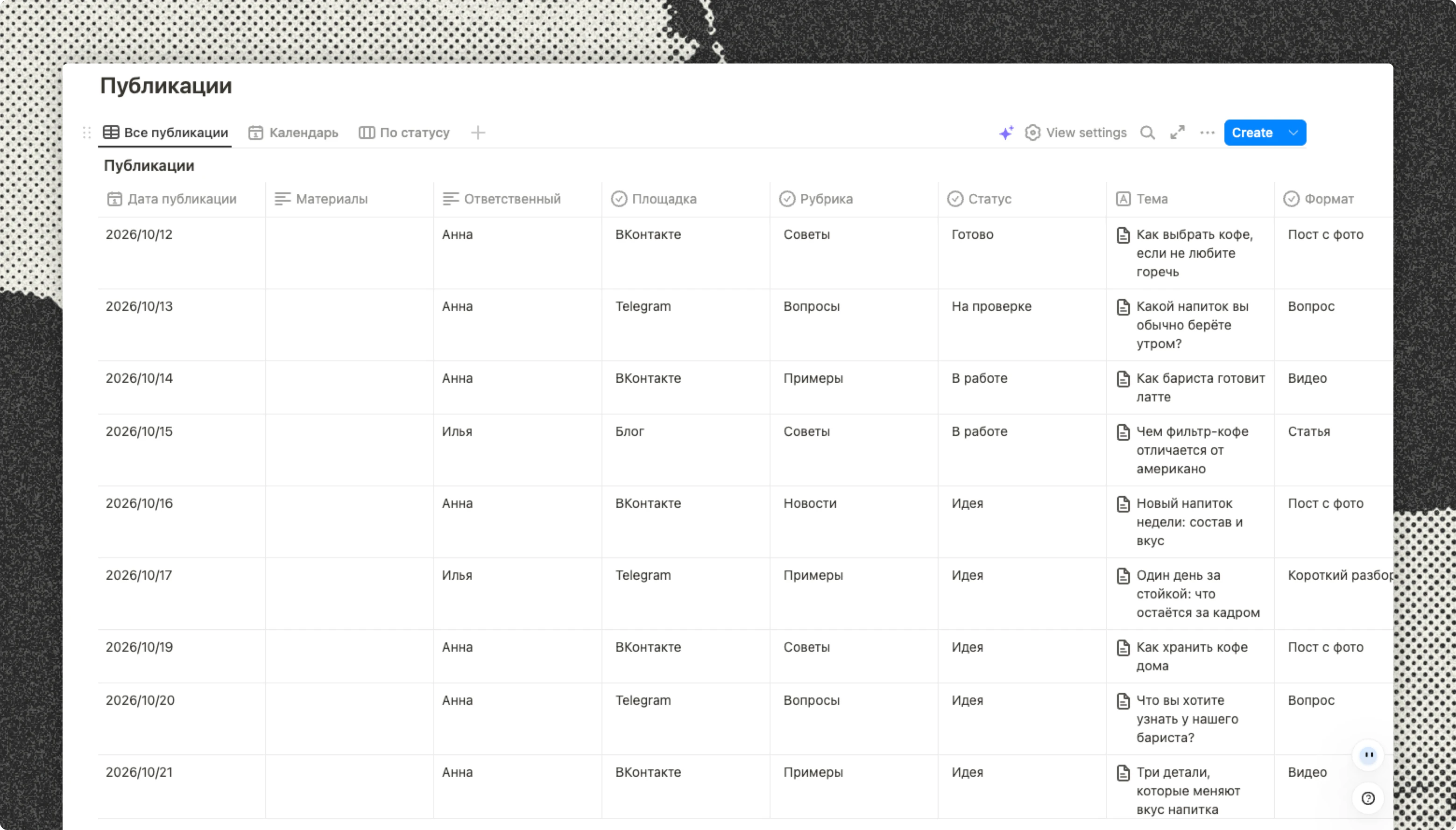
Create a content calendar database with properties for status, channel, owner, and publish date. Then add the ideas listed above, set them all to “To do,” and spread them across next month.
You describe what you want to manage; the agent designs the structure and fills it in.
2. Turn a meeting transcript into decisions and tasks
Meeting notes are only useful if the decisions and next steps are easy to find.
Read this transcript. List the decisions, the open questions, and the action items with owners and due dates. Keep it under 200 words.
Start from a free meeting notes tool or a meeting notes template, then let the agent do the summarizing.
3. Turn a YouTube video into study notes
Long videos are hard to review. Save the transcript with the YouTube transcript tool or the Web Clipper, then ask:
Organize this video into three main ideas, keep the key examples, and add five review questions at the end.
The video becomes notes you can search, link, and revisit.
4. Write the weekly status update
Status reports take time because the information is scattered across tasks and notes.
Read the project database. Summarize what was completed this week, what is blocked and why, and what is planned next week. Group it by project.
If your projects already live in a project and task management template, the agent has everything it needs.
5. Sort feedback and ideas into themes
Customer feedback, survey answers, and captured ideas pile up faster than anyone can read them.
Read the feedback entries in this database, tag each one with a theme, and write a short summary of the five most common themes with example quotes.
The agent does the first pass. A person decides what to do about it.
6. Prepare a research brief
When the material for a decision is spread across several pages, an agent can pull it together.
Read the pages linked below and write a one-page brief: the question, what we know, what we do not know, and the options with pros and cons. Link each point to its source page.
For product or market work, pair it with a competitor analysis template.
7. Turn a document into a slide deck
You already wrote the content; you should not have to rebuild it in another app.
Turn this product introduction into an eight-slide presentation with one idea per slide and a short speaker note for each.
You can also try the AI presentation maker to see how a document becomes slides.
8. Create a cover image for a page or post
Create a 16:9 cover image for this article in a clean, flat illustration style. No text in the image.
For quick visuals without a workspace, the AI photo generator works from a short description.
9. Draft an SOP from messy process notes
Most teams know how they work, but the knowledge lives in chat threads and people’s heads.
Read these notes about how we onboard a new client. Write a step-by-step SOP with an owner for each step, the tools used, and a checklist at the end.
Compare the result with a project management SOP template, then ask the person who does the work to correct it.
10. Summarize a month or a year of notes
Reflection is easier when someone else gathers the material.
Read my weekly reviews from this quarter and list the main events, recurring problems, and unfinished goals by month.
This works especially well if you keep an electronic journal or weekly reviews, and it is a good starting point for a year-end review.
Which tasks should you give an agent first?
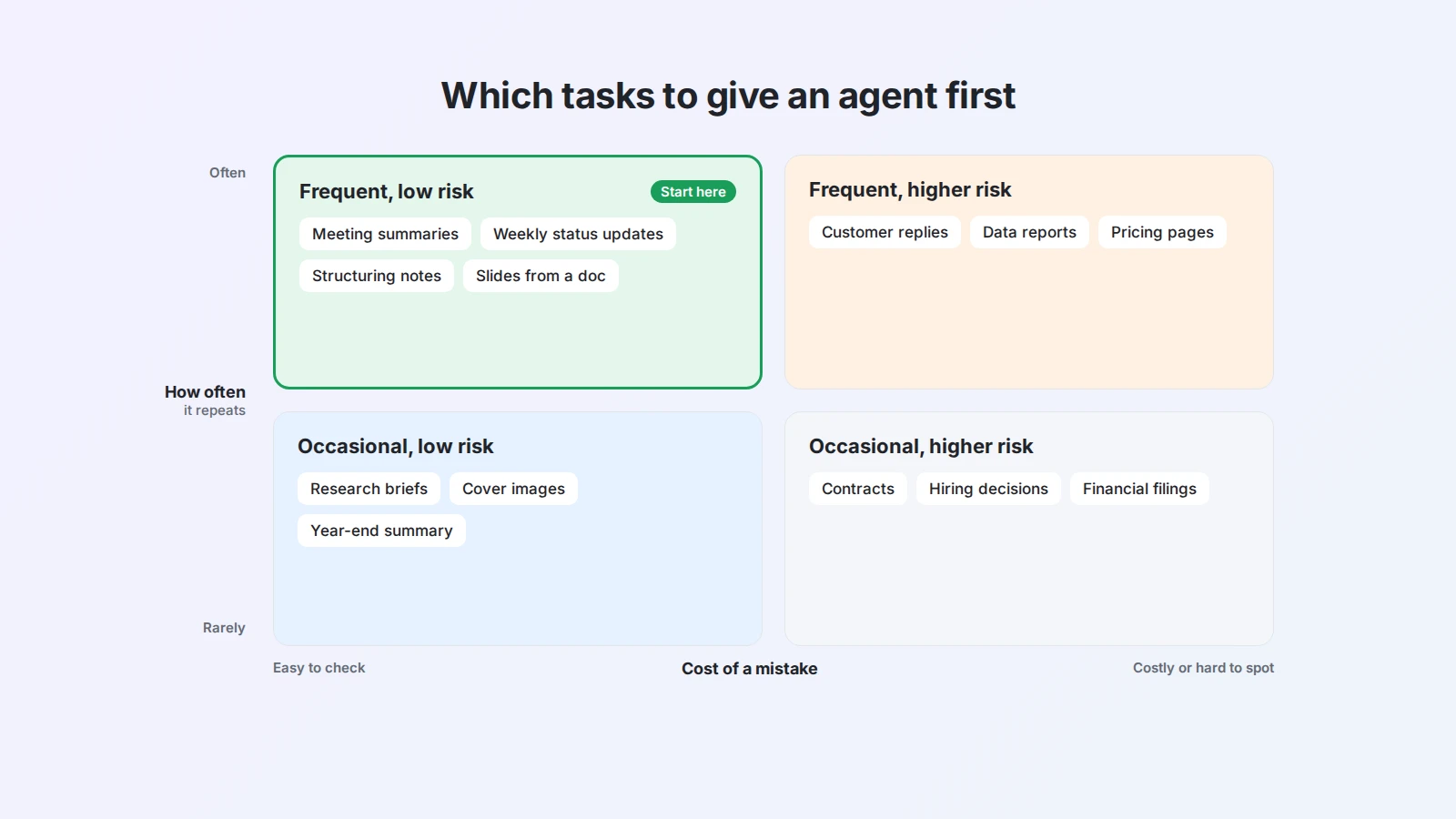
Not every task is a good fit. Two questions help:
- How often does it repeat? A task you do every week pays back the effort of writing a good request.
- How costly is a mistake, and how easy is it to spot? A meeting summary is easy to check. A contract clause is not.
Start in the corner where tasks are frequent and low-risk: summaries, status updates, structuring notes, first drafts, and formatting. Move to higher-stakes work only after you trust the results and have a clear review step.
How to write a request an agent can act on
Agents do better with a clear brief than with a clever prompt. A good request covers five things:
- Goal: what “done” looks like.
- Source: which page, database, or files to use.
- Output: the format, length, and structure you want.
- Constraints: what to include, what to leave out, the tone.
- Destination: where to save the result.
Compare these two requests:
❌ Summarize the meeting.
✅ Read the transcript on this page. Write a summary under 200 words, then a table of action items with owner and due date. Add the action items to the Tasks database with status “To do.”
The second one leaves nothing to guess. If a task is large, break it into steps and check each result before moving on. For more examples, see these AI prompts for working smarter in Buildin.
Guardrails: using agents safely at work
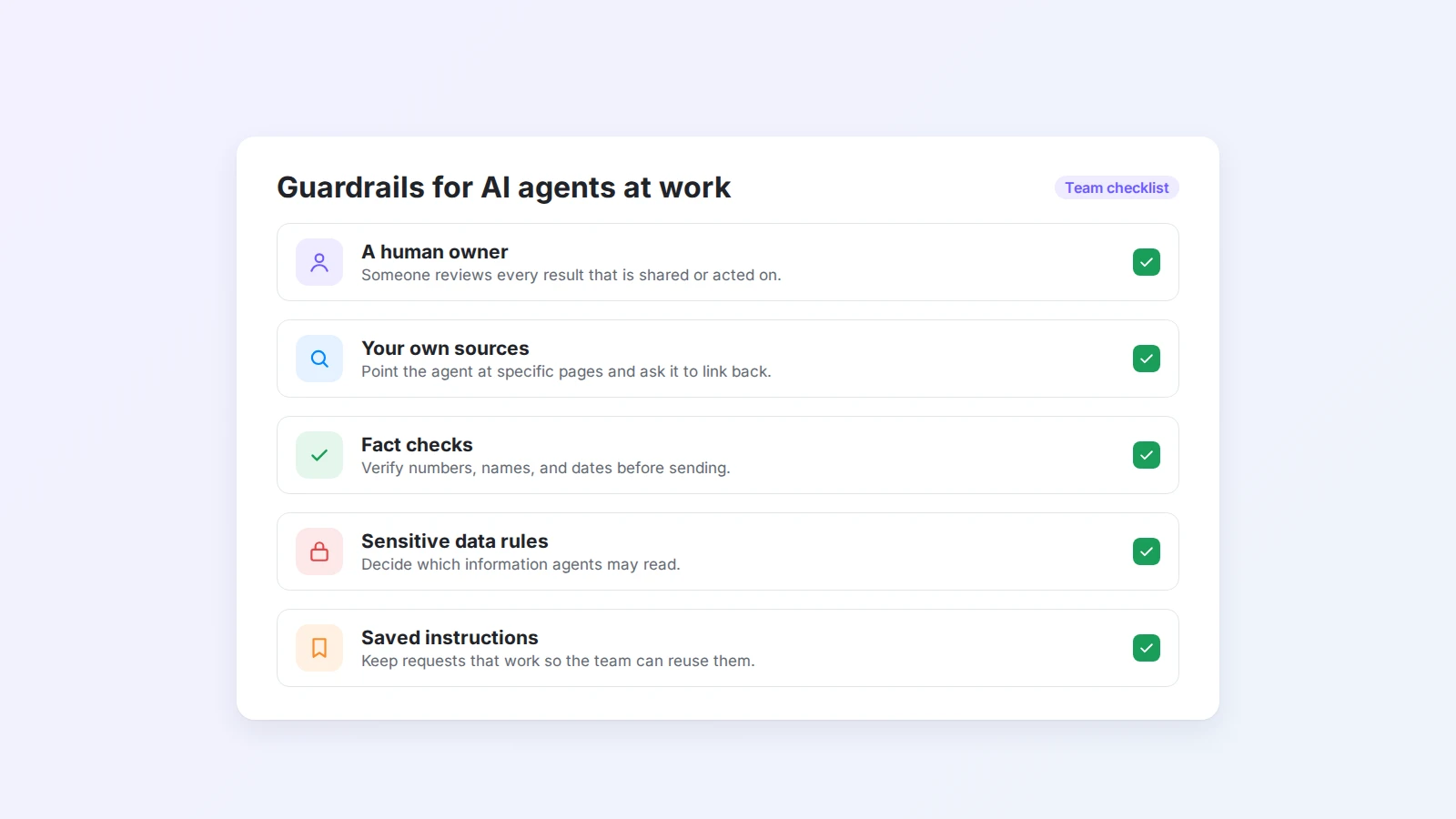
Agents can save hours, but only if people trust the output. A few habits keep it that way:
- Keep a human owner. Every result that is shared or acted on has a person who reviewed it.
- Work from your own sources. Ask the agent to use specific pages and data, and to link back to them.
- Check facts, numbers, and names. These are the most common places for errors.
- Mind sensitive information. Decide which data agents may read. For strict requirements, look at options such as private deployment.
- Write down what works. Save good requests as reusable instructions so the whole team benefits. Our guide to adopting AI in a shared workspace covers this in more detail.
Getting started with Buildin Agent
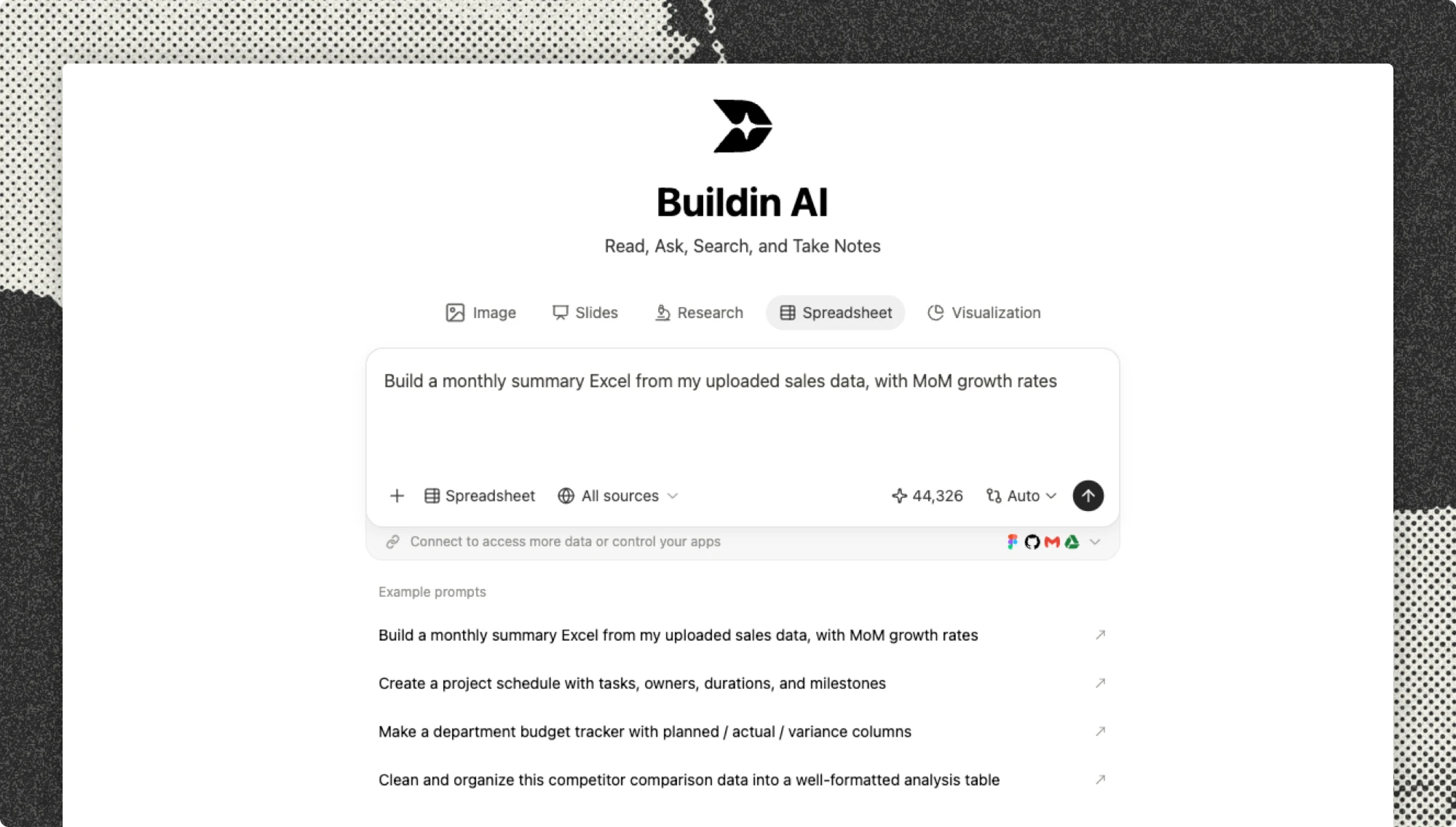
Buildin Agent works inside your workspace. It can read your pages and databases, create and fill in databases, turn transcripts into notes, and generate images, slides, and web pages, then save the results next to the work they came from.
To try it:
- Open a page you are already working on, such as meeting notes or a project list.
- Describe the result you want, using the five-part brief above.
- Review the result, then refine your request or move to the next step.
Agent usage is based on AI credits, and every plan, including Free, comes with credits to start. See pricing for details.
Final thoughts
An AI agent for work is not magic, and it is not a replacement for judgment. It is a way to hand over the multi-step, repetitive parts of a task: reading, sorting, structuring, drafting, and formatting.
Pick one task you repeat every week, write a clear request, and check the result. When it works, save the request and do it again. That is how agents move from a buzzword to a habit.
Open Buildin and give Agent your next task.

Jacbo Jensen
Focuses on knowledge management and productivity tools, with experience in building content systems and creator workflows. Responsible for researching "AI × Writing Systems" and content productivity at Buildin, exploring more efficient ways to organize and produce knowledge.