Planning Templates for the Day, Week, Month and Year
Ready-made planning templates for the day, week, month and year: calendars, to-do lists, tasks and budgets. We compare the options in Buildin, Excel, Google Sheets, Canva and Notion — and explain how to pick yours.
Everyone plans differently. Some people fill a day hour by hour, some pick just three things that matter for the week, and some prefer to see a whole month or a whole year at once. There is no universal planner — there are planning templates for different horizons: the day, the week, the month and the year.
This article collects ready-made templates by horizon, plus templates for tasks, to-do lists and budgets, across Buildin, Excel, Google Sheets, Canva and Notion. For each one we say honestly what it is good at and where it starts getting in the way.
Most planners share one weakness: the moment the plan changes, the table falls apart. A task moves to Thursday, a meeting is cancelled, a monthly goal splits into five steps — and a tidy template quickly turns into a field of crossed-out lines. So when you pick a template, don't just look at how it looks. Ask whether it will survive its first real week.
How to choose a planning template
Before you download the first planner you see, answer four questions.
- Which planning horizon you actually need. The day, week, month and year solve different problems. A daily plan answers "what do I do right now", a weekly plan answers "what matters most across these seven days", and monthly and yearly plans answer "where am I heading". Start with the horizon where you lose things most often.
- Where you will use it. If the plan gets printed and stuck on the fridge, a PDF or Canva layout is enough. If it has to be with you on both phone and computer, you need a digital template that syncs.
- How often the plan changes. If tasks get pushed regularly, choose a template where a task can be moved rather than rewritten: a database with dates, statuses and filters. Spreadsheets and paper work well where the plan is stable.
- Whether you need to share it. Family menus, trip plans, team tasks — all of these are easier to keep somewhere everyone sees the same current version, instead of emailing files back and forth.
Daily planning templates
The day is the shortest horizon, and here speed matters most: open, write, check off.
Buildin The daily planning template gathers today's tasks and makes progress easy to follow. If you work in time blocks, use the daily time blocking template: the day is split into dedicated slots for specific tasks, so deep work doesn't dissolve into small stuff. The daily dashboard template keeps personal, work and study tasks on one page.
Excel and Google Sheets A simple hour-by-hour schedule is easy to build in a spreadsheet: one column for time, one for the task, one for the done mark. Fast and free — but when a task has to move to another day, you copy it by hand.
A paper planner or a printout Good for people who remember better when they write by hand. The downside is the same as with spreadsheets: whatever isn't finished gets copied to the next page.
Who it suits: people with a lot of small errands and meetings, and anyone who wants to carve out solid blocks for focused work.
Weekly planning templates
The week is the most practical horizon: long enough to set priorities, short enough that the plan doesn't go stale.
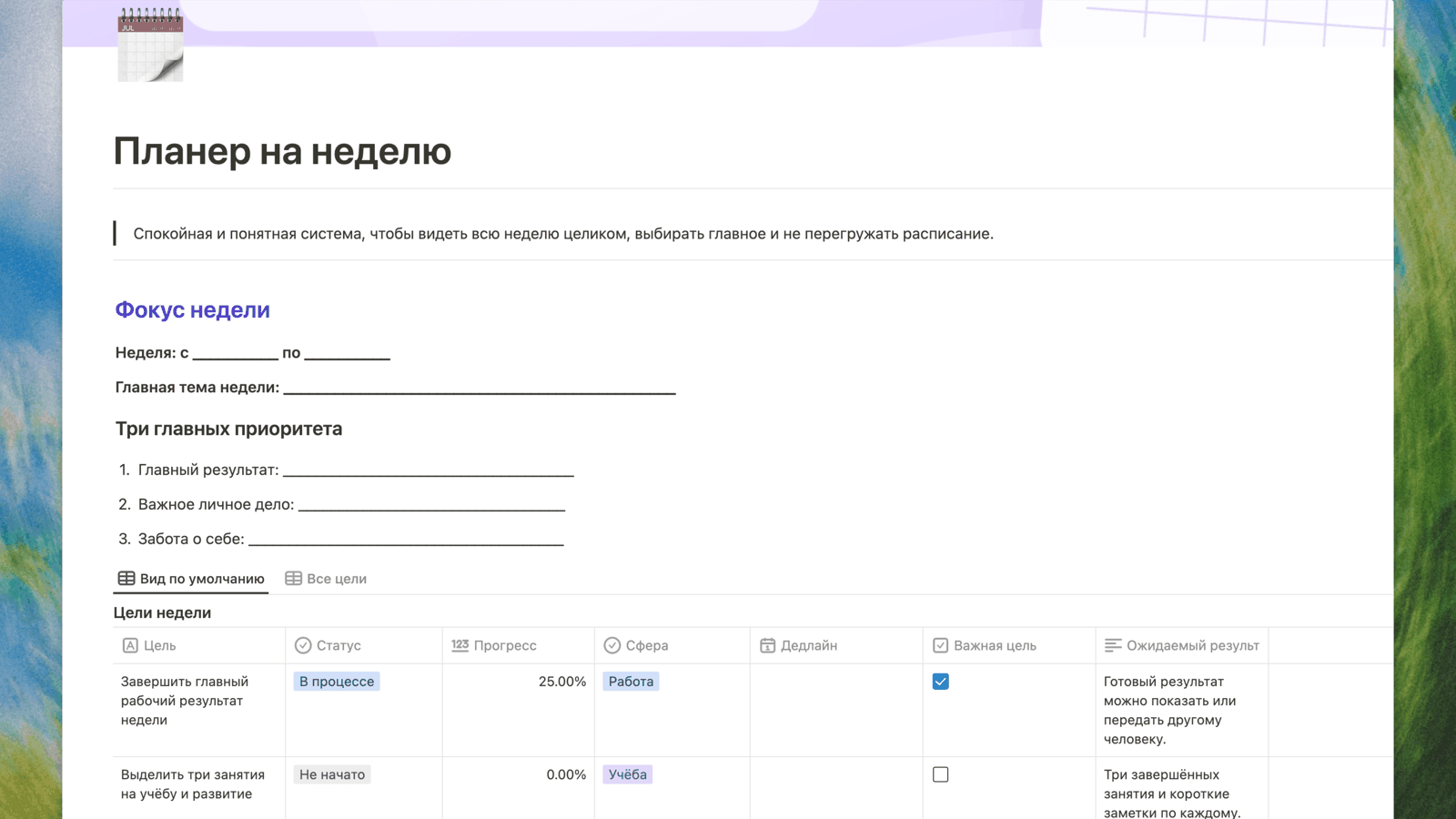
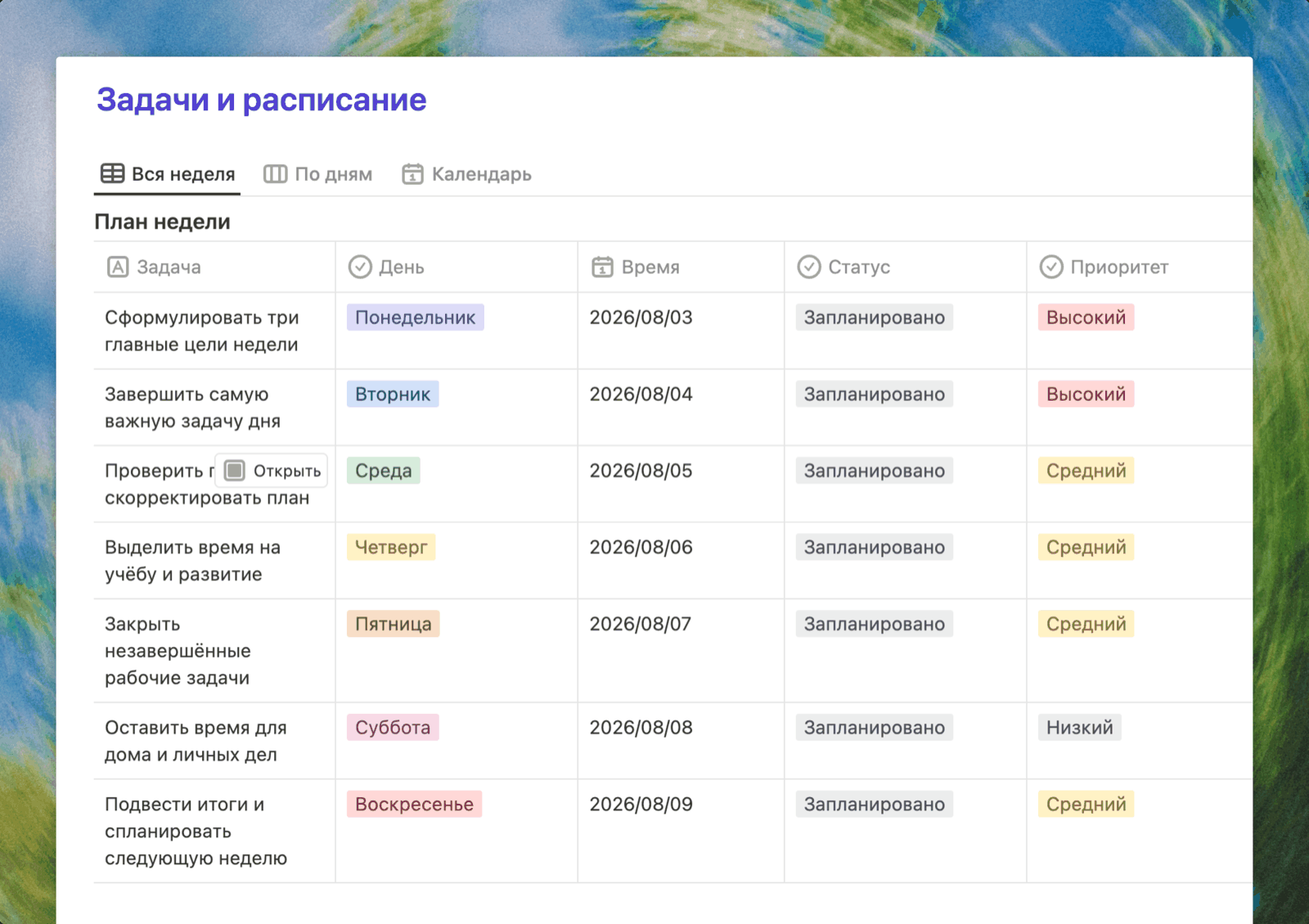
Buildin The weekly planner template keeps the focus of the week, three main priorities, goals, tasks, habits and a review in one space. The week plan inside can be viewed several ways — as a full-week table, grouped by day, or as a calendar — and there's a habit tracker alongside it. If you just want a seven-day schedule on one sheet, take the week calendar layout. The weekly goals and review template covers what most planners miss — a regular review: what worked, what is stuck, what moves on.
Google Sheets and Excel A "day × task" weekly plan is easy to build yourself, or you can adapt a built-in schedule template. A good option if the plan gets printed or you simply think in spreadsheets.
Canva Canva has plenty of good-looking weekly planners you can print. If the planner goes on a wall or gets filled in by hand, that's a strong choice. But tasks in that kind of layout can't be checked off or moved: it's a design, not a working tool.
Notion Notion's gallery has community-made weekly planners, both free and paid. In terms of capability Notion is close to Buildin: databases, calendars, links between pages.
How to use a weekly planning template
- On Sunday evening or Monday morning, write down the three main results of the week.
- Add meetings and deadlines — that shows how much time is genuinely free.
- Spread tasks across the days, leaving room for the unexpected.
- On Friday check off what's done and move the rest to next week.
Who it suits: almost everyone. If you're planning for the first time, start with the week.
Monthly planning templates
A monthly plan answers a different question: not "what do I do tomorrow", but "which three to five results should exist by the end of the month". Most people look for a monthly planning template in calendar form, but a calendar alone is usually not enough.
A monthly calendar in Excel or Google Sheets The classic: a grid of dates where deadlines and events go. Excel's built-in templates already include calendars like this, and a grid is quick to build in Google Sheets. The downside is that a couple of words fit in a calendar cell, so task detail has to live somewhere else.
Canva A printable monthly calendar: handy when you want the whole month on paper or on a wall.
Buildin The Monthly Planner keeps monthly goals, a task calendar, a week-by-week breakdown and a month-end review in one place: give tasks dates and the same plan opens as a calendar grid, a list or by week. If you prefer to run the month from your weeks, the week plan in the weekly planner template also has a calendar view. Bigger monthly goals are easy to break down in the goal setting workbook, and at the end of the month you can run a short review following the structure of the annual review template, just at a one-month scale.
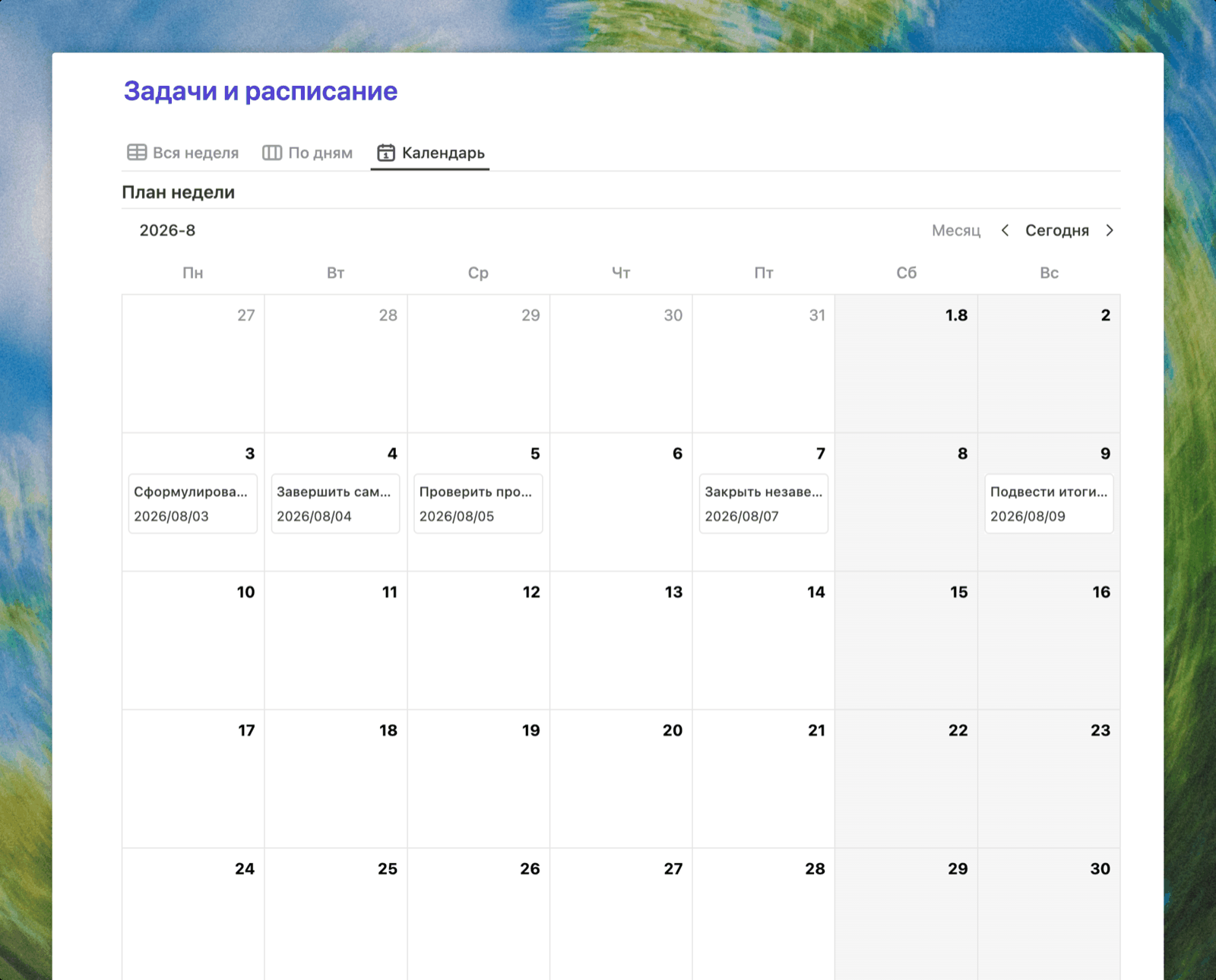
A good monthly plan is always connected to the weeks. A goal like "prepare for an interview" breaks into four weeks: CV, practice problems, mock interview, final push. Each week has a clear result, and the daily tasks follow from it on their own.
Who it suits: anyone with goals longer than a week: studying, a project, preparing for an event, personal finances.
Yearly planning templates
A yearly plan doesn't need to be packed with tasks. It answers three things: which few goals matter most this year, roughly how far each should get by the end of each quarter, and how you'll know in December whether it worked.
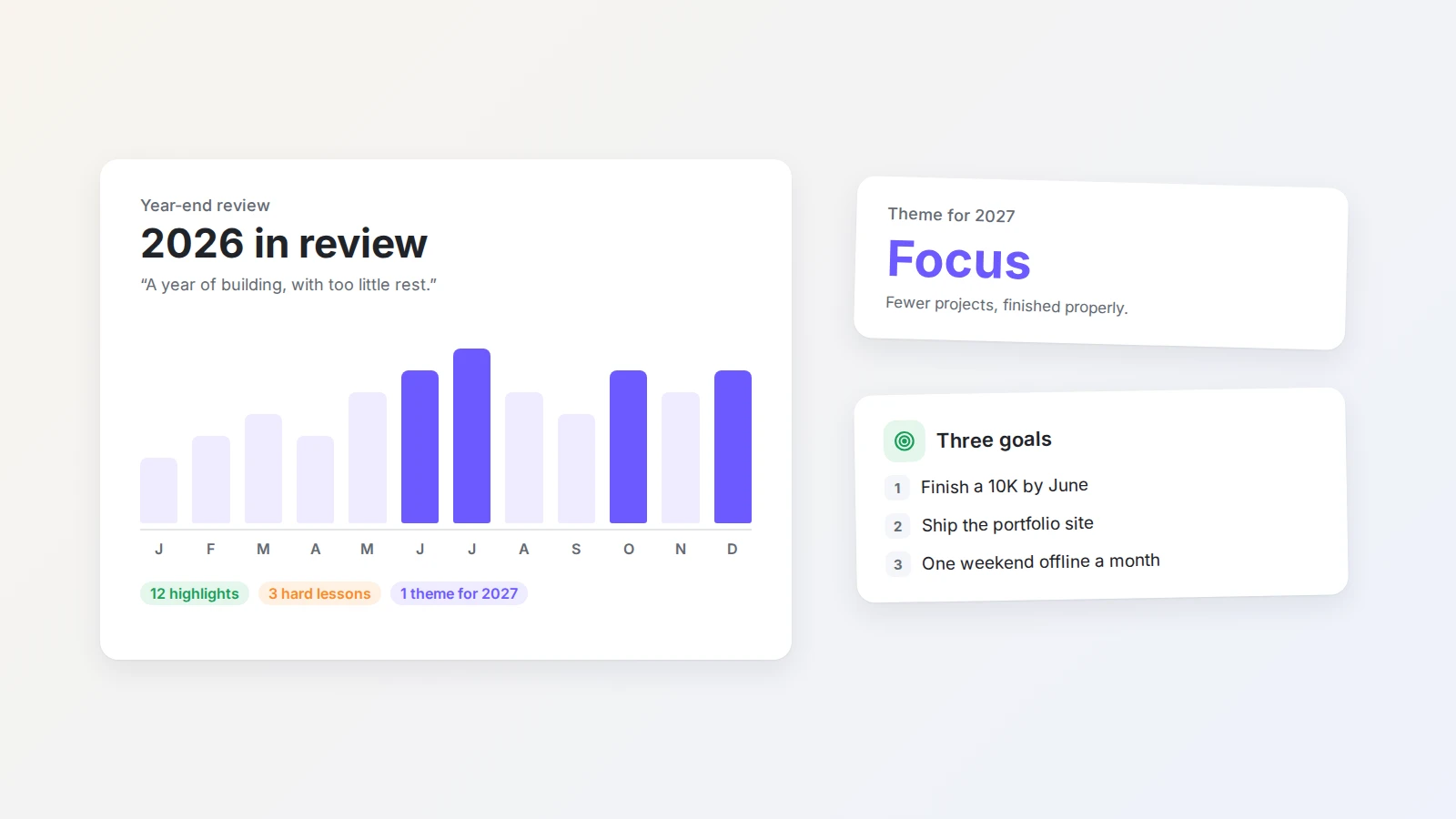
Buildin The annual review template helps you look back at the year that ended, then set the direction and the "word of the year" for the next one. The goal setting workbook breaks big goals into steps you can actually do. To make goals more tangible, use the vision board template — organised by life area, with an image for each goal.
Excel and Google Sheets A twelve-month year calendar is good for marking holidays, deadlines and key events, then printing it and putting it on the wall.
Who it suits: people who set direction in January and check progress mid-year. Break yearly goals into quarters, then push them down into monthly plans.
Task and to-do list templates
When there is more going on than a daily plan can hold, you need a separate list with priorities, due dates and statuses.
Buildin If you just need a simple list with priorities and due dates, without a separate projects database, start with the Task Tracker. The project and task management template runs projects and tasks in two linked databases — good for projects with several stages and people. The GTD task management system is built on Getting Things Done and helps you capture, sort and close tasks without holding everything in your head. For long-term personal goals there's the life checklist template.
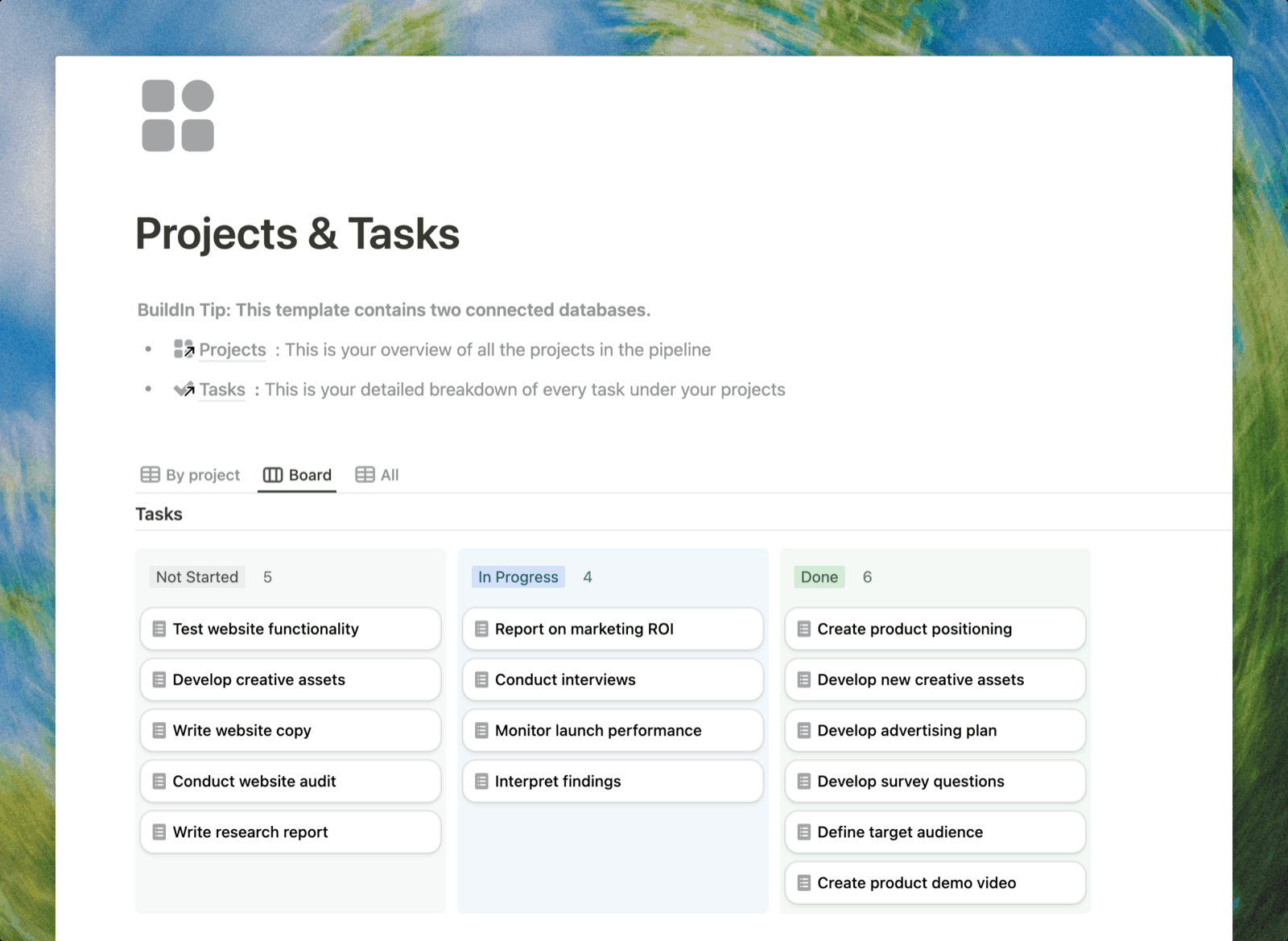
Excel and Google Sheets A three-column to-do list — task, due date, status — is the fastest way to start. Filters and conditional formatting will highlight anything overdue. But once you have dozens of tasks plus subtasks, the spreadsheet starts to tangle.
A paper list Five to seven things a day works great, but it won't carry a three-month project.
Who it suits: people running several tracks at once who want all tasks visible in one place.
Budget planning templates
A budget is a plan too: what comes in, what goes out, and where.
Buildin The finance tracker template keeps income, expenses, transfers and the monthly balance in one space. Next to it you can put the meal planner template and the grocery shopping template, so food spending gets planned together with the menu. For trips there's the trip planner template: tasks, budget, packing lists and a day-by-day route in one place.
Excel and Google Sheets Budgets are what spreadsheets do best: formulas handle totals and balances on their own. The Google Sheets template gallery has ready-made monthly and yearly budgets.
Who it suits: anyone who wants to see spending next to their plans, not only inside a banking app.
How to combine paper and digital templates
Many people don't choose one or the other — they use both:
- Paper for "today": in the morning, copy three to five things onto a sheet or a printed daily plan so they stay in front of you all day, and ticking them off feels good.
- A digital tool for the big picture: the weekly plan, monthly goals, projects and budget are easier to keep in a digital template where you can move, filter and check things from your phone.
- Sync once a week: on Friday move whatever is unfinished from paper back into the digital plan, and on Monday print the key items for the new week.
That keeps the focus that comes from writing by hand, without rewriting the whole notebook every time the plan changes.
Planning templates in Excel and Google Sheets
Many people specifically look for planning templates in Excel — and that's a perfectly reasonable choice. Here is an honest account of where spreadsheets help and where they get in the way.
Where to find them
In Excel, open "File → New" and search for "calendar", "plan" or "task list" — the built-in templates are right there. In Google Sheets, open the template gallery on the home screen: it has to-do lists, schedules and budgets. The advantage of Google Sheets is that the file opens on your phone immediately and is easy to share.
What spreadsheets are good at
- Calculations. Budgets, hours, totals — formulas cover all of it.
- Printing and sending files. A spreadsheet is simple to print or send on.
- Nothing to learn. Everyone can use a spreadsheet.
Which columns a planner needs
If you're building the table yourself, start with these six columns — they cover almost any plan:
| Column | Why you need it |
|---|---|
| Task | Write it as a short action: "send the report", not "report" |
| Due date | The day the task has to be finished by |
| Status | "Not started", "In progress", "Done" — as a dropdown |
| Priority | High, medium, low: helps you decide where the day starts |
| Category | Work, study, home, finances — so you can filter by area |
| Notes | Links, contacts and context needed to get it done |
Make status and priority dropdowns rather than free text, otherwise filtering and sorting will start lying to you. For tasks that repeat every week, add a single row marked "recurring" instead of copying them by hand.
Where spreadsheets start getting in the way
- Moving tasks. A task that moves from Monday to Thursday is either duplicated or lost. In a database, it's just a changed date.
- Multiple views. The same tasks often want to be seen as a list, by day, and as a calendar. In a spreadsheet that means several sheets and the job of keeping them in step.
- Context. It's hard to attach a note, a file or a discussion to a cell.
How Buildin solves this
The same plan can live in a database: every task is a record with a date, a status and a priority, while the list, the grouping by day and the calendar are simply different views of the same data. Change the date and the task moves itself in the calendar. If you'd rather keep the familiar spreadsheet look, take the Planning Spreadsheet: the same columns as above, with statuses, due dates and a calendar already set up.
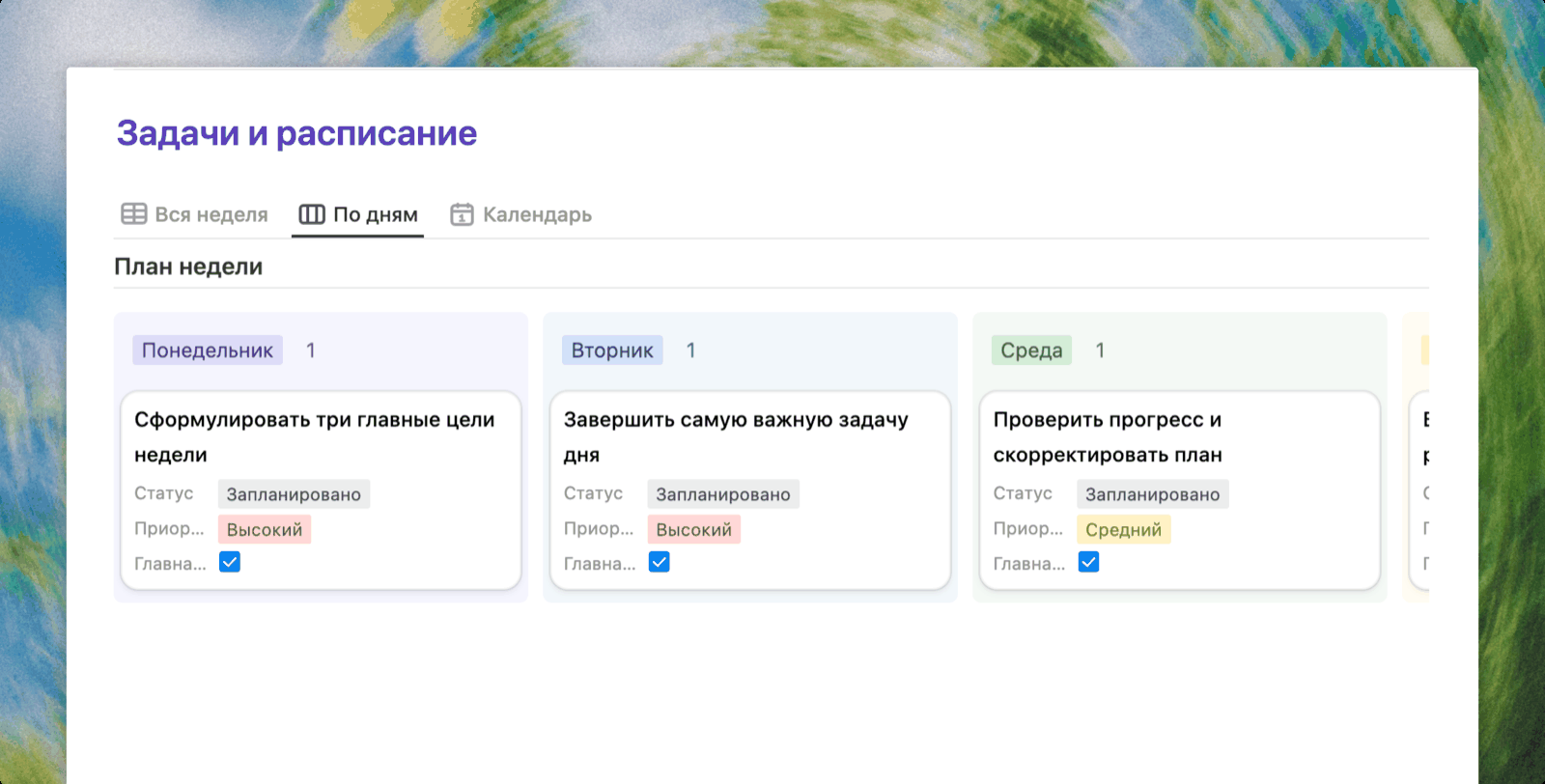
Earlier in this article you already saw two other views of that same week plan — the full-week table and the calendar. These aren't three separate files, and they aren't three sheets that need keeping in sync: there is one set of data, and you look at it whichever way suits the moment. For anyone used to spreadsheets the switch is barely noticeable: the structure is still a table, but the plan stops falling apart every time something changes.
Comparison table
| Tool | Best for | Moving tasks | Printing | Collaboration |
|---|---|---|---|---|
| Buildin | Weekly plan, tasks and budget in one system | Change the date and it moves in every view | Not the main scenario | Yes |
| Excel | Budgets and calculations | Manual | Yes | Via OneDrive |
| Google Sheets | Simple lists and budgets you check on a phone | Manual | Yes | Yes |
| Canva | Good-looking printable planners and calendars | Not possible | Yes | Yes |
| Notion | People already working in Notion | Same as a database | Not the main scenario | Yes |
Frequently asked questions
Where can I find free planning templates?
Free planning templates are available in Buildin, in Excel (File → New), in the Google Sheets template gallery, and in Canva and Notion. If your plan changes often, a database-based template works better; if you need to print it, go with a Canva or Excel layout.
Which template should I use for monthly planning?
If you need to see dates at a glance, pick a monthly calendar template. If goals and tasks matter more, pick a monthly plan with a goal list and a week-by-week breakdown. The combination that works best is this: the calendar holds deadlines, and the weekly plan holds the daily work.
Are there planning templates for tasks in Excel?
Yes. Excel ships with task list, calendar and schedule templates, and Google Sheets has to-do lists and weekly plans. For a simple list that is plenty, but once tasks move around often or several people edit them, the spreadsheet has to be rebuilt again and again.
What is the difference between a calendar template and a to-do list?
A calendar shows when things happen; a to-do list shows what needs doing. Weekly planning usually needs both: the calendar pins down meetings and deadlines, and the to-do list helps you set priorities inside each day.
Can planning templates be printed?
Yes. Canva layouts and Excel templates are the easiest to print. Digital templates like Buildin are built for the screen: tasks can be moved, filtered and checked off straight from your phone.
Where to start
If you're not sure where to begin, take one horizon: the week. Copy the weekly planner template, write down three main results and all your meetings, and run a short review on Friday. Once the weekly rhythm sticks, add monthly goals and finance tracking.
Need a printed planner for the wall — use Canva. Need to calculate a budget — Excel or Google Sheets. And if the plan keeps changing and is scattered across several places, pull it into Buildin, where tasks, calendar and goals are connected to each other.

Amara Elara
Specializes in visualizing complex processes and improving product education. Responsible for user support, product tutorials, and visual guides at Buildin, helping users improve tool adoption and overall productivity.